Notion Place Property and Map View: Plot Locations on a Map
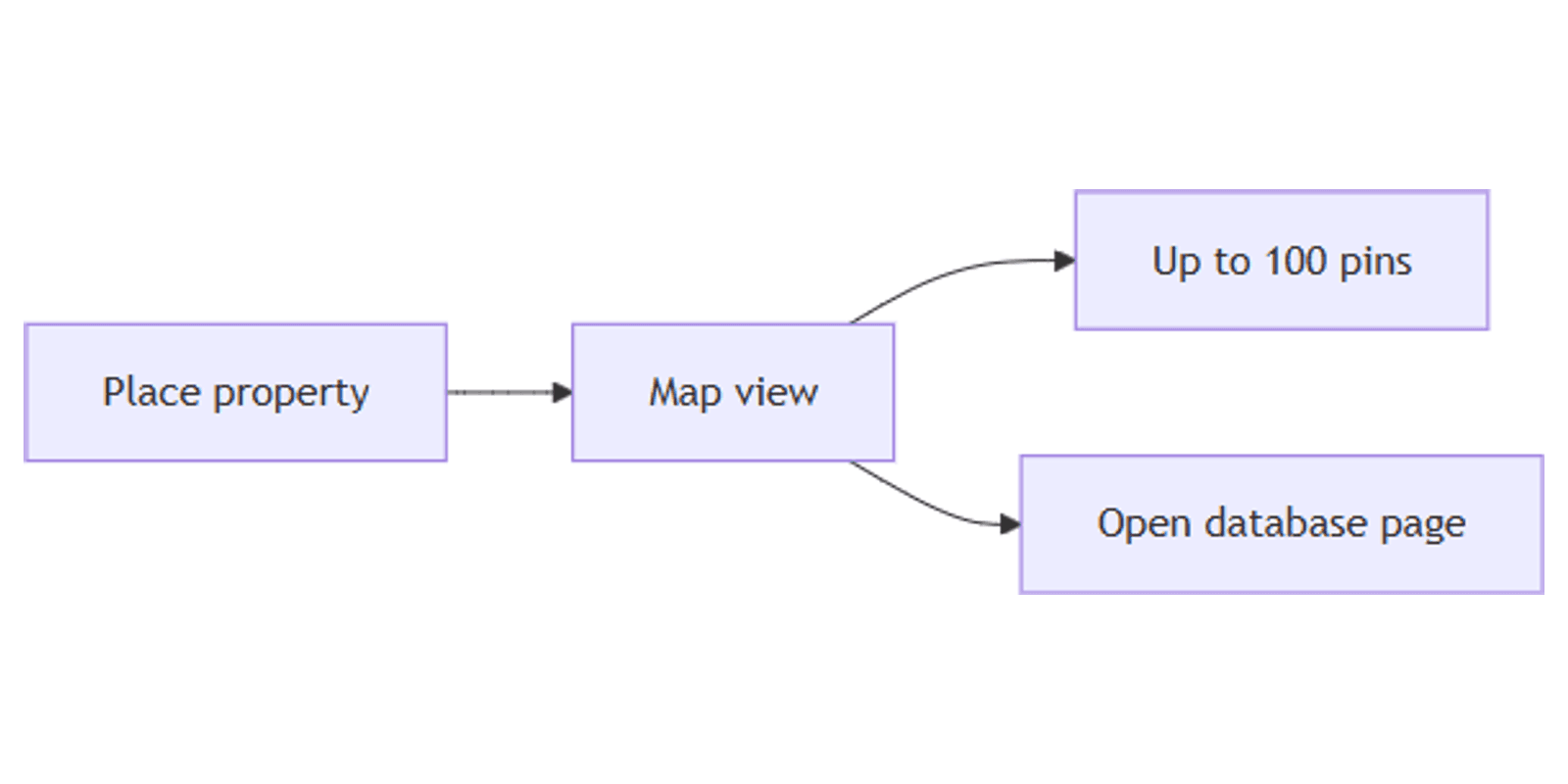
Notion Place properties store a real location - place name, address, or current position - and Map view plots those rows as pins on an interactive map. Use them for trip plans, field work, client sites, or restaurant lists without pasting Google Maps links by hand.
This guide covers how to add a Place property, create a Map view, stay under the 100-pin limit, and build travel and CRM workflows. See Notion's Map view documentation for official details.
What is the Place property?
Place is a database property for locations. You can fill it by:
- Granting access to your current location
- Searching a place name
- Entering an address
Address search uses a third-party provider - coverage and quality can vary by region (Notion Help).
| Place | Text / URL | |
|---|---|---|
| Stores | Structured location (mappable) | Free text or link |
| Map pins | Yes | No |
| Filter / sort | Text-based on name/address | Full text filters |
| Best for | Trips, venues, sites | Notes, custom URLs |
Use Place when you need pins on a map. Use Text if you only need a loose label without mapping.
How to add a Place property
- Open a database.
- Click Add property or + next to the rightmost column.
- Select Place.
- Click a cell → search a name/address or use current location.
Tip: if you convert an existing Text column of addresses to Place, clean up rows so each value resolves to a real location - otherwise pins may not appear.
What is Map view?
Map view shows database items as pins. Click a pin to open the page; zoom and drag to explore.
Requirements:
- The database needs a Place property.
- If none exists when you create Map view, Notion creates one for you.
Limit: up to 100 items can show as pins at once (Notion Help). Use filters or split across views if you have more locations.
How to create a Map view
Option 1: Add to an existing database
- Hover a view name → click + (or Add view).
- Select Map.
- Name the view → Create.
Option 2: Slash command
- On a page, type
/mapand press Enter. - Link or create a database with Place data.
Map by the right Place property
If you have multiple Place properties (common when Map view auto-created one Place and you added another):
- Open the view settings slider.
- Layout → Map by.
- Select the Place property that should drive pins.
Wrong Map by selection is a top reason pins look "missing."
Filter and sort places
Filtering and sorting Place fields is text-based:
- Filter where Place contains "Paris" or "Street".
- Sort alphabetically by place name/address.
Combine with other properties:
- Status is To visit
- Select Category is Restaurant
- Date is within This trip
- Checkbox Visited is unchecked
Filtered maps stay under the 100-pin cap and load faster.
Practical workflow examples
Trip itinerary
- Properties: Location (Place), Day (Date), Notes, Category (Select).
- Calendar view by Day for the schedule.
- Map view filtered to this trip's dates or Status is Planned.
- Open pins for reservations and links.
Works with the Trip Planner template.
Favorite restaurants / shops
- Place + Multi-select Tags (Coffee, Dinner).
- Map filtered Tags contains Coffee.
- Gallery view (Gallery) for photos via Files & media.
Field work or client sites
- Place + Client name + Owner (People).
- Map filtered Owner contains Me.
- Unique ticket keys with Unique ID for site visits.
Event venues
- Place + Event date + Capacity (Number).
- Map of candidate venues; Calendar of booked event days.
- Form intake for venue suggestions (Forms).
Map vs Calendar vs Gallery
| Goal | Best view |
|---|---|
| See where items are | Map (+ Place) |
| See when items happen | Calendar |
| Browse photos of places | Gallery |
| Edit many fields | Table |
Many travel databases use all three: Calendar for days, Map for pins, Gallery for photos.
Limits and known gaps
- 100 pins per map view - filter or split views for larger sets.
- No distance calculation between two places yet (Notion Help).
- Search coverage varies by region via the third-party provider.
- Bulk CSV → Place import is limited compared to Text - expect to search/select locations carefully for large lists.
Tips for teams
- One canonical Place property - avoid duplicates; set Map by explicitly.
- Filter before mapping cities - "Tokyo week" beats a worldwide 500-row dump.
- Pair Place with Date - itineraries need both when and where.
- Verify pins after import - bad addresses simply will not plot.
- Name pages clearly - pin popovers show the page title.
Permissions and troubleshooting
Who can edit Map layout: members with Can edit access to the database.
Common issues:
- No pins - fill Place with a resolvable location; check Layout → Map by.
- Wrong set of pins - multiple Place properties; switch Map by.
- Over 100 locations - add filters or create additional map views (e.g. by city or status).
- Converted text addresses missing - re-select locations after converting Text → Place.
FAQ
Does Notion Map view require a Place property?
Yes. Map view needs Place. If missing, Notion creates a Place property when you add the view. See Notion maps help.
How many pins can a Notion map show?
Up to 100 items at a time. Filter the view or split across maps for larger databases.
Can Notion calculate distance between two places?
Not at this time, per Notion's documentation.
Conclusion
Place + Map view turn location lists into interactive maps - add Place, plot pins, filter under 100 visible items, and open pages from each pin. Pair with Calendar for day plans and Gallery for photos.
For all view types, see Notion database views. For dated schedules, see Calendar view and Date property.
Notion Templates
Start Selling Notion Templates - Start Now!