Notion Database Views: Table, Board, Timeline, Calendar, and More
Once you create a Notion database, the next question is how to display it. Notion offers several views - the same data, shown in different layouts. Choosing the right view makes tasks, schedules, collections, and reporting much easier to work with.
How to Add or Switch Views
Open your database in Notion.
Click the view name tabs at the top (e.g. Table), or click + to add a new view. On smaller screens, open the current view name and select New view.
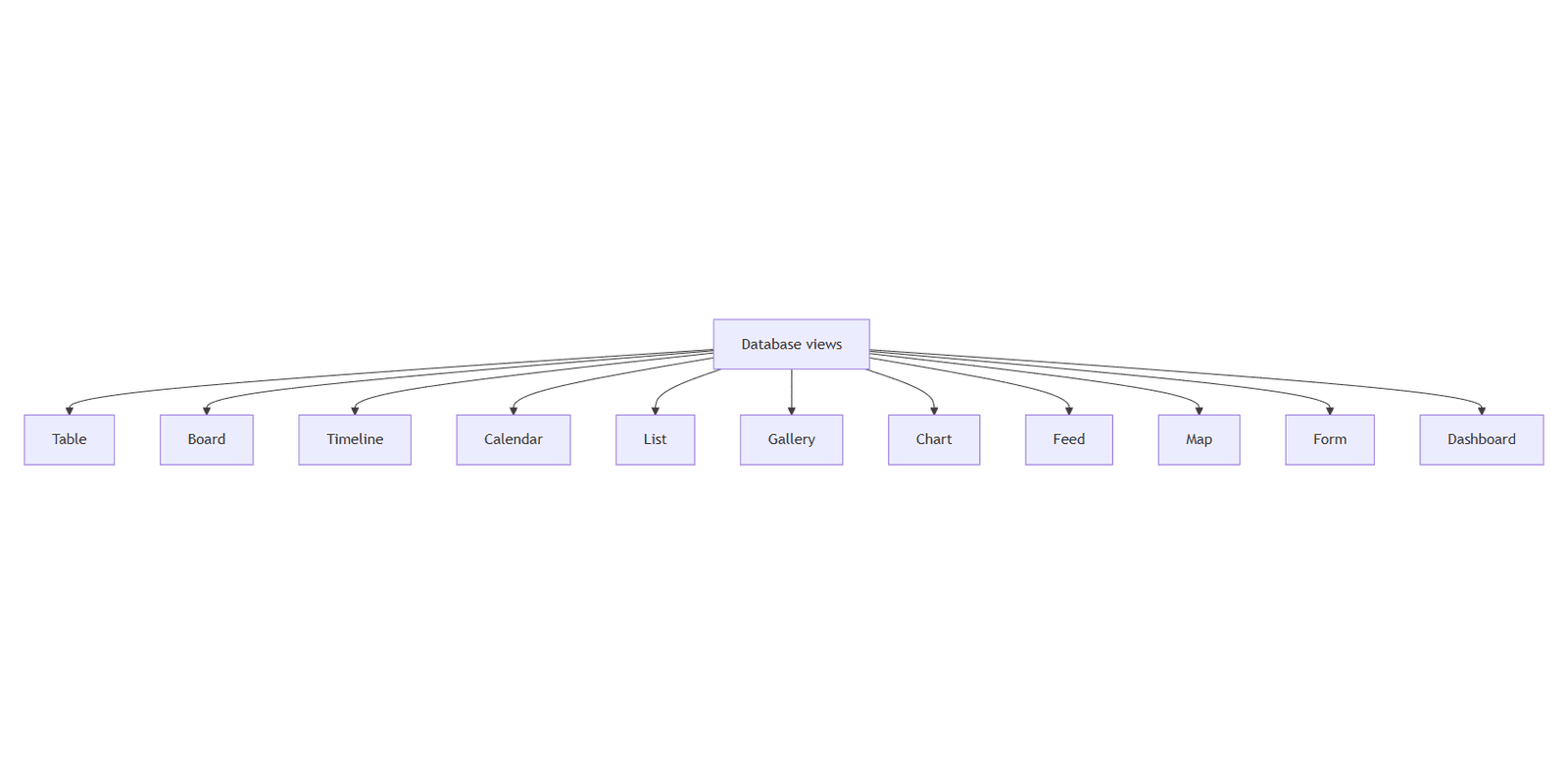
Choose a layout. Notion currently supports Table, Board, Timeline, Calendar, List, Gallery, Chart, Feed, Map, Form, and Dashboard.
Rename the view (e.g. "Task board" or "Content calendar") so you can switch back later.
Each view keeps the same underlying data. For table, board, list, calendar, timeline, gallery, feed, and map views, filters, sorts, and groups are saved per view. Chart and form views use their own layout settings instead.
Table View
Best for: spreadsheets, detailed editing, and seeing many properties at once.
Shows rows and columns like a traditional spreadsheet.
Ideal when you need to scan dates, numbers, tags, and status side by side.
Use when entering or bulk-editing data.
Board View
Best for: kanban workflows and status-based task tracking.
Displays cards in columns, usually grouped by a Status or Select property.
Drag cards between columns to update status (e.g. To-do → In progress → Done).
Pair with grouping and filtering for focused boards (e.g. only "In progress" tasks).
Quick setup - task board:
- Add a Status property with values like To-do, In progress, Done.
- Create a Board view and group by Status.
- Add a filter if needed (e.g. assignee is you).
Full guide: Notion Board View.
Timeline View
Best for: projects with start and end dates, or anything that spans time.
Shows entries as bars along a horizontal timeline.
Requires date properties (start date, end date, or a single date range).
Useful for roadmaps, campaigns, and multi-day tasks.
Full guide: Notion Timeline View.
Calendar View
Best for: deadlines, events, and date-based planning.
Plots entries on a calendar using a Date property.
Switch between month, week, and list layouts.
Great for editorial calendars, meeting schedules, and due dates.
Quick setup - content calendar:
- Add a Date property (publish date or due date).
- Create a Calendar view and select that date property.
- Optionally filter by Tags or Status to show only scheduled posts.
List View
Best for: lightweight lists when you do not need a full table.
Shows entries as a simple vertical list with the page title and a few key properties.
Works well for daily task lists, reading queues, backlogs, and dashboard-style summaries.
Less visual clutter than a table when you only care about a handful of fields.
Full guide: Notion List View.
Gallery View
Best for: visual collections - portfolios, mood boards, recipe cards, or product lists.
Displays each entry as a card, often with an image.
Gallery cards show images from a Files & media property, or page content when no file is set.
Works well when images matter more than dense tables.
Chart View
Best for: totals, trends, and at-a-glance reporting.
Turns database data into vertical bar, horizontal bar, line, donut, or number charts.
Group and aggregate by properties (e.g. tasks by status, revenue by month).
Use when you want to spot patterns, then switch to a table or board to edit the underlying data (chart view is read-only for entries).
Free plan: one chart per workspace. Paid plans: unlimited charts.
Feed View
Best for: browsing team updates in a scrollable, social-style layout.
Displays entries as stacked cards in a linear feed, with page content and optional properties visible on each card.
Supports commenting on posts and tracking view counts - useful for internal announcements, project updates, and company communications.
Handy when readers need to scan full posts quickly, not just property values.
Full guide: Notion Feed View.
Map View
Best for: location-based planning and geographic data.
Plots entries on a map using a Place property (place name or address).
Useful for travel plans, office locations, event venues, or client sites.
Shows up to 100 pins at once - use filters to narrow large databases.
Form View
Best for: collecting new entries through a simple submission form.
Presents database properties as form fields that anyone can fill out and submit.
Each submission creates a new row in the database - useful for intake requests, feedback, sign-ups, and bug reports.
Customize which properties appear on the form and which are required.
Available on all Notion plans. Create with + → Form on a database, or type /form on a page. Share via a link with teammates or external respondents.
Conditional logic (show follow-up questions based on answers) is available on Business and Enterprise plans. Form building is desktop and web only.
Quick setup - feedback form:
- Add properties for the fields you need (e.g. Name, Email, Message).
- Create a Form view and choose which properties to show.
- Share the form link with respondents.
Dashboard View
Best for: combining multiple widgets into one at-a-glance control center.
Arranges several database views (tables, boards, charts, calendars, and more) in a single layout.
Can pull widgets from one database or multiple databases in your workspace.
Supports global filters that update several widgets at once.
Holds up to 12 widgets (max 4 per row). Use Edit mode to arrange the layout and View mode for day-to-day use.
Available on Business and Enterprise plans.
Quick setup - team status hub:
- Create a Dashboard view on your tasks database.
- Add a Chart widget grouped by status.
- Add a Board or List widget filtered to active work.
Saving and Reusing Views
After you configure a view, Notion remembers those settings for that view tab. Create multiple views for the same database:
All tasks - table with every column visible.
My board - board filtered to your assignee.
This week - calendar filtered to the current week.
Overview - dashboard with charts and a short list.
This pairs well with filtering, sorting, and grouping - each layout view can use its own combination.
Which View Should You Use?
| Goal | Suggested view |
|---|---|
| Edit many fields quickly | Table |
| Move tasks through stages | Board |
| Plan over weeks or months | Timeline |
| See what's due when | Calendar |
| Simple focused list | List |
| Browse visually | Gallery |
| Totals and trends | Chart |
| Team updates and announcements | Feed |
| Location-based planning | Map |
| Collect submissions | Form |
| Multi-widget overview | Dashboard |
Start with a table, then add specialized views as your workflow grows. You can always add more views without duplicating data.
For parent-child task hierarchies in one database, see Notion sub-items.
Notion Templates
Start Selling Notion Templates - Start Now!