Notion Status Property: Track Workflow Progress
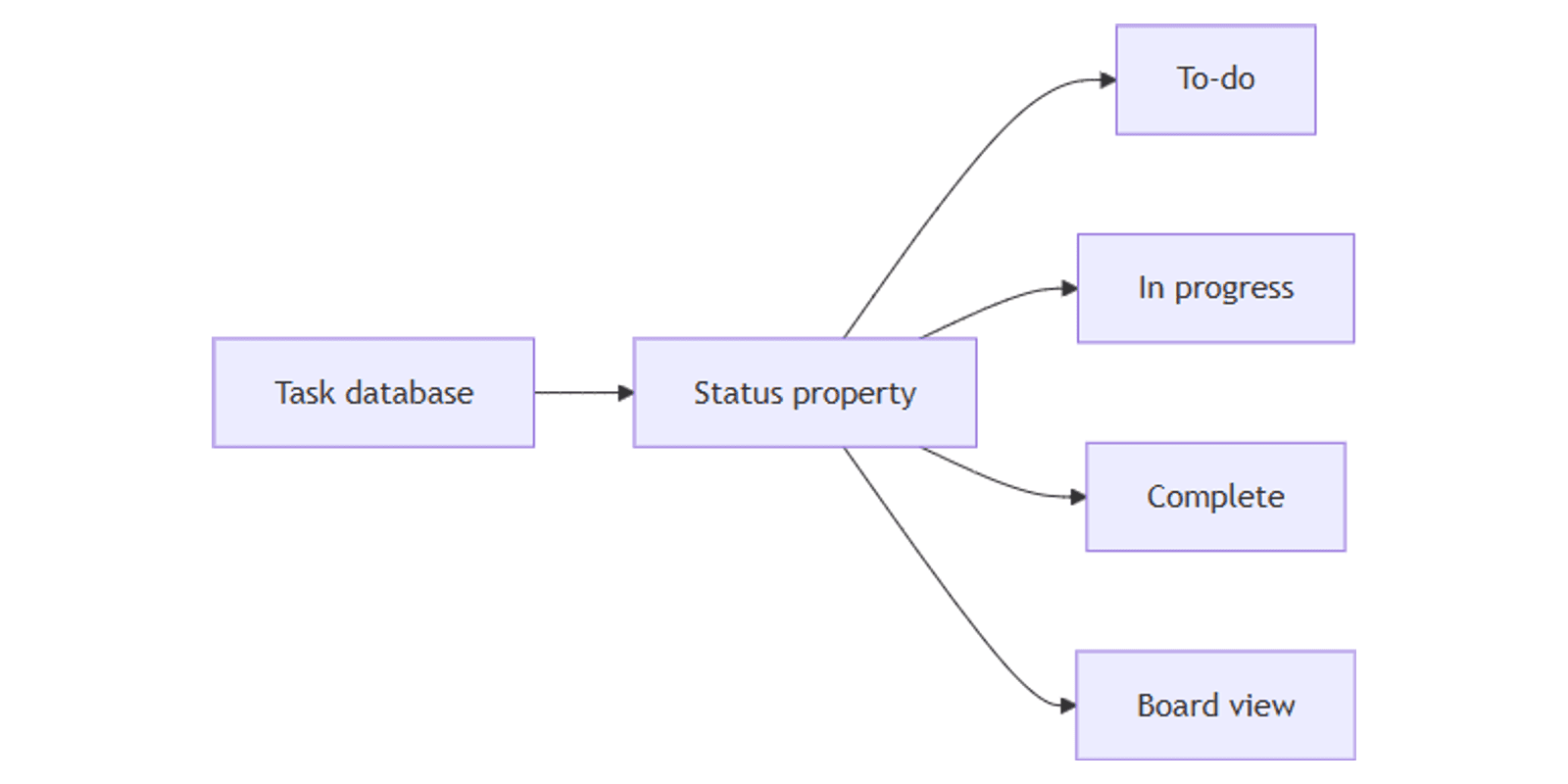
If you track tasks, projects, or pipelines in Notion, the Status property is built for workflow progress. It groups every item into To-do, In progress, or Complete - with custom sub-statuses inside each stage.
This guide covers how Status works, how to customize it, and how to pair it with board views, filters, and Select properties for richer task databases.
What is a Status property?
Status is purpose-built for progress tracking. Every item sits in one of three fixed groups:
- To-do - not started or waiting
- In progress - actively being worked on
- Complete - done
You add custom sub-statuses inside those groups - for example "Blocked" under To-do, or "In review" under In progress.
| Status | Select | |
|---|---|---|
| Purpose | Track workflow progress | Categorize by one label |
| Structure | Three fixed groups with sub-statuses | Flat list of options |
| Best for | Tasks, projects, pipelines | Priority, type, department |
Use Status when you need to know where work stands. Use Select when you need to tag what kind of work it is - priority, department, content type, and so on.
How to add a Status property
- Open your Notion database.
- Click + next to the rightmost column (or Add property on a new database).
- Name the property (e.g. Status).
- Choose Status as the property type.
Notion pre-loads default sub-statuses in each group (e.g. Not started, In progress, Done). You can rename individual statuses and add new sub-statuses under any group.
Customize Status options
- Click the Status column header → Edit property.
- Under each group (To-do, In progress, Complete), click Add status to create a sub-category.
- Rename options, change colors, or reorder them by dragging.
- You cannot remove the three main groups - only customize what lives inside them.
Example workflow:
- To-do: Backlog, Up next, Blocked
- In progress: Drafting, In review, Waiting on client
- Complete: Published, Archived
Checkbox display
Status can display as a dropdown (like Select) or as a checkbox. In checkbox mode, items in To-do appear unchecked; marking complete moves them to Complete.
Board view with Status
Board view works especially well with Status:
- Click + to add a Board view.
- Open view settings → Group → Group by → Status.
- Drag cards between columns to update progress.
For a focused board showing only active work:
- Open view settings → Filter.
- Add a filter: Status → In progress (or include specific sub-statuses).
- Optionally Group by Status to see sub-categories as columns.
Learn more in our grouping and filtering guides.
Filter and sort by Status
Status works with database filters, sorts, and grouping:
- Filter - show only rows where Status is "In progress" or not Complete.
- Group - organize rows by workflow stage or sub-status.
- Save views - e.g. "My tasks" (assignee is you) + Status is not Complete.
Practical use cases
- Project tracking - pipeline from backlog to shipped.
- Editorial calendar - draft, review, scheduled, published.
- Support tickets - open, in progress, resolved.
- Hiring - applied, interviewing, offer, hired.
Pair Status with a Select property for priority or category - e.g. a content database with Status for Draft / In review / Published and Select for Content type (Blog, Newsletter, Social).
Tips for teams
- Standardize sub-categories across projects so everyone uses the same labels.
- Avoid duplicating workflow in Select - if Status already tracks progress, use Select for something else (priority, type, team).
- Use conditional color in view settings to highlight overdue due dates or priority tags.
- Review sub-statuses periodically - merge or retire labels that teams no longer use.
Conclusion
Status gives you structured workflow tracking with To-do, In progress, and Complete groups. Add it to any task or project database, then build board views and filtered lists around it. For single-choice categories like priority or department, add a Select property alongside Status.
Use Notion Formulas 2.0 for status-based labels, database automations to set dates or notify teammates when status changes, and sub-items to break each task into nested sub-tasks.
Notion Templates
Start Selling Notion Templates - Start Now!