Notion People Property: Assign Tasks and Filter by Owner
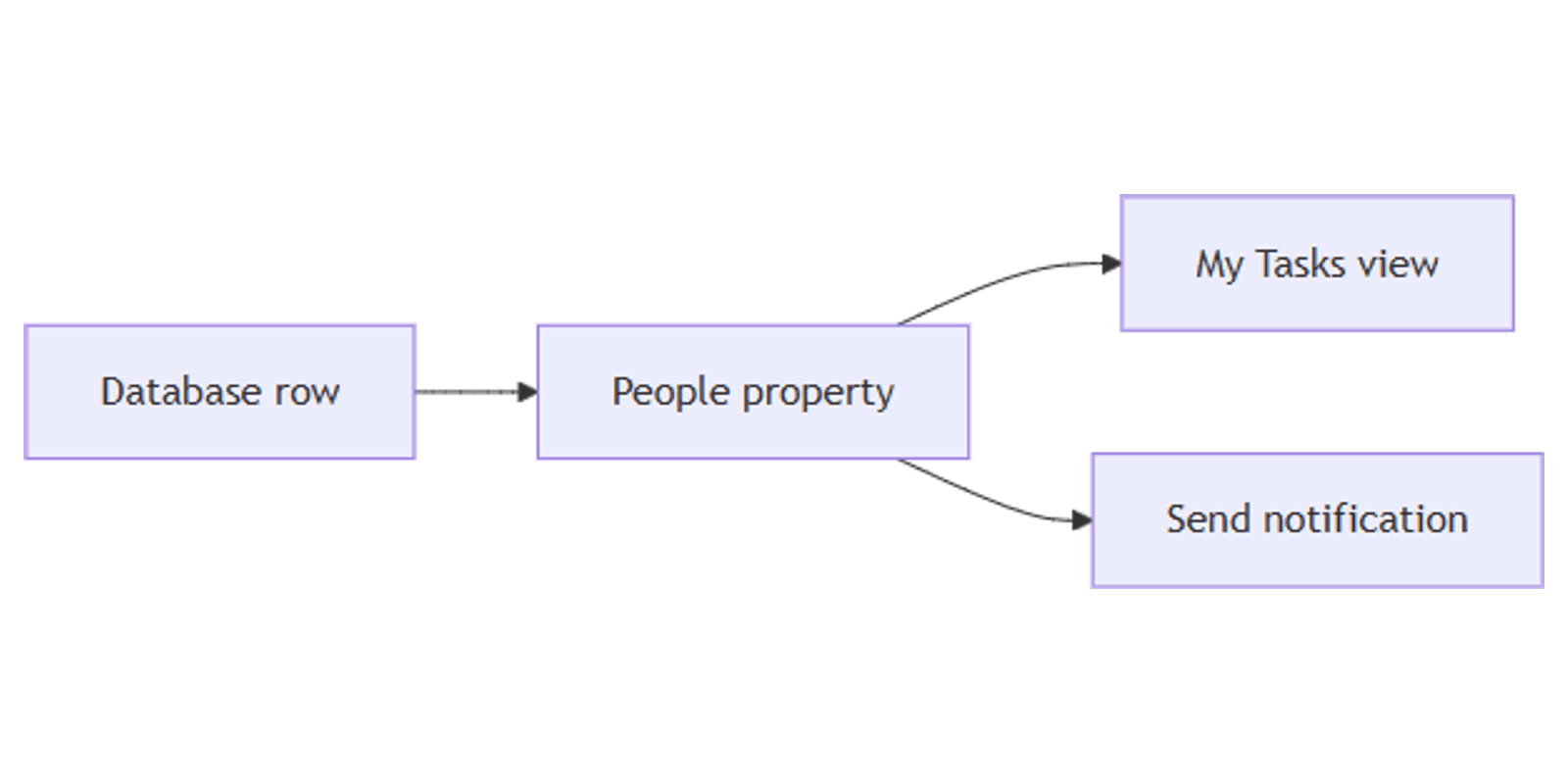
Notion People properties link database rows to workspace members - assign a task, filter a My tasks view, or notify the owner when something changes. Unlike a Select tag with names typed in manually, People connects to real Notion accounts.
This guide covers how to add a Notion People property, assign one or multiple owners, build filtered views, and pair assignments with automations and forms.
What is a People property?
People is a database property that stores one or more workspace members on a row. When you assign someone, they typically get a Notion notification and access to that page.
| People | Select | |
|---|---|---|
| Stores | Workspace members (accounts) | Text labels you define |
| Notifications | Yes - assignee is notified | No automatic notification |
| Best for | Task owners, reviewers, account managers | Categories, priority, department |
| Form question | Person (pick from workspace) | Multiple choice |
Use People when you need a real owner on a row. Use Select when you need a category that is not tied to a Notion account.
People properties also appear as Person questions on Notion forms - respondents pick from workspace members when the form is internal.
How to add a People property
- Open your database.
- Click + next to the rightmost column.
- Name the property (e.g. Assignee, Owner, or Reviewer).
- Choose People as the property type.
- Click a cell and select one or more workspace members from the dropdown.
Only members and guests already in your workspace appear in the list. External form respondents cannot be added via a People property unless they have workspace access.
Assign one or multiple people
- Single owner - click the cell and pick one person.
- Multiple owners - select more than one name on the same row (useful for pair programming, co-authors, or shared accounts).
To remove someone, click their name in the cell and press Backspace, or open the picker and deselect them.
Filter and sort by People
People works with filtering, sorting, and grouping:
- Filter → Assignee contains Me - build a personal My tasks view.
- Filter → Assignee is empty - find unassigned rows.
- Filter → Assignee contains [name] - see one teammate's workload.
- Group by → Assignee - organize a table or list by owner.
Save filtered views for quick access - e.g. My open tasks where Assignee contains Me and Status is not Done.
Use People with Status and Select
Most task databases combine People with other properties:
| Property | Role |
|---|---|
| Status | Where is this in the workflow? |
| People (Assignee) | Who owns it? |
| Select Priority | How urgent is it? |
| Date Due | When is it due? |
Quick setup - team task board:
- Add Assignee (People) and Status.
- Create a board view grouped by Status.
- Add a My tasks table filtered to Assignee contains Me.
Automations with People
Database automations can read and write People properties.
Notify assignee when a row is added
On a help desk or intake database:
- Trigger: Page added (including form submissions).
- Action: Send notification to → Assignee → "New request assigned to you."
Requires a default assignee set by a second action, or an assignee chosen on the form via a Person question.
Notify when assignee changes
- Trigger: Property edited → Assignee → is added or is changed.
- Action: Send notification to → Assignee → "You were assigned a new task."
Set assignee automatically
- Trigger: Property edited → Select Category is Bug.
- Action: Edit property → Assignee → add the engineering lead.
Send notification to can target a People property directly - up to 20 people, or everyone listed in the property on the triggering row. Gmail, Slack, and webhooks require a paid plan - same limits as buttons.
People on forms
Notion forms support a Person question type that maps to a People property. Use it when an internal form should record who is responsible:
- Requester - who submitted the form (workspace member).
- Preferred assignee - who should handle the request.
Public web forms with Anyone on the web with link cannot assign arbitrary People values from outside the workspace - use Select for team names or set Assignee via automation after submission.
Practical workflow examples
Task tracker with assignee
On a tasks database with Assignee, Status, and Due date (Date):
- Create a Board grouped by Status.
- Create My tasks - filter Assignee contains Me, Status is not Done.
- Automation: when Status is set to Done, Send notification to the project lead.
CRM with account owner
On a deals or contacts database:
- Add Owner (People) for the account manager.
- Add Email / Phone / Website with URL, Email, and Phone for external contacts.
- Group a table by Owner to see each rep's pipeline.
- Chart view: count deals by Owner.
Works with the CRM Dashboard template.
Content calendar handoff
On a content database with Editor (People) and Status:
- Filter Editor contains Me and Status is In review.
- Button Approve sets Status to Published.
- Automation: when Status is Published, notify Editor that the post is live.
Pair with the Social Media Multi-Platform Content Planner.
Form intake with auto-assign
On a support database fed by a form:
- Form fields: Summary, Category (Select).
- Automation: Page added → if Category is Billing, set Assignee to the billing lead.
- Automation: Send notification to → Assignee.
People vs Select for team names
| Scenario | Better choice |
|---|---|
| Assign to a real workspace member | People |
| Notify the assignee automatically | People |
| Tag a department (no specific owner) | Select |
| External names not in your workspace | Select or Text |
| Filter "my items" per user | People (contains Me) |
Avoid duplicating the same information in both - if Assignee is People, you do not need a separate Select column with the same names.
Tips for teams
- One owner per task when possible - multiple assignees blur accountability.
- Use "Me" filters instead of hardcoding your name - the filter follows whoever is logged in.
- Pair with Status - assignee shows who owns it; status shows progress.
- Review unassigned rows weekly with an Assignee is empty filter.
- Set defaults via automation - do not rely on people to pick themselves on every new row.
Permissions and troubleshooting
Who can edit People properties: anyone with Can edit content or above on the database.
Common issues:
- Name not in dropdown - the person must be a workspace member or guest with database access.
- Assignee not notified - assigning via People notifies in Notion; email or Slack requires a database automation or button.
- "Me" filter shows nothing - confirm you are assigned on rows and the property type is People (not Select).
- Form Person question empty - respondents need workspace access, or use a different question type for external forms.
- Automation cannot find assignee - the People property must be filled before a Send notification to → Assignee action runs; use a Page added automation to set a default assignee first.
FAQ
What is the Notion People property?
A database field that links rows to one or more workspace members - used for task assignees, owners, and reviewers.
Does assigning someone in Notion send a notification?
Yes. Assigning via a People property notifies the person in Notion. For email or Slack alerts, add a database automation.
Can you filter tasks assigned to me in Notion?
Yes. Create a filtered view where the People property contains Me.
Conclusion
People properties turn any database into an assignment system - add Assignee, filter My tasks, group by owner, and trigger automations when assignments change. Pair with Status for workflow, Select for categories, and forms for intake. For automatic who-created / who-edited trail (not assignment), see Created by and Last edited by. For invite levels, see Share and permissions.
For property types that categorize rows, see Notion Select. For clickable contact fields, see URL, Email, and Phone. For short notes on rows, see Text property. For notifying teams on status changes, see database automations. For @ callouts in page content, see Notion mentions.
Notion Templates
Start Selling Notion Templates - Start Now!