Notion Calendar View: Plan Dates and Deadlines
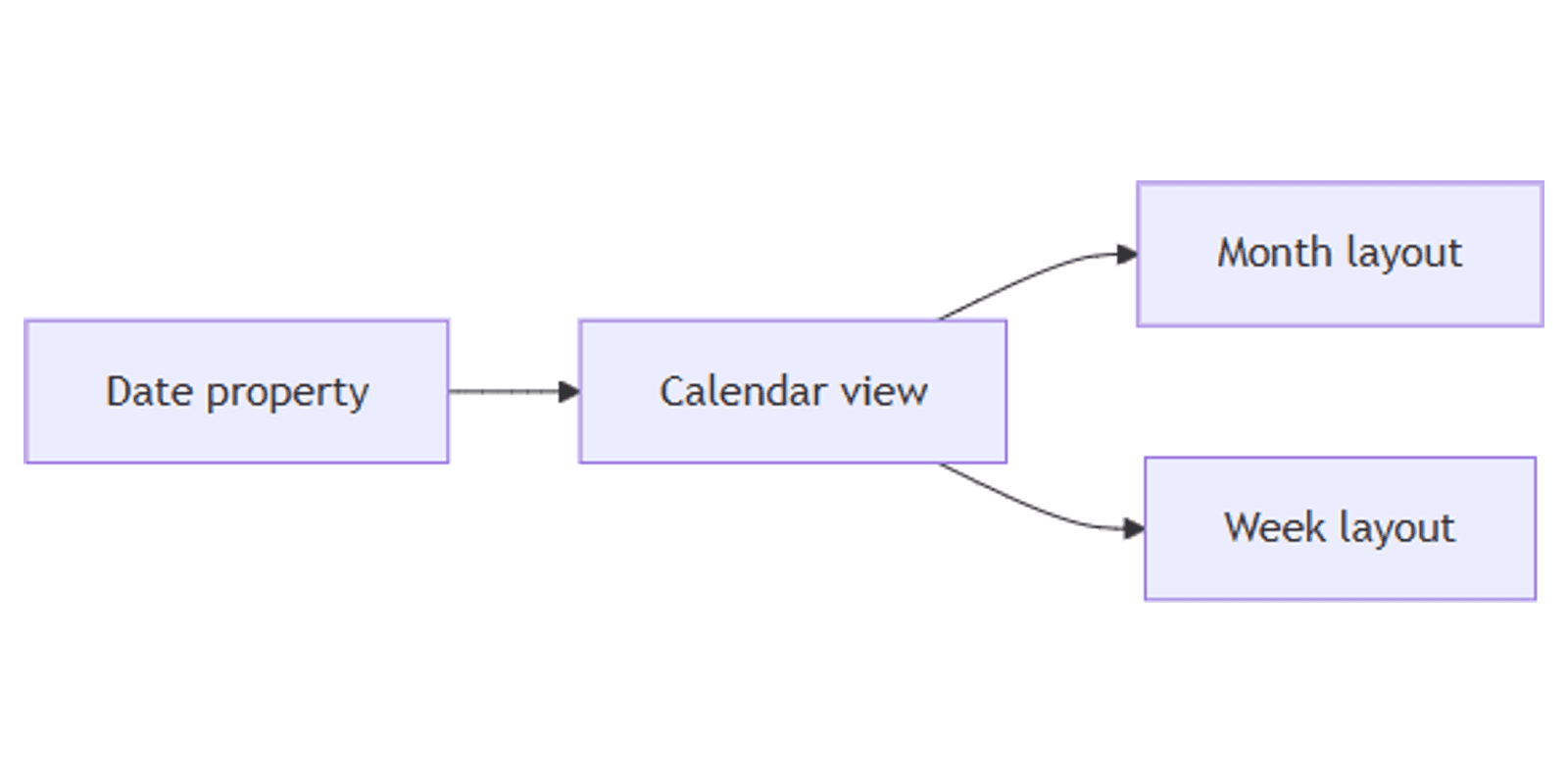
Notion calendar view plots database rows on a month or week grid using a Date property - ideal for content schedules, due dates, launches, and trip days. Same data as your table or board; different layout for time-based planning.
This guide covers how to create a Notion calendar view, switch month/week layouts, pick which date property to show, and build content-calendar workflows. See Notion's calendar documentation for official details.
What is calendar view?
Calendar is a database view that places each row on the day (or date range) stored in a Date property. Click a day to add an item; drag cards to reschedule.
| Calendar | Timeline | Board | |
|---|---|---|---|
| Focus | Days on a month/week grid | Continuous time bars | Status columns |
| Needs | Date property | Start/end dates | Status or Select |
| Best for | Deadlines, publish dates | Multi-week projects | Pipeline stages |
Use Calendar when you care which day something happens. Use Timeline for long spans across weeks or months. Use Board when Status matters more than the date.
Note: Calendar view (database layout) is separate from the Notion Calendar app, which can sync database dates into a personal calendar. This post focuses on the database view.
How to create a Notion calendar view
Option 1: Add a view to an existing database
Your database must have at least one Date property.
- Open the database.
- Click + next to the view tabs.
- Select Calendar.
- Name the view (e.g. "Publish calendar" or "Due dates").
Option 2: New calendar from slash command
- On any page, type
/Calendar viewand press Enter. - Notion creates a database with a Date property (and often a Tags field you can delete).
- Expand to full page with ⤢ if you started inline.
Option 3: Starter calendar page
- Create a new page → Get started with → ••• → Calendar.
Customize your calendar
Open the settings menu (slider / •••) at the top of the database → Layout.
Month vs week
- Show calendar as → Month - default overview (Notion Help).
- Show calendar as → Week - denser view of the current week.
Navigate with < / > around Today, or scroll down to advance months. Notion remembers the date range you last viewed.
Show calendar by a specific date
If you have multiple date properties (Publish date, Due date, Reminder):
- Layout → Show calendar by.
- Select the date property this view should use.
Create separate calendar views for each date - one calendar cannot plot two date properties at once.
Cards: drag, stretch, and properties
- Drag a card to another day to change its date.
- Stretch the left/right edge to set a date range (multi-day events).
- Property visibility - show Status, Assignee, or Platforms on cards; hide the rest.
- Reorder visible properties with ⋮⋮.
Start week on Monday
Notion follows your region by default. To force Monday start:
Settings → Preferences → Language & Time → toggle Start week on Monday.
Filter and sort on calendars
Calendar views support filters and sorts:
- Status is not Done
- Platforms Multi-select contains Instagram
- Assignee People contains Me
- Date is within This week / This month
Save filtered calendars - e.g. My deadlines vs Team publish schedule.
Practical workflow examples
Content publish calendar
- Properties: Publish date (Date), Status, Platforms (Multi-select).
- Calendar view by Publish date, month layout.
- Filter Status is not Published for upcoming posts.
- Second calendar by Draft due if you track writing deadlines separately.
Works with the Social Media Multi-Platform Content Planner.
Task due dates
- Due (Date) + Status + Assignee.
- Week calendar for execution; month for planning.
- Automation: when Status → Done, set Completed date (automations).
Product launch milestones
- Date ranges for launch windows.
- Stretch cards across launch week.
- Pair with a chart of milestones by status.
Trip day-by-day plan
- Day (Date) + Place (Place property) + notes.
- Calendar for itinerary days; Map view for locations.
- Pair with the Trip Planner template.
Calendar vs Timeline vs Notion Calendar app
| Goal | Best choice |
|---|---|
| See items on a month/week grid | Calendar view |
| Gantt-style bars across weeks/months | Timeline view |
| Daily hours / year-scale planning | Timeline (or mobile daily tap on calendar) |
| Mix Notion DB dates with meetings | Notion Calendar app sync |
Tips for teams
- One date per view - name views clearly ("By publish date", "By due date").
- Use ranges for multi-day work - stretch cards instead of fake duplicates.
- Show 2–3 properties on cards - Status + Owner is usually enough.
- Filter ruthlessly - crowded months become unreadable.
- Reminders live on Date - set Remind on the date property for personal nudges.
Permissions and troubleshooting
Who can edit calendar layout: members with Can edit access to the database.
Common issues:
- Calendar option missing / empty - add a Date; rows need values in the date used by Show calendar by.
- Wrong dates showing - check Show calendar by if you have multiple date properties.
- Cannot see a year view - Notion calendar is month/week; use Timeline for longer scales.
- Week starts on Sunday - toggle Start week on Monday in Preferences.
FAQ
Does Notion calendar view need a Date property?
Yes. Calendar views require at least one Date property. See Notion Help.
Can I show a weekly Notion calendar?
Yes. Layout → Show calendar as → Week.
Can one calendar show Publish date and Due date together?
No. Create two calendar views and set Show calendar by to each date property.
Conclusion
Notion calendar view turns any dated database into a planning grid - add a Calendar view, choose month or week, pick the date property, and filter for content or deadlines. Pair with Date reminders, Status boards, and Map when locations matter too.
For all view types, see Notion database views. For visual catalogs, see Gallery view.
Notion Templates
Start Selling Notion Templates - Start Now!