Notion Select Property: Categorize Database Rows
Notion Select properties let you assign one label per database row - priority, department, content type, client, or any category you define. They look similar to Status, but they serve a different purpose.
This guide explains how Select works, when to use it instead of Status, and how to combine both in the same database.
What is a Select property?
Select is a general-purpose single-choice field. You define every option yourself - there are no built-in workflow stages.
| Status | Select | |
|---|---|---|
| Purpose | Track workflow progress | Categorize by one label |
| Structure | Three fixed groups with sub-statuses | Flat list of options |
| Best for | Tasks, projects, pipelines | Priority, type, department |
Use Select when you need one category per row. Use Status when you need to track where work stands in a pipeline.
Need multiple labels on one item? Use Multi-select instead - but for workflow stages, Status is usually the better choice.
How to add a Select property
- Open your database.
- Click + next to the rightmost column.
- Name the property (e.g. Priority or Category).
- Choose Select as the property type.
- Type an option name and press Enter to add it. Repeat for each option. New tags get a random color by default - change it in Edit property.
Customize Select options
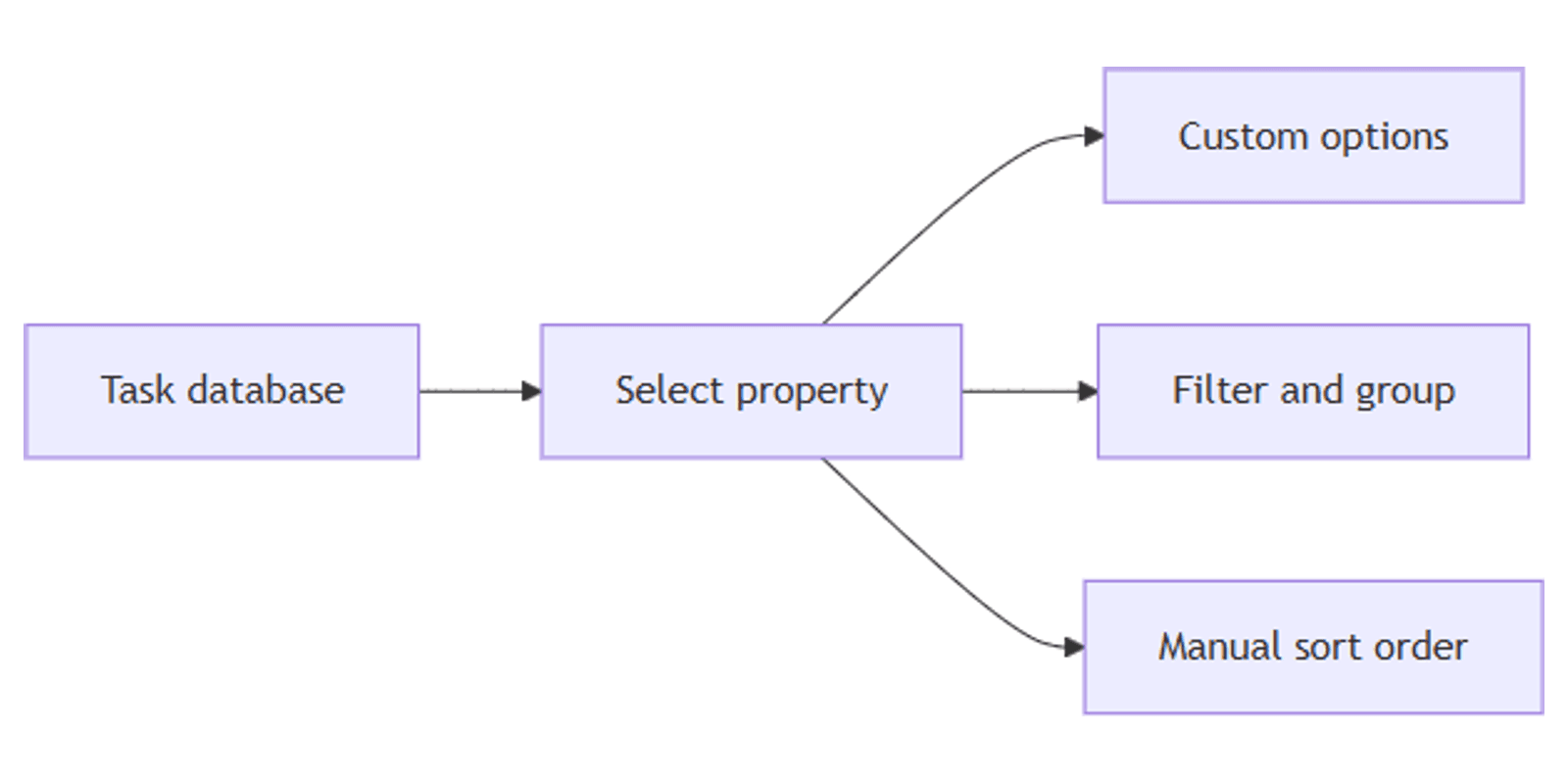
- Click the column header → Edit property to rename, recolor, or delete options.
- Drag options to reorder them - this order is used when you sort by Select.
- Hover over an option and click ••• for more actions.
Unlike Status, every Select option is independent - there are no parent groups.
Use Select with Status
Many task databases use both:
- Status - where is this item in the workflow?
- Select - what type of work is it, or how urgent is it?
Example: a content database might use Status for Draft / In review / Published and Select for Content type (Blog, Newsletter, Social).
Pair with a board view grouped by Status, then filter by Select to show only high-priority items.
Filter, sort, and group by Select
Select works with database filters, sorts, and grouping:
- Filter - show only rows where Select is "High priority" or "Engineering".
- Sort - order by Select options manually (drag to set priority order) or alphabetically.
- Group - organize rows by category in table or board views.
Save filtered views for quick access - e.g. all P0 tasks across projects.
Learn more in our filtering and grouping guides.
Practical use cases
- Priority - P0, P1, P2, P3.
- Department - Marketing, Engineering, Design.
- Client - pick one client per project row.
- Sprint - Sprint 1, Sprint 2, Backlog.
- Content type - Blog, Video, Newsletter.
A task database with Status (workflow) + Select (priority) + a Board view grouped by Status gives you a kanban board where color-coded priority tags appear on each card.
Tips for teams
- Avoid duplicating workflow in Select - if Status already tracks progress, use Select for something else (priority, type, team).
- Keep option lists short - too many Select tags make filtering and reporting harder.
- Review options periodically - merge duplicate tags that creep in over time.
- Use consistent naming - "P0" and "High" as separate options will split your filters.
- Use conditional color in view settings to highlight rows by Select value (e.g. P0 in red).
Conclusion
Select gives you flexible single-choice categories for any database row. Use it for priority, type, team, or client - and pair it with Status when you also need workflow tracking. Combine both with database views to build boards and filtered lists that match how your team works. For free-form notes beside Select, see Text property.
Notion Templates
Start Selling Notion Templates - Start Now!