Notion Forms: How to Collect Submissions from Any Database
Notion forms let you collect information from teammates, clients, or anyone on the web - each answer lands as a property on a new database row. No third-party form builder required.
This guide covers how to create Notion forms from scratch or from an existing database, every supported question type, sharing settings, and workflows that pair forms with database automations. See Notion's forms documentation for official details.
What are Notion forms?
A form is a view on a database. Every question maps to a database property, and every submission creates a new row in that database.
| Form | Button | Database automation | |
|---|---|---|---|
| Starts when | Someone submits the form | Someone clicks a button | A property changes or a row is added |
| Best for | External intake, surveys, requests | In-workspace actions on a row | Rules that run after data arrives |
| Example | Client brief submitted via public link | Approve on a request row | New row sets Status to New automatically |
Use forms when people outside your workspace (or inside it) need a simple page to fill in. Use buttons for one-click actions on rows you already manage. Use automations to process submissions once they arrive.
Notion forms are available on all plans. Conditional logic (show/hide questions based on answers) requires Business or Enterprise. Creating and customizing forms requires the desktop or web app - not mobile.
How to create a Notion form
Option 1: New form from scratch
- Open any page in Notion.
- Type
/formand select Form. - Notion creates a new database with a Form view and a Responses table view.
- A Respondent property is added automatically to capture who submitted (when not anonymous).
Option 2: Form on an existing database
You need Full access to the database.
- Open the database.
- Click + next to your views (or Add view in the view dropdown).
- Select Form.
- Click Create questions to turn existing properties into form questions.
This is the best approach when you already have Select, date, or other supported properties set up and want submissions to flow into the same workflow as manually created rows. Set Status via automation after each submission - Status cannot be a form question.
Configure your form
In the form builder:
- Set a title, optional description, icon, and cover.
- Click each question to edit the label, description, and whether it is Required.
- Click + below the last question to add more.
- Open Form settings → Submit screen to customize the button text, confirmation message, and whether you receive an email copy of each submission.
- Click Preview to see the live form before sharing.
Property name sync: by default, editing a question label renames the linked database property. Toggle off Sync with property name if you want friendly question text (e.g. "What's your deadline?") stored in a short property name (e.g. Deadline).
Question types and property mapping
Each question type creates or links to a database property:
| Question type | Database property | Notes |
|---|---|---|
| Text | Title or Text | Toggle Long answer for multi-line text |
| Multiple choice | Select or Multi-select | Show options as list or dropdown |
| Date | Date | Single date or range |
| Person | People | Limit max selections per response |
| Files & media | Files & media | Up to 10 files, 100 MB total - see Files & media guide |
| Number | Number | Format set in the database, not the form |
| Checkbox | Checkbox | Single true/false field |
| Validates email format | ||
| URL | URL | Validates URL format |
| Phone | Phone | Phone number input |
Full guide to contact fields: URL, Email, and Phone properties.
Relation properties can also appear as questions - useful when respondents pick from a fixed list of linked pages (e.g. choose a project from a Projects database). Set a maximum number of selections on relation, multi-select, and people questions.
Properties that cannot be form questions: Status, Formula, Rollup, Button, Created time, Last edited time, Last edited by. Set Status and other internal fields with a Page added automation after each submission instead.
Respondent identity: Created by and Respondent are filled automatically when anonymous responses are off - they are not question types you add to the form.
Conditional logic (Business and Enterprise)
On multiple-choice questions, open ••• → Add conditional logic to show or skip follow-up questions based on the answer. For example, if Budget is Over $5k, show a Timeline question; otherwise skip it.
Share your form
Click Share form at the top of the builder. You need Full access to change sharing settings and at least View access to copy the link.
Who can fill out:
| Setting | Who can submit |
|---|---|
| Anyone at your workspace with link | Workspace members with the link; guests only if they have database access |
| Anyone on the web with link | Anyone with the link - no Notion account required |
| No access | Form closed - no new responses |
Other sharing options:
- Anonymous responses - when off, respondent names are recorded (in Respondent for new forms, or a Created by property on existing databases). Web forms with public links are anonymous by default.
- Notion branding - paid plans can hide the Notion logo on public forms.
- Access to submission - for workspace-only forms, choose whether respondents can view, comment, or edit their submission after submitting.
Copy the form URL and share it by email or social.
Embed a Notion form on your website
Public forms can also be embedded with an iframe:
- Open Share form and set Who can fill out to Anyone on the web with link.
- Click Embed this form and copy the code snippet.
- Paste the iframe code into your site's HTML or a Code embed block in your page builder.
This feature is in a phased rollout - if you do not see Embed this form, share the direct link instead. See Notion's forms documentation for the latest availability.
Template tip: if you duplicated a template with a form, create your own form from scratch so responses go to your database, not the original creator's.
View and analyze responses
Submissions appear in the Responses table view (or your main database views). Each question is a column; each row is one submission. A Submission time property records when the form was filled out.
From here you can:
- Filter and sort responses
- Switch to board, calendar, or chart views to visualize answers
- Edit rows like any other database entry
Export: you cannot export the Form view directly. Open the Responses or Table view and use ••• → Export for CSV or PDF.
Build automations on form responses
Forms support their own automations - separate from database-level rules but using the same trigger/action model.
- Open the form builder.
- Click ••• at the top → Automations.
- Add triggers (e.g. New response, or a specific answer).
- Add actions (notify someone, send Slack message, edit properties, and more).
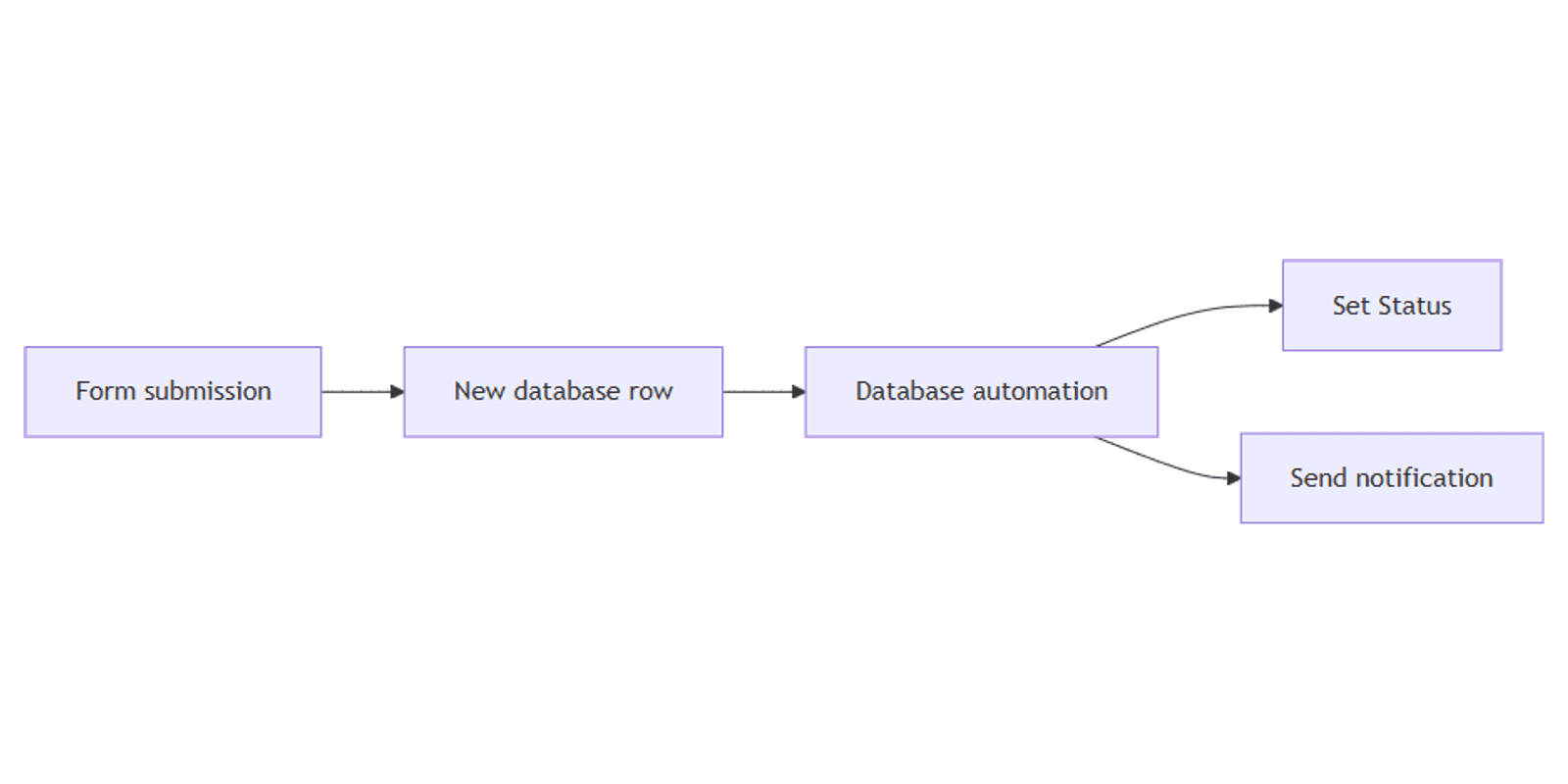
You can also use standard database automations on the connected database:
- Trigger: Page added (fires when a form submission creates a new row).
- Actions: set Status to New, fill Submitted date with @Today, send a notification to the assignee.
Note: automations triggered by one automation cannot chain - same rule as database automations. Form submission → Page added automation works; automation → automation does not.
Practical workflow examples
Content request intake
On a content calendar database with Title, Platform (Select), Due date, and Status:
- Add a Form view with questions for Title, Platform, Due date, and Brief (Text, long answer).
- Share publicly or with workspace members.
- Automation: Page added → set Status to To-do → notify the content lead.
Works well with the Social Media Multi-Platform Content Planner - use the form for guest post pitches or client briefs.
Client onboarding questionnaire
Create a form with Company name (Title), Contact email, Phone, Services needed (Multi-select), and Files & media for brand assets.
- Share Anyone on the web with link.
- Automation: Page added → set Status to New lead → Add page to a Tasks database with an onboarding checklist template.
Bug report form
Fields: Summary (Title), Steps to reproduce (Text, long answer), Severity (Select), Screenshot (Files).
- Form automation: open ••• → Automations → trigger when Severity answer is Critical → Send notification to the on-call engineer.
- Page added automation: set Status to New on every submission.
- Filter a Responses view to show only critical open bugs.
Anonymous feedback survey
- Share with Anyone on the web with link.
- Turn on Anonymous responses.
- Use Select and Checkbox questions only - skip Person properties.
- Add a chart view to visualize satisfaction scores over time.
Forms vs buttons vs automations
| Scenario | Best choice |
|---|---|
| Collect info from people without Notion access | Form |
| Approve or complete a row someone already created | Button |
| Set default properties on every new submission | Automation (Page added trigger) |
| Manager must confirm before status changes | Button with confirmation |
| Show different questions based on earlier answers | Form with conditional logic (Business+) |
Many teams combine all three: a public form for intake, a Page added automation for defaults, and a Review button for approval before work starts.
Permissions and troubleshooting
Who can create or edit forms: members with Can edit or Full access on the database. Full access is required to create a form from an existing database or change sharing settings.
Common issues:
- Cannot add form view - you need Full access on the database.
- Question missing from form - Status, Formula, Rollup, and Button properties are not supported as questions. Use Select for categories respondents choose; set Status via automation instead.
- Responses going to wrong database - duplicated templates may still point to the original form. Create a fresh form in your workspace copy.
- Form slow to load - high response volume can affect performance. Archive old rows or split into a new form/database.
- Conditional logic unavailable - requires Business or Enterprise plan.
- Cannot customize on mobile - use desktop or web to edit the form builder.
FAQ
Are Notion forms free?
Yes. All workspace members on all Notion plans can create and use forms. Conditional logic requires Business or Enterprise.
Can you embed a Notion form on a website?
Yes - set the form to Anyone on the web with link, then use Embed this form in Share form to copy an iframe snippet. The embed option is rolling out gradually; share the direct link if it is not available yet.
What database properties work in Notion forms?
Text, Select, Multi-select, Date, Person, Files, Number, Checkbox, Email, URL, Phone, and Relation. Status, Formula, Rollup, and Button properties cannot be form questions.
Conclusion
Notion forms turn any database into a submission page - create from /form or add a Form view to an existing database, map questions to properties, share or embed the link, and process responses with filters, views, and automations.
For click-triggered workflows on existing rows, see Notion buttons. For property types your form writes to, see Select and Status (set via automation after submission).
Notion Templates
Start Selling Notion Templates - Start Now!