How to Create YouTube Thumbnails in Canva
A strong YouTube thumbnail is what makes viewers click. Canva makes it easy to design 1280×720 YouTube thumbnails with bold text, clean layouts, and export-ready files - no design experience required.
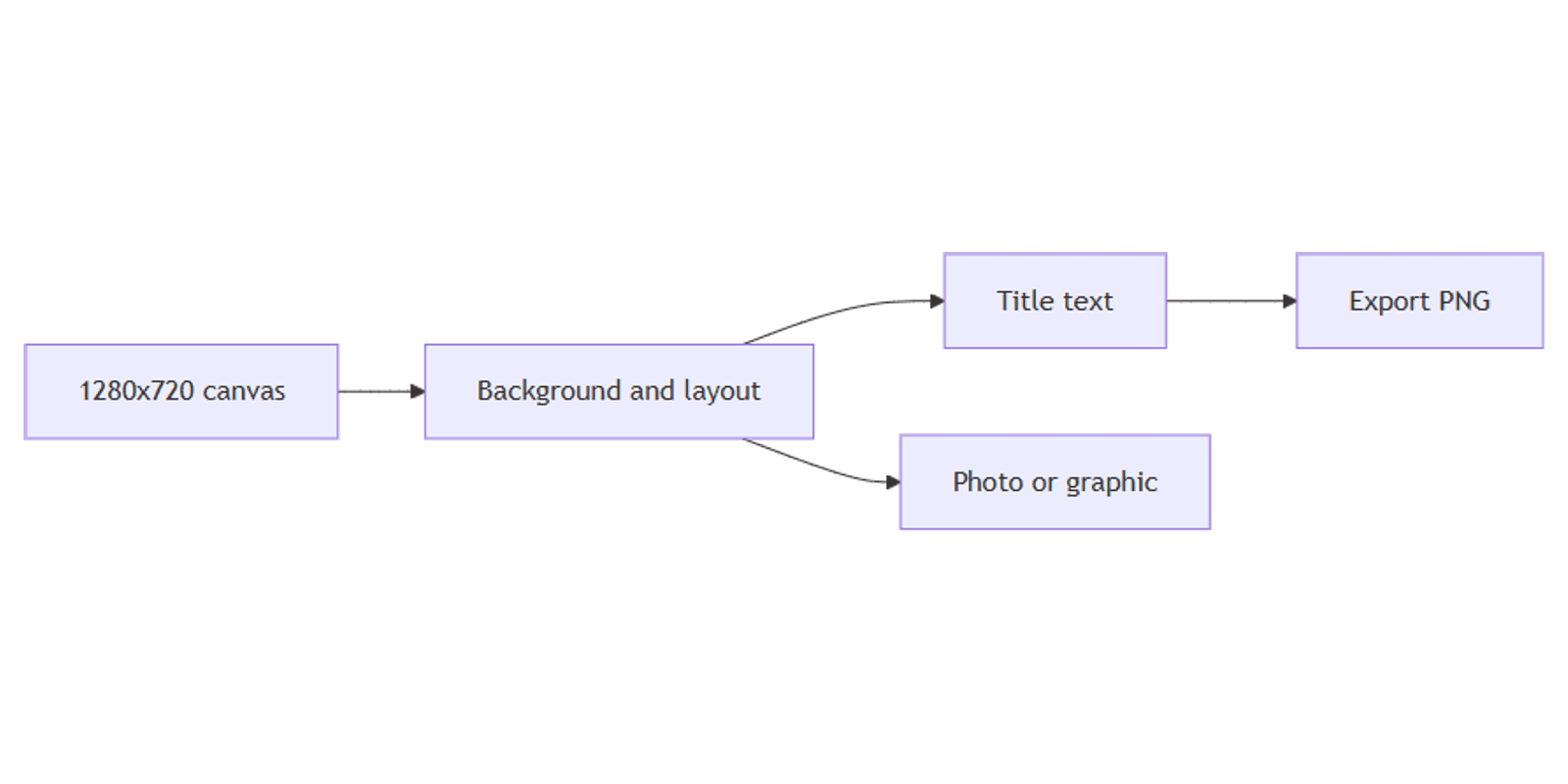
This guide walks through canvas setup, layout, typography, and export. The same workflow works for blog cover images at 1600×900.
YouTube thumbnail size in Canva
YouTube recommends 1280 × 720 pixels (16:9 aspect ratio). Minimum width is 640 px. You can also upload up to 3840 × 2160 (4K) on desktop for sharper previews on TVs - start at 1280×720 unless you need the extra resolution.
Keep important text and faces away from the edges and the bottom-right corner, where YouTube overlays the video duration.
To create the canvas:
- Open Canva.
- Click Create a design → search YouTube Thumbnail.
- Canva opens a 1280 × 720 px artboard automatically.
For blog banners (like Sparxno post covers), use Custom size → 1600 × 900 px instead.
Step-by-step: build a thumbnail
1. Set the background
Pick one approach:
- Solid or gradient - click the background → choose a color or gradient from the toolbar.
- Photo - Elements → Photos → search your topic; drag an image to fill the canvas.
- Split layout - use two equal halves with no gaps; see our equal-width sections guide.
Apply a semi-transparent overlay (rectangle + lower opacity) over busy photos so text stays readable.
2. Add a focal image
- Elements → search icons, frames, or cutouts related to your video topic.
- Use Effects → Background Remover (Canva Pro) to isolate a person or product.
- Place the main subject on the left or right third - leave room for title text on the opposite side.
Preview how your thumbnail looks in the FREE Frame Mockups Bundle to see it on a wall or device before publishing.
3. Add title text
- Click Text → Add a heading.
- Type a short title - 3 to 5 words works best at thumbnail size.
- Set a bold font (e.g. League Spartan, Bebas Neue, or Anton).
- Size text so it fills roughly one third of the canvas height.
Typography tips:
- One main message - avoid full sentences; use keywords viewers scan in under a second.
- High contrast - white text on dark backgrounds, or dark text on light blocks.
- Outline or shadow - select text → Effects → Shadow or Outline for legibility on photos.
- Limit fonts - one font family, two weights maximum.
4. Add supporting elements (optional)
- A small episode number or series badge in a corner.
- Shapes behind text - rounded rectangle at 80% opacity creates a readable text box.
- Brand colors - open Brand Kit (Canva Pro) to reuse your palette across thumbnails.
5. Align and balance
- Select multiple elements → Position → Tidy up or use alignment guides.
- Keep a safe margin (~40 px) from edges and avoid the bottom-right corner (duration badge).
- Zoom out to 25% - if the title is still readable, the thumbnail works at feed size.
Export settings
- Click Share → Download.
- Choose a format:
- PNG - best for text-heavy thumbnails and flat graphics.
- JPG (85–90% quality) - smaller files for photo-heavy designs.
- If offered, choose Standard download - YouTube recompresses uploads; start from a high-quality export.
File size limits (YouTube Help):
| Upload from | Max file size |
|---|---|
| Desktop | 50 MB |
| Mobile | 2 MB |
Aim for 200 KB–1 MB on desktop for fast uploads. If your PNG exceeds 2 MB, export as JPG or simplify gradients before uploading from mobile.
Blog cover images (bonus)
The same Canva workflow applies to blog headers:
| Use | Size |
|---|---|
| YouTube thumbnail | 1280 × 720 px |
| Blog header (2:1) | 1600 × 800 px |
| Blog / Open Graph banner | 1600 × 900 px |
| Pinterest pin | 1000 × 1500 px |
| Instagram portrait post | 1080 × 1350 px |
| Instagram post | 1080 × 1080 px |
Use 1600 × 900 for widescreen blog covers. Export PNG and upload to your site or CMS.
Design checklist
Before you publish, confirm:
- Canvas is 1280 × 720 px (or higher for 4K TV previews)
- Title is readable at small size (zoom to 25%)
- Text and faces sit inside the center safe zone; nothing critical in the bottom-right corner
- Strong contrast between text and background
- Exported as PNG or JPG
- File is under 50 MB (desktop) or 2 MB (mobile)
Common mistakes to avoid
- Too much text - viewers decide in a split second; cut words.
- Low contrast - yellow on white or thin fonts disappear in the YouTube feed.
- Cluttered layout - one subject, one title, one accent color is enough.
- Wrong dimensions - square or vertical exports get cropped awkwardly in search results.
Conclusion
Canva is a fast way to create YouTube thumbnails at 1280×720 - set the canvas, build a high-contrast layout, add bold text, and export PNG or JPG. Reuse the same steps for 1600×900 blog covers with a custom size. For vertical Shorts covers, see YouTube Shorts thumbnails. For channel banners, see YouTube channel art. For blog headers and Open Graph images, see blog banners in Canva. For vertical pins, see Pinterest pins in Canva. For Instagram feed posts, see Instagram posts in Canva.
Canva Templates
Start Selling Canva Templates - Start Now!