Notion List View: Build Clean Document and Task Lists
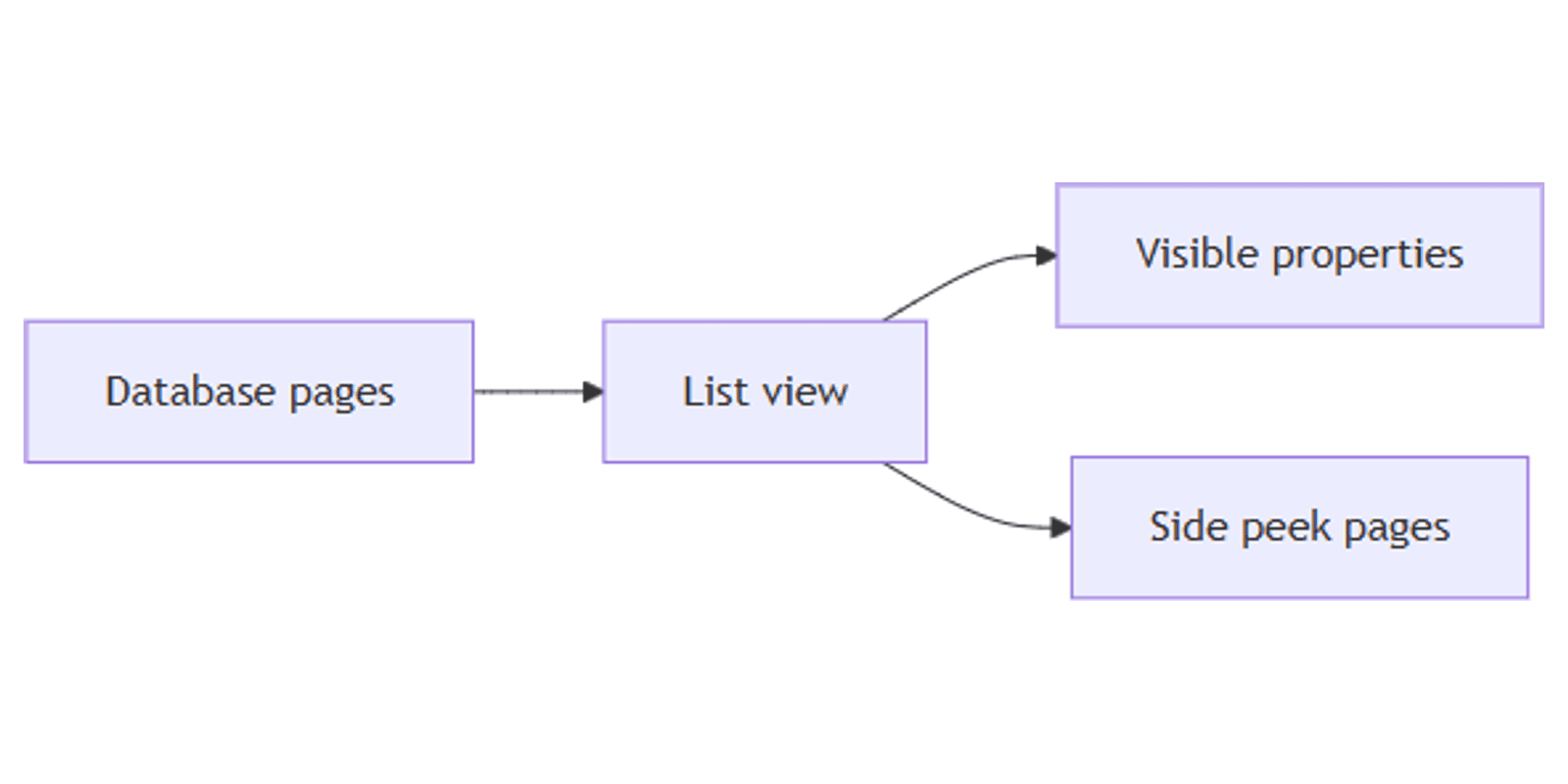
Notion list view shows database pages in a clean vertical stack - titles on the left, key properties on the right. It is the lightest layout when you care about scanning documents or tasks without a full spreadsheet grid.
This guide covers how to create a Notion list view, control property visibility, filter and sort, and build meeting-note and task-queue workflows. See Notion's list documentation for official details.
What is list view?
List is a database layout that displays each row as a single line: page title plus the properties you choose to show. Notion describes lists as a very clean, minimal layout of database items.
| List | Table | Feed | |
|---|---|---|---|
| Focus | Titles + a few props | All columns editable | Page body previews |
| Density | Low clutter | High detail | Reading-first |
| Best for | Docs, backlogs, queues | Spreadsheet work | Announcements |
Use List for shared docs and simple queues. Use Table to edit many fields. Use Feed when readers need the page content without opening each item.
By default, List (like Table, Board, and Timeline) opens pages in side peek (views help).
How to create a Notion list view
Option 1: Add to an existing database
- Open the database.
- Click + next to the view tabs (or current view name → New view).
- Select List.
- Name the view (e.g. "Meeting notes" or "Backlog").
Option 2: Slash command
- On any page, type
/List viewand press Enter. - Expand to full page with ⤢ if you started inline.
Option 3: Starter list page
- Create a new page → Get started with → ••• → List.
Customize property visibility
In lists, visible properties appear on the far right of each row (Notion Help).
- Open View settings (slider) → Property visibility.
- Click the eye icon to show or hide each property.
- Drag with ⋮⋮ to reorder.
Tip: show 2–4 properties max - Status, Date, and Owner are enough for most queues. Hide long Text fields; open the page for details.
Open pages full screen
If side peek feels cramped:
Layout → Open pages in → Full page.
Filter, sort, and group
Lists support filters, sorts, and grouping:
Save filtered lists: My open tasks, This week's notes, Unread docs.
Practical workflow examples
Meeting notes library
- Properties: Date, Attendees (People), Type (Select).
- List sorted by Date descending.
- Show Date + Type; hide long agenda Text.
- Database templates for a consistent note outline.
Lightweight task queue
- Status + Due + Assignee.
- List filtered Status is not Done, sorted by Due.
- Pair with a board for kanban planning.
- Highlight urgency with conditional color.
Works with the Social Media Multi-Platform Content Planner for content backlogs.
Reading / resource list
- Title + URL (URL property) + Checkbox Read.
- Filter Checkbox is unchecked.
- List for the queue; Table for bulk cleanup.
SOP / wiki index
- Category (Select) + Owner + Last edited time.
- Group by Category.
- Publish a public wiki with Notion Sites when ready.
List vs Table vs Gallery vs Feed
| Goal | Best view |
|---|---|
| Scan titles quickly | List |
| Edit many columns | Table |
| Browse covers | Gallery |
| Read updates in a stream | Feed |
Many workspaces keep List for reading and Table for admin on the same database.
Tips for teams
- Name views by audience - "Team docs" vs "My drafts".
- Hide unused properties - clutter kills the point of List.
- Sort newest first for notes and changelogs.
- Use templates so every new page starts with the same structure.
- Side peek for review - open, skim, close without leaving the list.
Permissions and troubleshooting
Who can edit list layout: members with Can edit access to the database.
Common issues:
- Too many chips on the right - hide properties under Property visibility.
- Wrong open behavior - set Open pages in to Side peek, Center peek, or Full page.
- Empty-looking list - pages need clear titles; properties only help if they are visible.
FAQ
When should I use Notion list view?
Use List for clean document libraries, meeting notes, and lightweight queues where titles matter more than dense columns (Notion Help).
Can I show properties on a Notion list?
Yes. Property visibility controls which fields appear on the right of each row.
Does list view support conditional color?
Yes. List is one of the layouts that supports conditional color (database properties help).
Conclusion
Notion list view is the minimal layout for docs and queues - add a List, show a few properties, filter to what matters, and open pages from the stack. Pair with Table for bulk edits and Feed when you need in-view reading.
For all view types, see Notion database views. For visual cards, see Gallery view.
Notion Templates
Start Selling Notion Templates - Start Now!