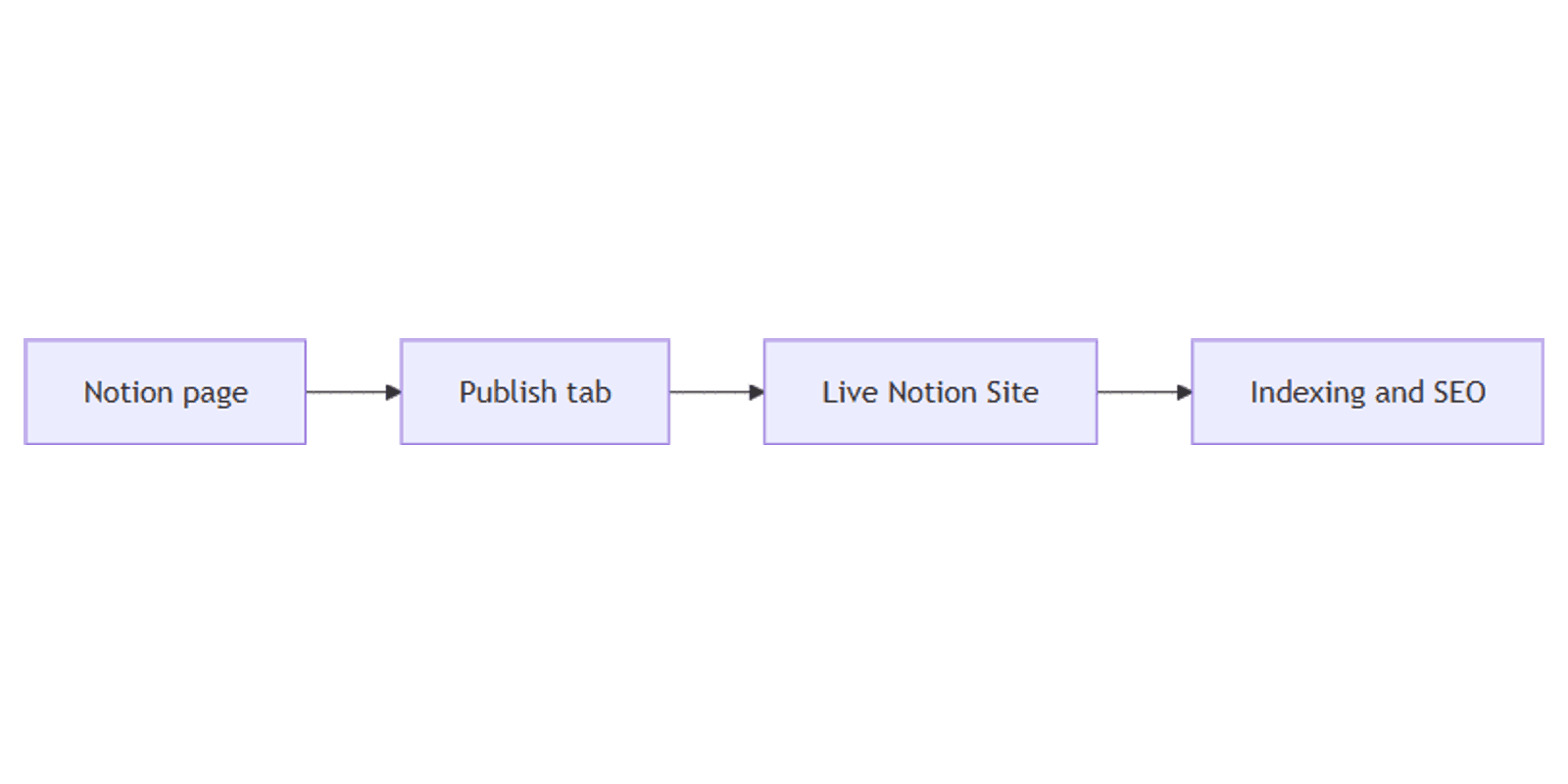
Notion Sites: Publish Pages to the Web
Notion Sites turns any Notion page into a live website - docs, portfolios, landing pages, or public templates - without a separate CMS. Publish from Share → Publish, share the link, and edits sync automatically.
This guide covers how to publish a Notion Site, search indexing, paid customization, embeds, and common pitfalls. See Notion's publishing documentation for official details.
What are Notion Sites?
Notion Sites is Notion's web-publishing product. With it you can:
- Publish an unlimited number of pages to the web
- Claim one notion.site domain
- Turn on search engine indexing
Paid plans unlock extra site customization: SEO title/description editing, themes, Google Analytics, and the option to buy a custom domain add-on (Notion Help).
| Notion Sites (Publish) | Anyone with the link | |
|---|---|---|
| Purpose | Public website experience | Share a Notion page URL |
| Where | Share → Publish tab | Share → general access |
| Best for | Docs, portfolios, templates | Quick private-link sharing |
These are different settings. Publishing a Site is not the same as setting general access to Anyone on the web with the link.
How to publish a Notion Site
- Open the page you want live.
- Click Share at the top.
- Open the Publish tab.
- Select Publish.
- Click View site to open the live URL.
Content updates on the Notion page appear on the Site automatically.
Important: publishing a page also publishes its subpages by default. Review nested pages before you go live (Notion Help).
Enterprise workspace owners can disable Sites (and related public publishing) under Settings → Security.
Site settings after publish
Open Share → Publish on the published page to:
- Copy the live link
- Customize the slug (paid) - pathname after your domain; letters, numbers, hyphens; up to 60 characters; home pages cannot have slugs; deleted slugs cannot be reused
- Open Site customization - header, navigation, favicon, share preview, themes (paid features vary)
- Search engine indexing → toggle Discoverable on the web
- On paid plans, edit link title and description for SEO
- Duplicate as template - let visitors copy the page into their workspace
- Embed this page - copy embed code for non-Notion sites
- All published sites - manage everything in one place
Indexing can take up to four weeks before the Site appears in search results.
Embed Notion content elsewhere
On a published page:
- Click Embed this page.
- Optionally toggle Show page title.
- Copy this code into your website HTML or a code block in a site builder.
You can embed published forms, charts, databases, and more (Notion Help).
Practical workflows
Public docs / help center
- Parent page with nested articles.
- Publish the parent; use Site navigation links between pages.
- Enable Discoverable on the web on paid plans with custom title/description.
- Keep drafts as unpublished siblings outside the public tree.
Portfolio or personal site
- One home page with projects in a Gallery database.
- Publish home; visitors can open database pages and switch views.
- Design social share images in Canva (blog banners / OG) and set the share preview.
Template landing page
- Build the template page.
- Publish → toggle Duplicate as template.
- Share the Site link (or list on Gumroad / Marketplace carefully - Marketplace has special rules for existing Site links).
Works with Sparxno Notion templates.
Client-facing one-pager
- Proposal or status page with limited subpages.
- Publish; share the Site URL (not the internal workspace URL).
- Unpublish when the engagement ends; also remove Anyone with the link if it was enabled.
SEO and privacy tips
- Use the Publish link - workspace URLs are not the public Site.
- Turn on Discoverable only when you want Google traffic.
- Edit title/description on paid plans - free indexing uses less control over meta.
- Audit subpages - secrets in nested pages go public with the parent.
- Metadata note: public pages can expose contributor names, photos, and emails in page metadata (Notion Help).
- No password protection on Sites today - use private invites for sensitive docs.
Unpublish safely
- Share → Publish → Unpublish.
- Also check general access: if Anyone on the web with the link is on, remove it so the page is not still link-accessible outside Sites.
FAQ
How do I publish a Notion page as a website?
Share → Publish → Publish. See Notion Sites help.
Do Notion Sites support custom domains?
Yes, as a paid add-on for connecting your own domain. You can also claim a notion.site domain.
Are published subpages public too?
Yes by default. Restrict subpage permissions if they should stay private.
Conclusion
Notion Sites is the fastest path from a Notion page to a public URL - publish from Share, review subpages, enable indexing when ready, and customize SEO on paid plans. Pair public galleries with Gallery view and share-preview graphics from Canva blog banners.
For sharing templates inside Notion (not Sites), see sharing a Notion template.
Notion Templates
Start Selling Notion Templates - Start Now!