Notion Feed View: Share Team Updates in a Stream
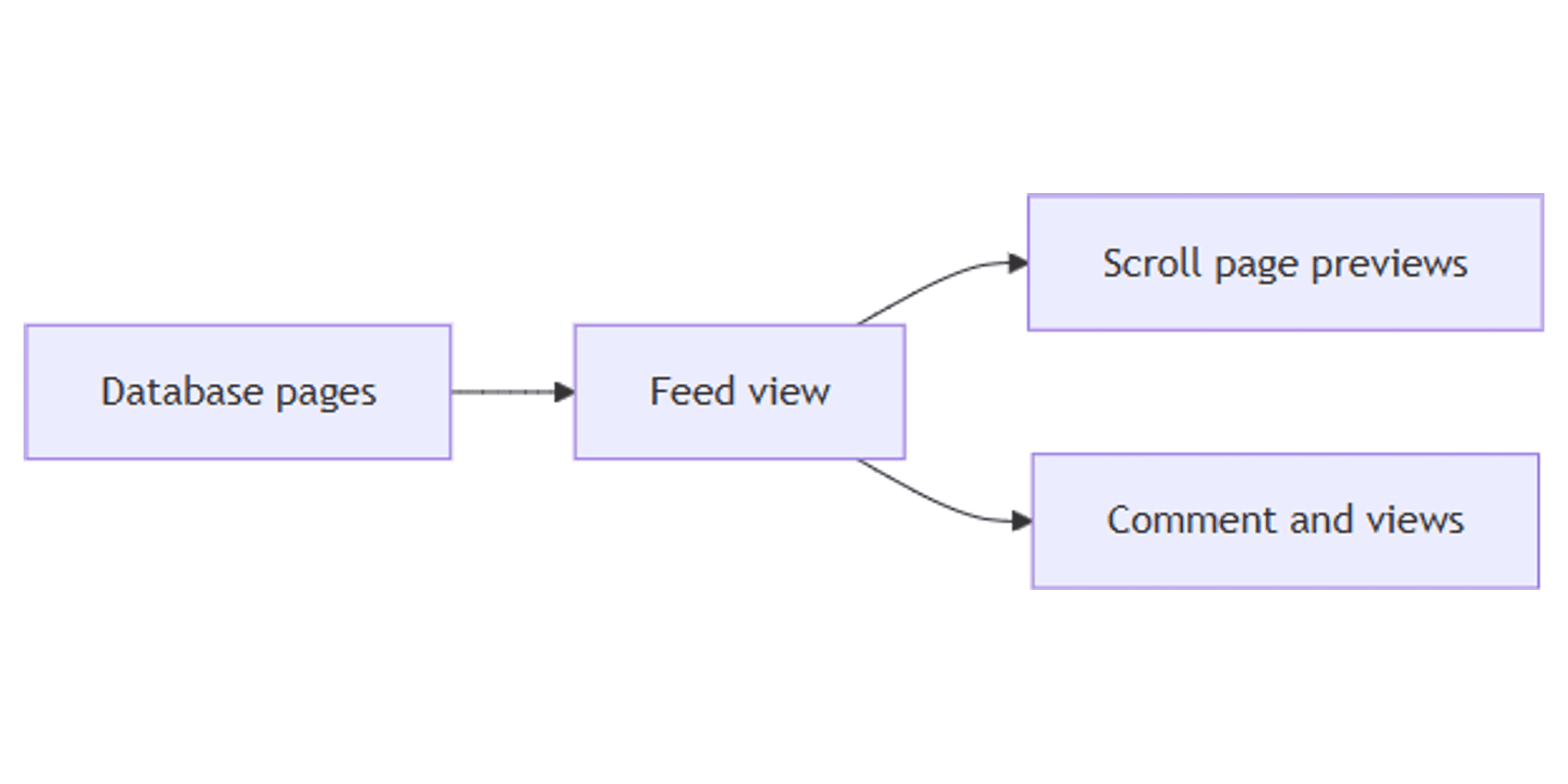
Notion feed view displays database pages as a vertical, stacked stream - like a blog or social feed - so teammates can scroll page previews, comment in place, and spot updates without opening every row. Ideal for announcements, project logs, and internal communications.
This guide covers how to create a Notion feed view, control property visibility, sort newest first, and build update workflows. See Notion's feed documentation for official details.
What is feed view?
Feed is a database layout that shows entries as linear stacked cards. Each card previews page content (not only property chips), so readers browse updates the way they would skim a news feed.
Per Notion Help, Feed lets you:
- Scroll and browse content seamlessly
- Comment on any post directly
- Track views on posts
| Feed | Gallery | List | |
|---|---|---|---|
| Focus | Page content in a scroll | Visual cards / covers | Titles + a few props |
| Reading | Long-form preview in-view | Cover-first browsing | Lightweight scanning |
| Best for | Announcements, journals | Portfolios, mood boards | Task queues |
Use Feed when people need to read the page body. Use Gallery when images lead. Use List or Table when you need dense property editing.
How to create a Notion feed view
Option 1: Add to an existing database
- Open the database.
- Click + at the top left of the database (next to view tabs).
- Select Feed.
- Name the view (e.g. "Team updates" or "Launch notes").
Option 2: Slash command
- On any page, type
/Feed viewand press Enter. - Expand to full page if you started inline.
No special property type is required - Feed works on any database. Strong updates usually include a Date, Author (People or created by), and Status or Tags.
Customize your feed
Open View settings (slider icon) on the database menu bar.
Property visibility
- Property visibility.
- Click the eye icon next to properties to show or hide them on feed cards (Notion Help).
Show only what helps scanning - Date, Author, Tags. Hide long notes fields that clutter the card chrome; the page preview already carries the story.
Layout options
Depending on your workspace version, layout settings may include:
- Page icons - show or hide icons beside titles
- Author byline - helpful for multi-author announcement databases
Trim chrome when you want a clean reading stream; keep bylines for team transparency.
Sort and filter
Feed order is controlled by sort and filter:
- Sort Created time or Publish date descending for newest-first
- Filter Status is Published / Shared
- Filter Tags contains All hands
- Filter Author contains Me for a personal draft feed
Save separate views: Public feed (published only) vs Drafts (status is Draft).
Practical workflow examples
Company / team announcements
- Properties: Publish date, Status, Author (People), Category (Select).
- Feed sorted by Publish date descending.
- Filter Status is Published.
- Teammates comment under each post without leaving the view.
Project status updates
- Update pages under a parent project database.
- Sort by Last edited time descending to surface recent progress.
- Pair with a Timeline for dates and a Feed for narrative updates.
Content journal or changelog
- Title + Date + cover image via Files & media.
- Feed for reading; Gallery for cover browsing.
- Database templates for a consistent update outline.
Works with second-brain and journaling-style setups in the Notion templates bundle.
Client delivery notes
- Client relation + Date + Owner.
- Feed filtered to one client.
- CRM Dashboard for contacts; Feed for meeting notes shared with the account team.
Feed vs Gallery vs Table
| Goal | Best view |
|---|---|
| Read updates in a stream | Feed |
| Browse covers and visuals | Gallery |
| Edit many properties | Table |
| Collect new posts from outsiders | Forms |
A common stack: Form or Button adds an update → Feed for reading → Table for ops cleanup.
Tips for teams
- Write for the preview - put the key message near the top of the page body.
- Sort newest first - feeds feel stale without a descending date sort.
- Limit visible properties - three chips max on most cards.
- Use Status gates - drafts should not appear in the shared feed.
- Combine with Mentions - @ people in the page body when comments are not enough.
Permissions and troubleshooting
Who can edit feed layout: members with Can edit access to the database.
Common issues:
- Cards feel empty - pages need body content; titles alone look sparse in Feed.
- Wrong order - add or fix a descending Date / Created time sort.
- Too many drafts - filter Status is Published.
- Properties overwhelm the card - hide extras under Property visibility.
FAQ
What is Notion feed view best for?
Team updates, project status sharing, and company communications - scrollable page previews with comments and view tracking (Notion Help).
Does feed view need a special property?
No. Any database can use Feed. Dates and Status make published streams much clearer.
Can people comment from the feed?
Yes. Notion documents commenting directly on posts in Feed view.
Conclusion
Notion feed view turns a database into a readable update stream - add a Feed layout, sort newest first, show a few key properties, and let teammates comment in place. Pair with Gallery when visuals lead and Timeline when duration matters.
For all view types, see Notion database views. For collecting submissions into that feed, see Notion Forms.
Notion Templates
Start Selling Notion Templates - Start Now!