Notion CSV Import: Add Spreadsheet Rows to a Database
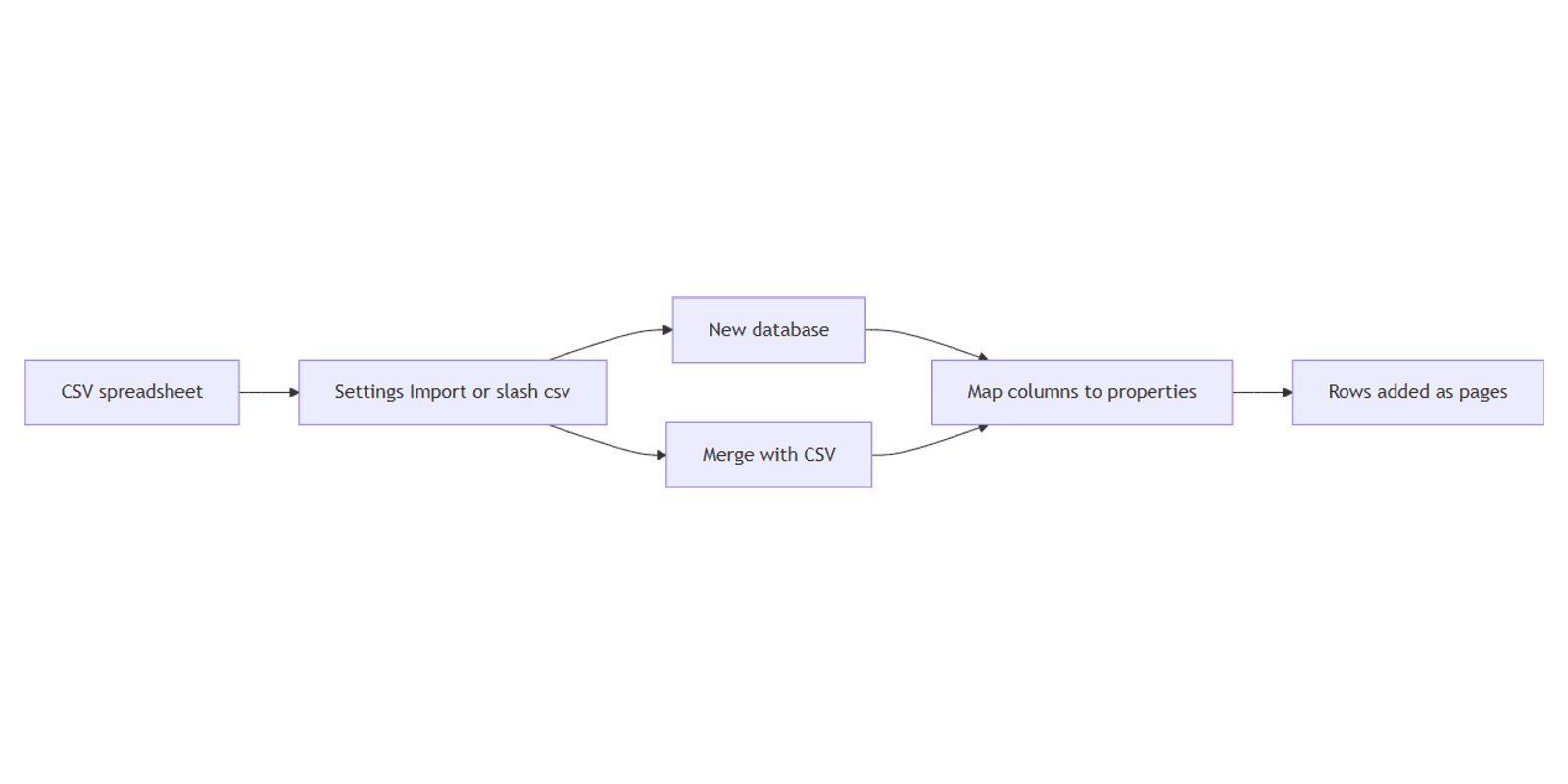
Notion CSV import turns spreadsheet rows into database pages and columns into properties - so leads, inventory, and content calendars can move from Excel or Google Sheets into Notion without retyping every cell.
This guide covers creating a new database from CSV, merging into an existing full-page database, column mapping, and why imports add rows instead of updating matches. Official help: Import data into Notion.
CSV import is for tabular data. Bringing a PDF in as a page is a different flow - see import PDF into Notion.
What CSV import does
| Spreadsheet piece | Becomes in Notion |
|---|---|
| Row | A database page (item) |
| Column | A property |
| Header row | Property names to map |
New CSV imports create a database. You can also Merge with CSV on an existing full-page database. In both cases, Notion adds rows - it does not update existing pages by key, so re-importing the same file can create duplicates (Notion Help).
CSV and ZIP use their own import options - you cannot bulk-select multiple CSVs in one go the way you can with some other file types.
How to import a CSV (new database)
Imports work on desktop and web (not mobile yet) (Notion Help).
- Open Notion on desktop or web.
- Go to Settings → Import, or type
/csvon a page. - Choose CSV and upload your
.csvfile. - Choose to create a new database (or import into an existing one when offered).
- Pick the import location (teamspace / private).
- Map each CSV column to a Notion property type.
- Confirm the import, then open the new database and check a few rows.
File size limits (per Notion Help): about 5 MB per file on Free, 50 MB on paid plans. Split large sheets before upload if you hit errors.
How to Merge with CSV on an existing database
Use this when the destination database already exists and you want more rows appended.
- Open the database as a full-page database.
- Click ••• at the top of the database.
- Choose Merge with CSV.
- Upload the file and match CSV columns to existing properties.
- Confirm - Notion adds new rows; it does not update matching titles or IDs.
If headers match property names exactly, mapping is smoother (Notion Help).
| Approach | Result |
|---|---|
Settings → Import → CSV or /csv | New database (or choose existing when offered) |
| ••• → Merge with CSV | Appends rows to the current full-page database |
Map columns to the right properties
After upload, map each column deliberately:
| Column content | Prefer this property |
|---|---|
| Names / titles | Title (or Text if not the primary name) |
| Quantities, prices | Number |
| Deadlines, ship dates | Date |
| Links, emails, phones | URL / Email / Phone |
| Categories | Select or Multi-select |
| Notes | Text |
Tips from Notion’s CSV guidance:
- First row should be headers.
- Re-export as UTF-8 if characters look garbled.
- Dates often import best as MM/DD/YYYY.
- Mixed-type columns may land as Text.
- Currency / percent / negatives that fail as Number - map to Text instead.
- New CSV imports cannot create new relations, rollups, or formulas - rebuild those in Notion after import. When merging into an existing database, you can map a column onto an existing relation property.
Review results in a table view so columns line up like a spreadsheet.
Imports add rows - they do not update
This is the most important behavioral difference from a spreadsheet “paste over” workflow:
- Each import / merge appends pages.
- There is no built-in “match on email and update” step.
- Re-running the same CSV without cleanup creates duplicate rows.
Practical workflow:
- Export or filter only new rows from your spreadsheet before import.
- Or merge into a staging database, then move / dedupe manually.
- Use search or unique Text keys to spot duplicates after import.
Works with the CRM Dashboard when you seed contacts or deals from a spreadsheet export.
CSV import vs PDF import
| Goal | Use |
|---|---|
| Spreadsheet → database rows | CSV import (this guide) |
| PDF → searchable Notion page | PDF import |
If a PDF only has a table you care about, convert that table to CSV first, then import the CSV for cleaner properties.
FAQ
Where do I start a CSV import?
Settings → Import → CSV, or type /csv on a page (Notion Help).
Can I add rows to a database I already have?
Yes. Open the full-page database → ••• → Merge with CSV, then map columns. Rows are added, not updated.
Does CSV import update existing pages?
No. Imports and merges add rows. Re-importing the same data can create duplicates - filter new rows first.
Will relations and formulas import?
A new CSV import cannot create new relations, rollups, or formulas. Rebuild them in Notion. When merging into an existing database, you can map onto an existing relation property (Notion Help).
Is this the same as importing a PDF?
No. PDF import creates a page from document content. CSV import builds or extends a database. See PDF import.
Conclusion
To import CSV into Notion, use Settings → Import or /csv, map columns to properties like Number, Date, and URL / Email / Phone, and review in a table view. For an existing database, use Merge with CSV - and remember every run adds rows.
For document pages instead of rows, use PDF import. For a broader template set, see the Notion Templates Bundle.
Notion Templates
Start Selling Notion Templates - Start Now!