How to Create Zoom Virtual Backgrounds in Canva: 1920×1080
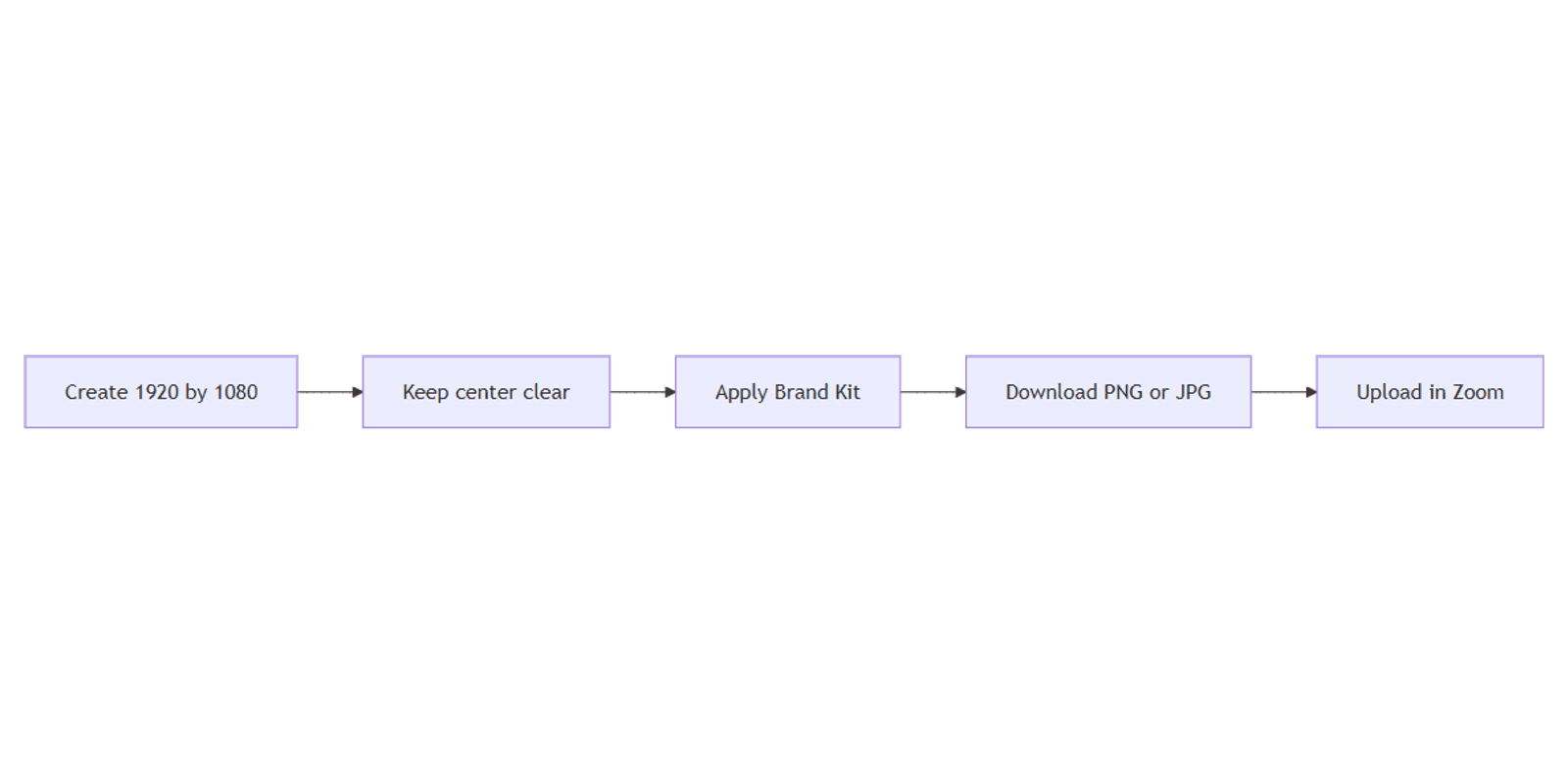
Zoom virtual backgrounds hide a messy room and reinforce your brand on calls. In Canva, design at 1920 × 1080 (16:9 HD), keep the center clear for your face, then export PNG or JPG and upload the file in Zoom.
This guide covers size, layout, Brand Kit, export, and how backgrounds differ from presentations or Magic Resize workflows. Start from Canva’s Zoom virtual background templates or custom size at 1920 × 1080.
Recommended size: 1920 × 1080
| Spec | Value |
|---|---|
| Width × height | 1920 × 1080 px |
| Aspect | 16:9 |
| Typical export | PNG or JPG |
- Open Canva.
- Click Create a design → Custom size.
- Enter 1920 × 1080 pixels (or open a Zoom virtual background template).
- Design, then download for Zoom.
Animated backgrounds may use MP4 in Canva’s Zoom template flows - for most professional calls, start with a still PNG or JPG.
How to create a Zoom background in Canva
- Create a 1920 × 1080 design (custom size or Zoom template).
- Set a calm background photo, gradient, or solid brand color.
- Add logo, name, title, or a light pattern - away from the vertical center.
- Apply Brand Kit colors, fonts, and logos.
- Rename the file so teammates can find the approved version.
- Share → Download → PNG or JPG.
Upload in Zoom: Settings → Virtual Background (wording can vary by Zoom version) → + → choose your file. Test with your camera before an important meeting.
Keep your face clear in the center
Virtual backgrounds key around your silhouette. Busy graphics behind your head look noisy and can glitch on edges.
| Zone | Put here | Avoid here |
|---|---|---|
| Center | Soft color / empty space for your face and shoulders | Logos, fine text, high-contrast patterns |
| Sides / corners | Brand mark, role title, subtle shapes | Tiny type that will blur on webcam |
| Edges | Framing that still works if Zoom crops slightly | Critical info flush to the extreme edge |
Sit in even lighting and avoid clothing that matches the background color so Zoom can separate you cleanly.
Brand Kit and related Canva workflows
- Brand Kit - approved colors, fonts, and logos on every call background.
- Presentations - slide decks for the meeting itself; backgrounds are a separate 1920 × 1080 asset, not a slide export by default.
- Transparent PNG - useful for cutout logos you place on the background canvas; the Zoom upload itself is usually a full-frame PNG or JPG, not a transparent full screen.
- Magic Resize - handy if you also need LinkedIn or story crops from related brand art; for Zoom, keep the master at 1920 × 1080 and re-check the center after any resize.
Present mockups of the look with Canva frame mockups when you roll out a team set of backgrounds.
Schedule which branded backdrop goes with which webinar in the Social Media Multi-Platform Content Planner.
Export checklist
- Confirm canvas is 1920 × 1080.
- Zoom out and check that the middle third stays quiet.
- Download PNG (sharper graphics) or JPG (smaller file).
- Upload in Zoom and preview with your camera on.
- Store the approved file in a shared brand folder.
FAQ
What size should a Zoom background be in Canva?
1920 × 1080 pixels (16:9) is the standard HD size to start with.
PNG or JPG for Zoom?
Both work for still backgrounds. Prefer PNG for logos and flat graphics; JPG is fine for photo-heavy scenes. Follow Zoom’s current upload limits for file size.
Where should I place my logo?
Near a corner or side, not behind your face. Keep the center calm.
Can I reuse a presentation slide as a background?
You can export a 16:9 slide graphic, but rebuild or carefully crop to 1920 × 1080 and clear the center. Prefer a dedicated background file over an unreworked presentation slide.
How do I make matching backgrounds for the whole team?
Lock colors and logos via Brand Kit, duplicate the master 1920 × 1080 file, and swap only the name/title text.
Conclusion
To create a Zoom virtual background in Canva, set 1920 × 1080, keep the center clear for your face, apply Brand Kit, and export PNG or JPG. Pair call visuals with presentations for the meeting content, use transparent PNG assets for logos on the canvas, and only lean on Magic Resize when you need sibling sizes beyond Zoom.
Canva Templates
Start Selling Canva Templates - Start Now!