Notion Database Export: Download CSV and Markdown Backups
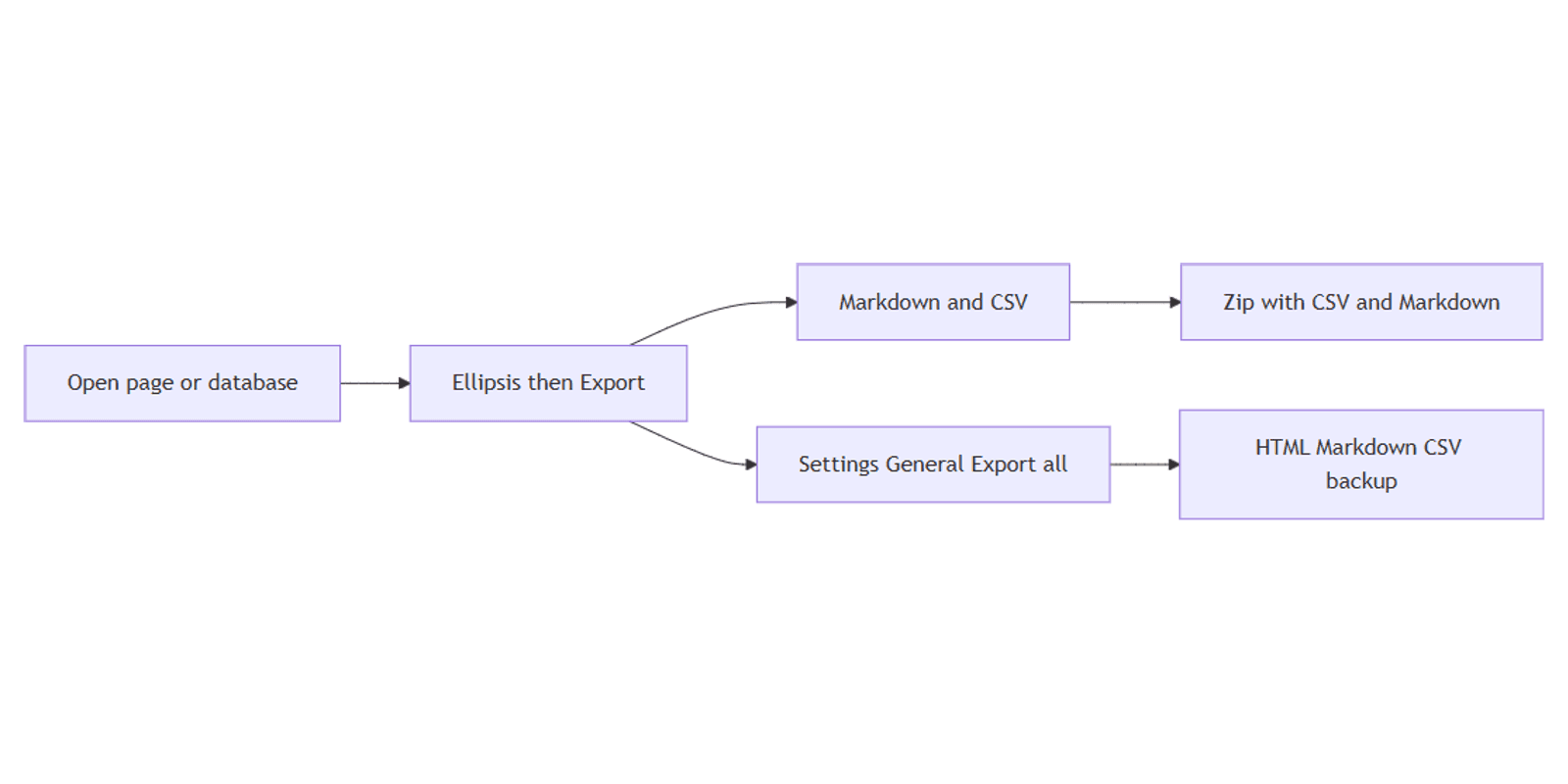
Notion database export downloads your data as files you can open in Excel, Numbers, or a text editor - useful for backups, migrations, and offline copies. Full-page databases export as CSV, with Markdown for related pages when you choose Markdown & CSV.
This guide covers page-level export, Include subpages, workspace-wide export, guest and Enterprise limits, and how this differs from exporting a single page as PDF. Official help: Export your content.
For a single page as PDF (print / share layout), see Exporting a Notion page as PDF - that is a different path than CSV backups.
Export a page or database as Markdown & CSV
On desktop / web
- Open the page or full-page database you want to back up.
- Click ••• in the upper right.
- Choose Export.
- Set the format to Markdown & CSV.
- Optionally turn on Include subpages to pull nested pages into the zip.
- Click Export and save the zip (or wait for Notion’s download / email link on large files).
What you get
| Source | In the zip |
|---|---|
| Full-page database | CSV of the database |
| Non-database pages | Markdown files |
| Subpages (if included) | Extra Markdown / nested folders + assets |
| Callouts | Exported as HTML (no Markdown equivalent) |
You can open the CSV in Excel, Numbers, or Google Sheets. Markdown opens as plain text with Markdown syntax (Notion Help).
Note: Form view of a database cannot be exported as such - export from Table (or another supported view) instead. When exporting a database, you choose between the current view and the default view - exporting every view at once is not supported.
Include subpages
Include subpages packs nested pages into the same download (often as a zip with folders for assets). Use it when a wiki or project page has important children you need offline. Skip it for a single database CSV to keep the archive smaller.
On Windows, very deep folder names can hit path-length limits - Notion suggests unchecking Create folders for subpages or extracting with a tool that handles long paths (Notion Help).
Export the entire workspace
For a full backup beyond one page:
- Go to Settings in the sidebar.
- Under Workspace, open General.
- Select Export all workspace content.
- Choose formats such as HTML, Markdown, or CSV (databases) as offered.
- Wait for Notion’s email (or in-app inbox) with a download link - links expire after 7 days; large workspaces can take many hours.
Workspace export is available on desktop or web only. Private pages you cannot access are skipped. You cannot instantly recreate a workspace by re-uploading the export (Notion Help).
Workspace PDF export (time-limited)
Business / Enterprise workspaces have historically been able to export the entire workspace as PDF for compliance-style backups. Notion has announced that workspace PDF export is going away, with rollout expected gradually through about August 31, 2026 (confirm current status in your workspace and official help). You can still export workspace content as HTML / Markdown / CSV, and export individual pages as PDF - see Exporting a Notion page as PDF.
Who can export?
| Situation | What to know |
|---|---|
| Guests | Need sufficient access on the page/database - Notion Help states guests need Full access to see Export |
| Enterprise | Owners may Disable export under Settings → Security (or teamspace security) |
| Members | If Export is missing, check guest role, Enterprise disable flags, or ask an owner |
Always verify share permissions before assuming a teammate can download.
Relations, formulas, and what CSV keeps
Markdown & CSV is great for portable text and rows, but complex properties flatten:
- Relations often export as internal IDs (or flattened text) rather than live links - plan to remap if you re-import elsewhere.
- Formulas (and similar computed fields) typically export as static values at export time - the formula logic itself does not travel with the CSV.
Treat CSV as a snapshot, not a perfect clone of your Notion data model. Rebuild relations and formulas after any re-import (see also CSV import).
Works with the Social Media Multi-Platform Content Planner when you need a spreadsheet copy of a content calendar for stakeholders outside Notion.
Markdown & CSV vs page PDF
| Need | Use |
|---|---|
| Spreadsheet / migration / text backup | Markdown & CSV (this guide) |
| Printable layout of one page | Export page as PDF |
| Whole-workspace archive | Settings → General → Export all |
FAQ
How do I export a Notion database to CSV?
Open the database → ••• → Export → Markdown & CSV. The zip includes a CSV for the database (Notion Help).
What does Include subpages do?
It adds nested pages (and often assets) to the download so the zip mirrors more of the page tree.
Can guests export?
Guests need high enough permission on that page or database. Notion Help currently says guests need Full access to see and use Export. If the option is missing, check share permissions or ask a workspace owner.
Why is Export missing in the menu?
On Enterprise, export may be disabled in security settings. Guests without Full access also will not see it (Notion Help).
Is this the same as Export PDF?
No. Markdown & CSV is for data/text backups. PDF is for page layout / print - see Exporting a Notion page as PDF.
Conclusion
To export a Notion database, use ••• → Export → Markdown & CSV, optionally Include subpages, and open the CSV in your spreadsheet tool. For a full backup, use Settings → General → Export all workspace content. Watch relation IDs and static formula values, and use CSV import only when you intentionally want to add rows back.
For printable pages, stay with page PDF export. For structured CRM data you may also back up alongside templates like the CRM Dashboard.
Notion Templates
Start Selling Notion Templates - Start Now!