Notion Table View: Edit Database Rows Like a Spreadsheet
Notion table view is the default spreadsheet layout for databases - every property is a column, every page is a row, and you edit cells in place. Ideal when you need bulk data entry, formulas at a glance, or full-field control that Board and List hide.
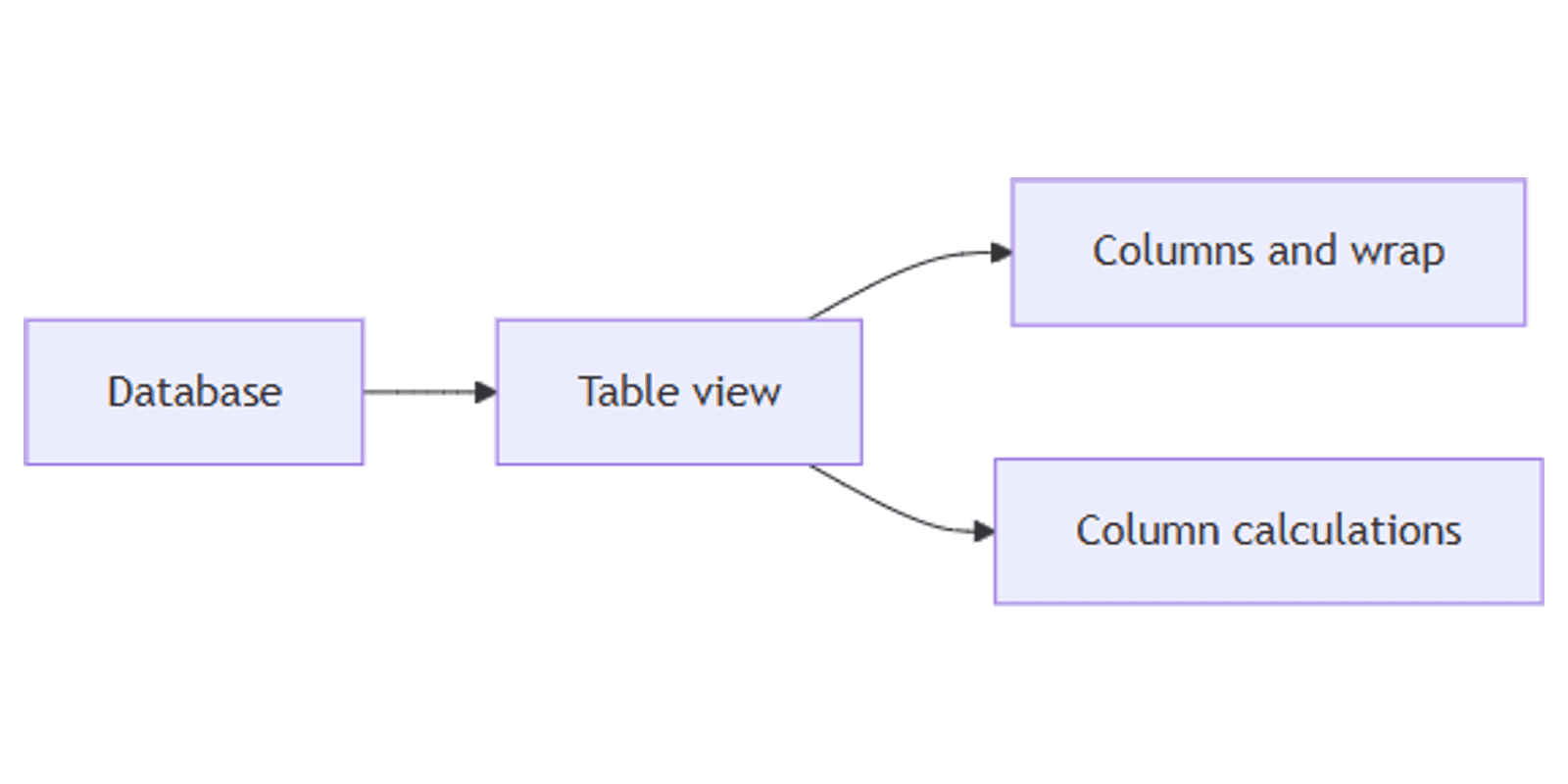
This guide covers how to create a Notion table view, control property visibility and layout, run column calculations, filter/sort/group, and apply conditional color to rows or cells. See Notion's views, filters, and sorts and database properties for official details.
What is table view?
Table is a database layout that shows items in a grid: titles on the left, properties as columns you can show, hide, resize, and reorder. New databases often open as Table by default.
| Table | Board | List | |
|---|---|---|---|
| Focus | All fields editable | Stages in columns | Titles + a few props |
| Update style | Edit cells | Drag cards | Open page or chips |
| Best for | Bulk data entry | Pipelines, sprints | Doc queues |
Use Table when many fields matter at once. Use Board when workflow stage matters. Use List for scanning titles. Pair with filters and sorts so the grid stays focused.
By default, Table (like Board, List, and Timeline) opens pages in side peek (views help).
How to create a Notion table view
Option 1: Add to an existing database
- Open the database.
- Click + next to the view tabs (or current view → New view).
- Select Table.
- Name the view (e.g. "Master data" or "Admin grid").
Option 2: Slash command
- On any page, type
/Table viewand press Enter. - Expand to full page with ⤢ if needed.
Table is often the first layout you see when you create a new full-page or inline database.
Property visibility and column layout
- Open View settings (slider) → Property visibility (or Properties).
- Click the eye icon to show or hide each property.
- Drag with ⋮⋮ to reorder columns.
Wrap all columns and vertical lines
Under Layout (in View settings) you can:
- Turn on Wrap all columns so long Text cells show multiple lines instead of truncating.
- Toggle Vertical lines (or show/hide vertical borders) for a clearer spreadsheet look.
For a single Text column, you can also enable Wrap content on that property (database properties).
Insert properties left or right
Hover a column header → open the property menu → Insert left or Insert right to add a new property next to the current column without jumping to the far right +.
Calculations at the column bottom
Many property types support a calculation footer under the column:
- Hover the bottom of a column (or open the column menu).
- Choose a calculation - Count all, Count values, Count unique, Sum, Average, Min, Max, etc. (options depend on property type).
Useful for CRM Amount totals, task counts, or checkbox completion rates.
Filter, sort, and group
Tables support filters, sorts, and grouping:
- Status is not Done
- Owner contains Me
- Due is within This week
- Priority is P0
Save filtered tables: My open tasks, This week's deals, Needs review.
Conditional color: row vs property
Conditional color highlights pages when a rule matches. In Table only, you can choose where color applies:
- View settings → Conditional color → New color setting.
- Set the property and rule.
- Open Apply to and choose:
- Entire row - the whole row background
- Just the property - only the cell for that property
On Board, List, Calendar, Timeline, and Feed, color applies to the page / card, not individual cells (property help).
Comment on properties in tables
In Table view you can leave comments on individual properties:
- Hover a cell or property.
- Click 💬 to comment on that field.
- @-mention teammates to notify them.
Page-level and property comments are covered in Notion comments. Mentions in comments work like Notion mentions.
Practical workflow examples
Master admin grid
- Show every operational field: Status, Owner, Due, Priority, Tags.
- Filter Status is not Done.
- Sort by Due ascending.
- Use column calculations for count of open rows.
Content calendar spreadsheet
- Title + Publish date + Platforms + Caption (Text with Wrap).
- Table for bulk edits; Board for pipeline stages.
- Conditional color: Due before today → red Apply to entire row.
Works with the Social Media Multi-Platform Content Planner.
CRM deal sheet
- Stage, Amount (Number), Owner, Close date.
- Sum Amount in the calculation footer.
- Filter Stage is not Closed.
Works with the CRM Dashboard template.
Inventory / ops checklist
- Checkbox + Quantity + Location.
- Group by Location.
- Count empty fields to find incomplete rows.
Starter layouts also live in the Notion templates bundle.
Table vs Board vs List
| Goal | Best view |
|---|---|
| Edit many fields | Table |
| Move work through stages | Board |
| Scan titles quickly | List |
| Visual cards | Gallery |
Many workspaces keep Table for admin and Board or List for daily work on the same database.
Tips for teams
- Hide unused columns - wide tables are hard to scan.
- Wrap Text sparingly - wrap summaries, not essay-length notes.
- Name views by job - "Data entry" vs "My filtered queue".
- Use Insert left/right when building schemas mid-flight.
- Color the row for urgency - color one property when only that field should flash.
Permissions and troubleshooting
Who can edit table layout: members with Can edit access to the database.
Common issues:
- Missing columns - check Property visibility.
- Text cut off - enable Wrap all columns or per-property Wrap content.
- Cannot Apply to property - that option is Table-only for conditional color.
- Wrong open behavior - set Open pages in to Side peek, Center peek, or Full page.
FAQ
Is table the default Notion database view?
Often yes - new databases commonly open as Table. You can always add Board, List, and other views alongside it (views help).
Can I wrap text in Notion table cells?
Yes. Use Layout → Wrap all columns, or enable Wrap content on a Text property (database properties).
Can conditional color paint one column only?
Yes - in Table view, set Apply to to the property instead of the entire row (conditional color).
Conclusion
Notion table view is the spreadsheet layout for databases - add a Table, show the columns you need, wrap long Text, calculate footers, and color rows or cells. Pair with Board for pipelines and List for lighter queues.
For filtering and sorting, see database filtering and database sorting. For highlight rules, see conditional color. For all layouts, see Notion database views.
Notion Templates
Start Selling Notion Templates - Start Now!