Notion Wikis and Verified Pages: Mark Docs as Up to Date
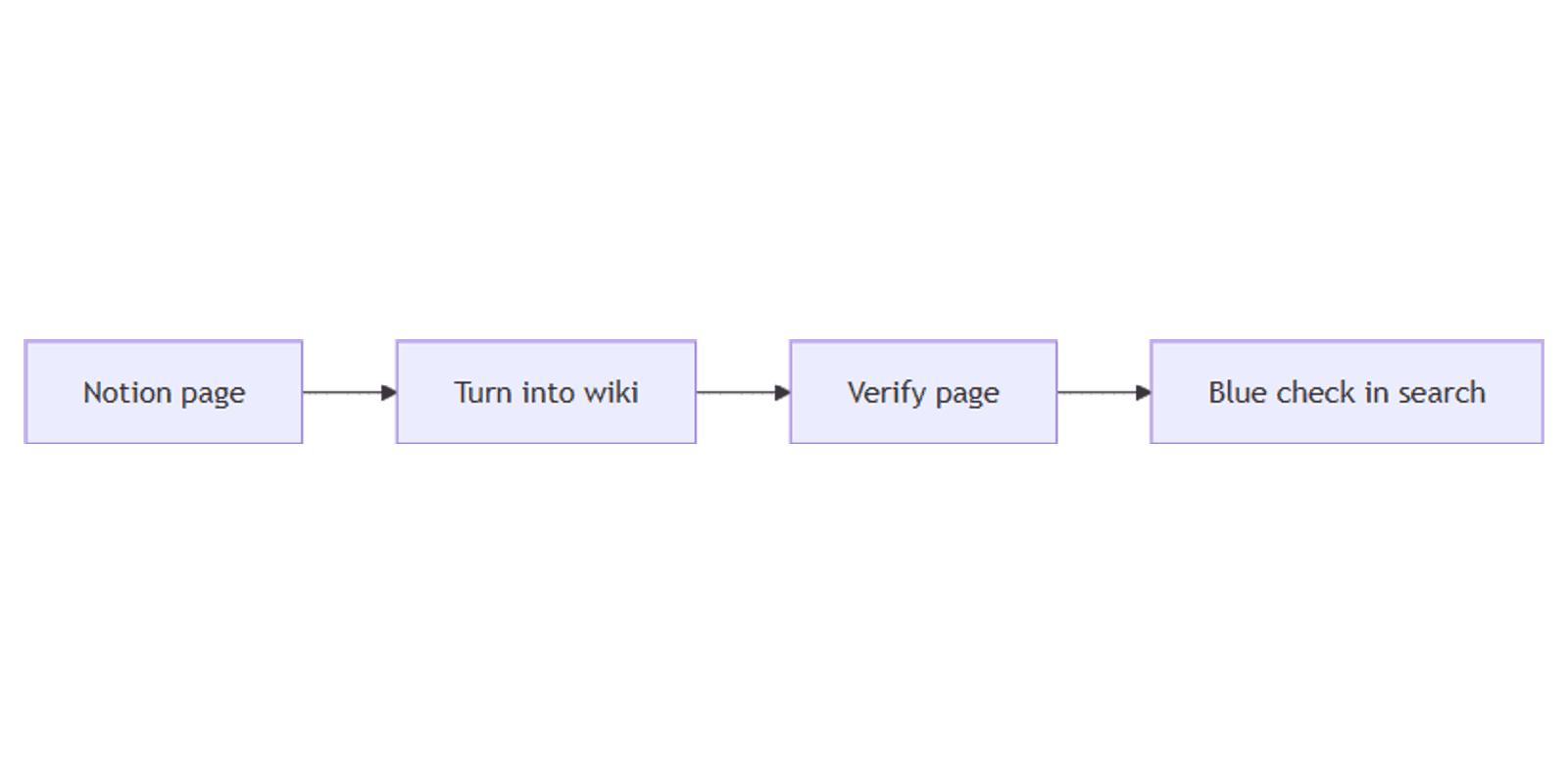
Notion Wikis and verified pages help teams centralize knowledge and show which docs are still trustworthy. Wikis add Home / All pages / Pages I own views; verification adds a blue check in @ mentions and search, with expiry alerts to owners.
This guide covers how to turn a page into a wiki, verify pages (wiki vs individual vs database), and manage everything under Settings. See Notion's Wikis and verified pages help for official details.
What is a Notion wiki?
A wiki is a normal Notion page turned into a knowledge hub with built-in views for browsing and ownership. At this time, only pages can become wikis - you cannot turn a database into a wiki (Notion Help).
| Wiki | Regular page | Database | |
|---|---|---|---|
| Purpose | Team knowledge hub | Single doc | Structured rows |
| Default views | Home, All pages, Pages I own | Page body only | Table / Board / etc. |
| Turn into wiki | Yes (from page) | Via ••• | Not supported |
Publish wiki content to the web with Notion Sites when docs should be public.
How to turn a page into a wiki
- Open the page you want as the wiki root.
- Click ••• at the top of the page.
- Select Turn into wiki.
Default wiki views
Wikis ship with three default views (Notion Help):
| View | What it shows |
|---|---|
| Home | Pages in the wiki - customize with callouts, headings, and drag-and-drop layout |
| All pages | Database-style view of every page in the wiki |
| Pages I own | Database-style view of pages you own |
You can add more layouts - calendar, timeline, list, and other database views.
Undo a wiki
- Click ••• at the top of the wiki.
- Select Undo wiki.
What are verified pages?
Verification marks content as up to date. You can verify until a specific date or indefinitely.
Verified pages show a blue check mark next to their name when they are:
- @-mentioned elsewhere
- Displayed in Notion search results
When verification expires, the page owner is notified in their Notion Inbox and via email (Notion Help).
By default, whoever creates a page in a wiki becomes its owner - you can change the owner anytime.
How to verify pages in a wiki
Only owners verify wiki pages.
From the page
- Open a wiki page you own.
- Click the Verification section at the top.
- Choose verify until a date, or indefinitely.
From a wiki database view
- Select the Verification property value for a page you own.
- Choose until a date, or indefinitely.
When verification expires, owners are prompted to re-verify.
Verify individual pages (not in a wiki)
Business and Enterprise only. Free, Plus, and other plans cannot verify standalone pages this way (Notion Help).
- Open a page where you have Can edit or Full access.
- Hover over the page name.
- Select Verify.
- Choose until a date, or indefinitely.
A verified page needs at least one owner. To add owners:
- Open the page (Can edit or Full access).
- Select Verified at the top.
- Select Owner.
- Add people from your workspace.
Verify pages in a database (not a wiki)
Business and Enterprise only. Same plan gate as individual page verification.
You can verify database pages one by one (as above), or add Verification as a property for the whole database:
- Select ••• at the top of the database → Properties → New property.
- Select Verification - this automatically also adds an Owner property.
- Set the Verification value on a page you can edit.
- Choose until a date, or indefinitely.
By default the page creator becomes Owner. To tune Owner settings:
- ••• → Properties → Owner.
- Limit - one person vs no limit.
- Default - Created by vs no default.
Pair Owner with People habits and Created / Last edited for freshness audits.
Remove verification
Wiki or individual page:
- At the top, select Verified.
- Select Remove verification.
Database with a Verification property:
- Select the Verification property value.
- Select Remove verification.
Manage all verified pages
- Open Settings in the sidebar.
- Select Verified pages.
From there you can search, filter by owner or teamspace, and review the workspace inventory (Notion Help).
Practical workflows
Team help center wiki
- Create a parent docs page → Turn into wiki.
- Customize Home with ownership callouts and section headings.
- Verify core SOPs indefinitely; set quarterly expiry on changing policies.
- Use Pages I own for each author's refresh queue.
Product docs with expiry
- Verify feature pages until the next release date.
- On expiry, Inbox + email nudge the owner to re-verify or rewrite.
- Publish the public subset via Notion Sites.
Business/Enterprise knowledge base database
- Add Verification (+ Owner) to a docs database.
- Filter Unverified or expired for cleanup sprints.
- Browse in List view with Owner + Verification visible.
Works with Sparxno Notion templates.
Tips
- Wiki for hubs, database for catalogs - wikis organize pages; databases scale properties and filters.
- Only owners verify in wikis - assign Owner before expecting checkmarks.
- Business/Enterprise for non-wiki verification - plan gate applies to individual pages and database Verification properties.
- Expiry is a feature - use dates so stale docs lose the blue check on purpose.
- Mention verified pages - blue checks surface in @ mentions and search.
FAQ
Can I turn a Notion database into a wiki?
No. Only pages can become wikis (Notion Help).
Who gets notified when verification expires?
The page owner - via Notion Inbox and email.
Is the Verification database property available on all plans?
No. Verifying individual pages outside a wiki and adding Verification to a regular database require Business or Enterprise.
Conclusion
Wikis turn a page into a browsable knowledge hub; verified pages add a blue check so teams know what is current. Turn into wiki from •••, verify as owner (or use Business/Enterprise for standalone and database verification), and manage everything under Settings → Verified pages.
For publishing docs, see Notion Sites. For @ links and notifications, see Notion mentions. For freshness timestamps, see Created and Last edited.
Notion Templates
Start Selling Notion Templates - Start Now!