How to Use Canva Background Remover: Photos and Video
Canva Background Remover cuts a subject out of a photo or video in one click - perfect for product shots, headshots, and social creatives on clean brand colors. Use it with Brand Kit and your social templates for faster campaigns.
This guide covers BG Remover for photos and video, erase/restore brushes, size limits, and workflows for Instagram and LinkedIn. Details follow Canva's Background Remover help.
What is Background Remover?
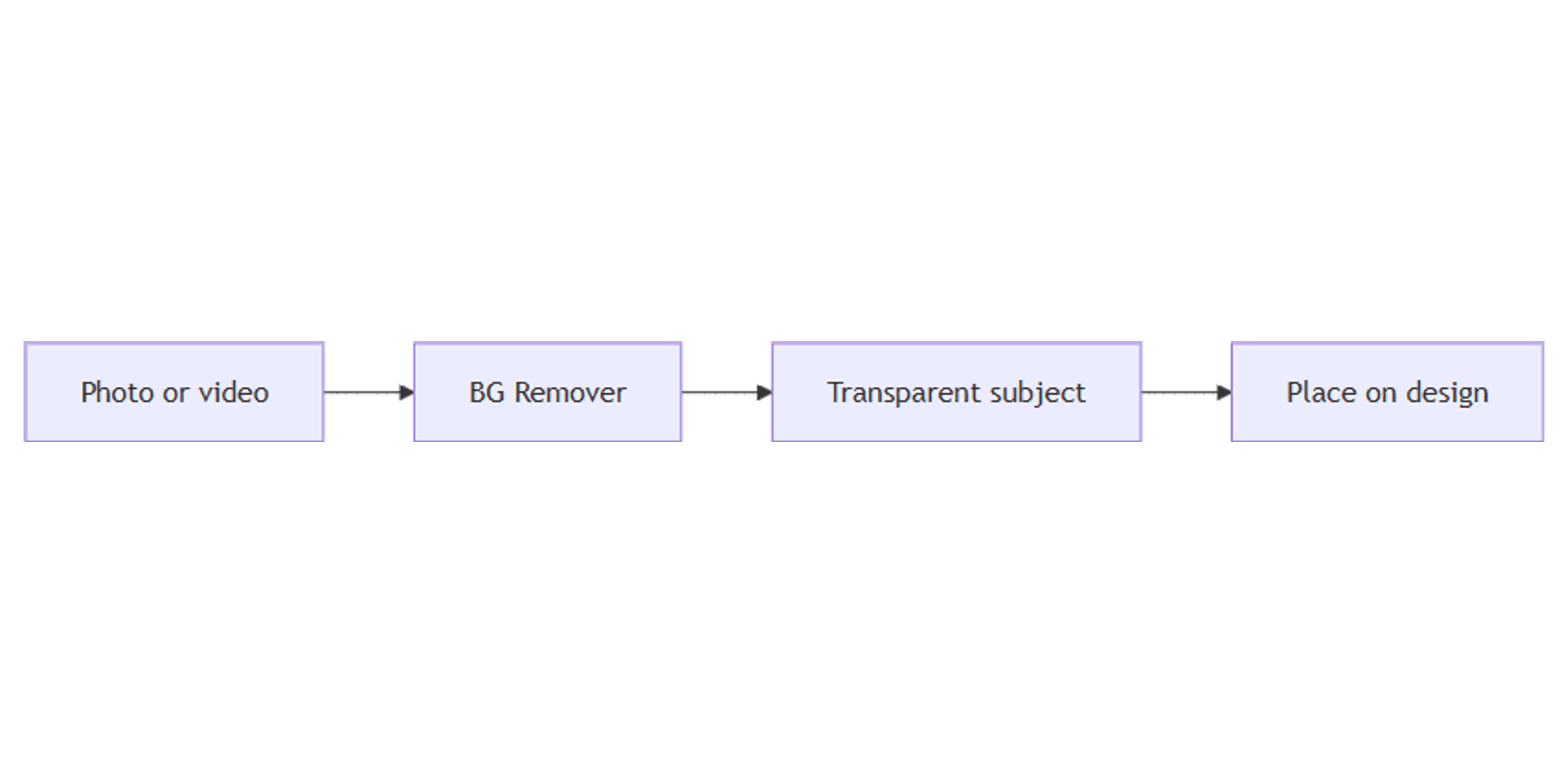
Background Remover is Canva’s one-click tool that detects the subject and removes the backdrop. In the editor toolbar it is labeled BG Remover.
Availability: paid Canva plans (Pro, Teams, Education, Nonprofits, and similar paid tiers). Canva AI homepage background removal is documented as paid plans only. Free users typically see an upgrade prompt.
| BG Remover | Manual crop / frames | |
|---|---|---|
| Speed | One click + optional brush cleanup | Manual |
| Best for | People, products, pets | Simple geometric crops |
| Output | Transparent subject on your design | Still includes original BG unless masked |
Remove a photo background
In the editor
- Open a design in Canva and select the photo.
- From the editor toolbar, select BG Remover.
- Wait for processing - the background disappears.
From Projects
- Homepage → Projects → Images.
- Hover the photo → More → Edit image.
- Under Tools, select BG Remover.
Refine with erase and restore brushes
After removal:
- Reselect BG Remover.
- Choose Erase or Restore brush; adjust Brush size.
- Paint areas to remove or bring back.
- Optionally Show original image while editing.
- Use Undo/Redo for brush strokes (Canva Help).
Zoom in for hair, jewelry, and product edges.
Canva AI / Ask Canva (photos)
On paid plans you can also:
- Homepage → Canva AI - upload/import a photo → prompt “Remove background”.
- Ask Canva on a selected image in the editor with the same style of prompt.
Canva AI does not remove video backgrounds yet - use the editor BG Remover for video.
Remove a video background
- Select the video on the canvas.
- Toolbar → BG Remover.
- Wait for processing.
Limits (Canva Help):
- Original video length must be under 10 minutes.
- If you trimmed the clip in Canva, download and re-upload before BG Remover will work.
- On mobile, upload via Uploads (not Camera Roll/Gallery) when required by the app.
Photo limits and gotchas
From Canva Help:
| Rule | Detail |
|---|---|
| File size | Photos under 9 MB |
| Vectors | Not supported |
| Resolution | Images over 10 MP are downscaled to 10 MP after removal |
| Connection | Flaky networks can stall processing |
Practical workflows
Product on brand color
Headshot for LinkedIn / Stories
- Remove background; drop onto soft gradient.
- Keep face in the safe zone for Instagram Stories.
- Resize with Magic Resize for feed + Story.
Thumbnail cutouts
- Cut out the subject for a YouTube thumbnail.
- Add bold text beside (not on) the face.
- Export PNG to preserve transparency when compositing further.
Tips
- Start with contrast - subject clearly separated from BG removes cleaner.
- Brush the edges - AI is fast; hair still needs Restore/Erase.
- PNG for transparency when downloading cutouts alone.
- Watch AI usage - BG Remover counts toward Canva AI limits on eligible plans.
- Re-upload trimmed video before removing video backgrounds.
FAQ
Is Canva Background Remover free?
No for normal use - it is a paid-plan feature. Canva AI photo removal is also documented as paid only (Canva Help).
Why won’t BG Remover work on my video?
Check length (under 10 minutes original), re-upload if you trimmed in Canva, and confirm you are on a paid plan with a stable connection.
Can I fix a bad cutout?
Yes - reopen BG Remover and use Erase / Restore brushes.
Conclusion
Canva Background Remover isolates subjects in seconds - select the media, click BG Remover, refine with brushes, then drop the cutout onto brand backgrounds. Pair with Magic Resize and your social size guides for Instagram, LinkedIn, and Facebook.
For mockup presentations, see Sparxno Canva frame mockups.
Canva Templates
Start Selling Canva Templates - Start Now!