Notion Relations: How to Connect Databases
Notion databases become far more useful when they link to each other. A relation property connects rows in one database to pages in another - so you can tie tasks to projects, notes to clients, or purchases to customers without duplicating data.
This guide explains how Notion relations work, how to create them, and when to choose one-way vs two-way links.
What is a relation property?
A relation connects one database to another. Each row can link to one or more pages in a related database.
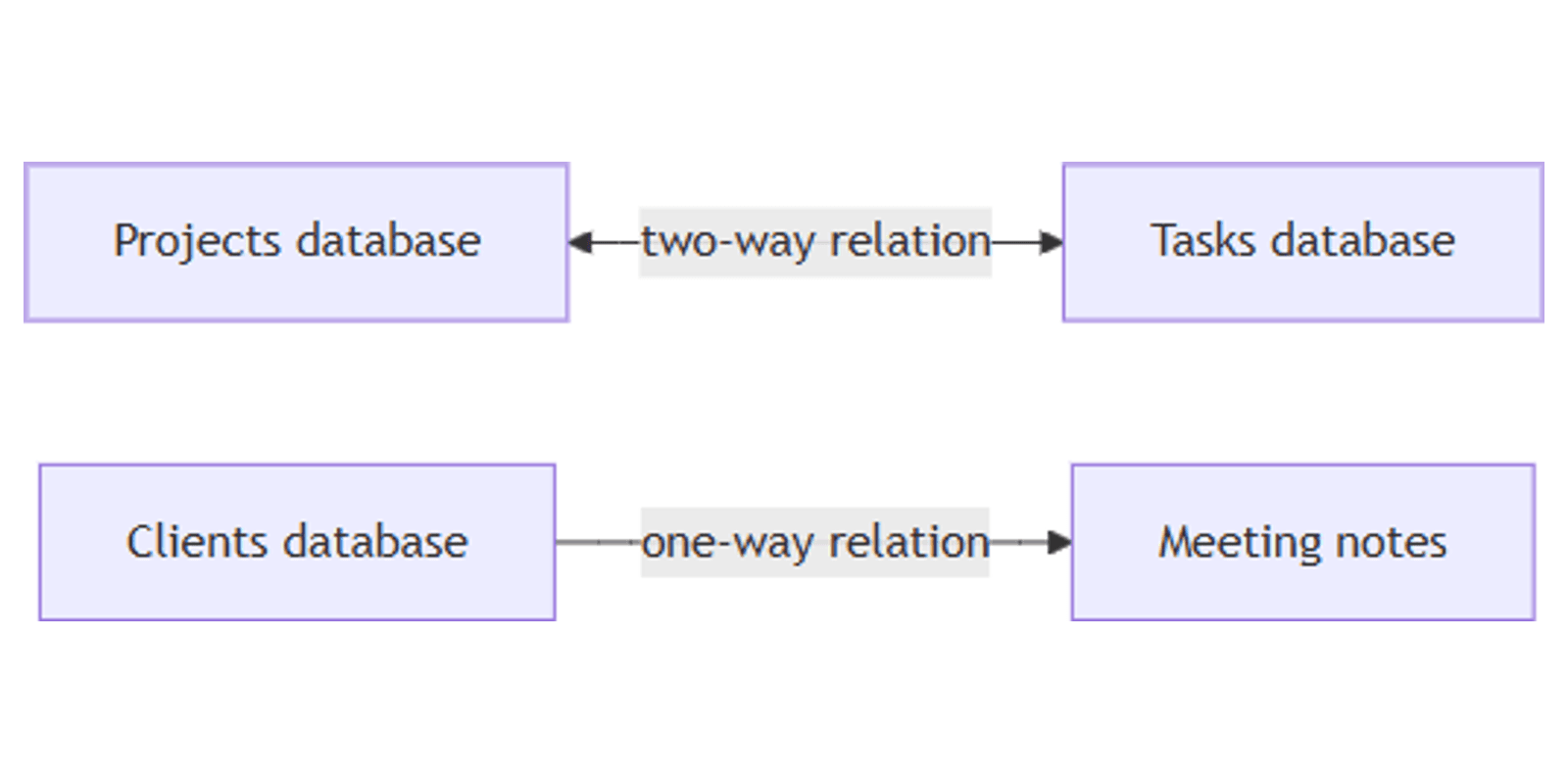
Example: A Projects database links to a Tasks database. Each project row shows which tasks belong to it. With a two-way relation, each task row also shows its project.
Common use cases:
- Projects → Tasks - see how work breaks down across goals.
- Clients → Meeting notes - open relevant notes from a client page.
- Candidates → Interviewers - track who interviewed whom.
- Restaurants → Neighborhoods - group locations by area.
Relations are added like any other database property. Linked pages open and edit like normal Notion pages.
How to create a relation
You need two databases (or the same database for a self-relation).
- Open the database where you want the relation (e.g. Projects).
- Click + next to the rightmost column.
- Name the property (e.g. Tasks).
- Choose Relation as the property type.
- Search for and select the database to connect (e.g. Tasks).
- Review the preview, then click Add relation.
To link pages:
- Click a cell in the relation column.
- Search for and select pages from the related database.
- To remove a link, hover over a page and click –.
One-way vs two-way relations
Relations are one-way by default. The link exists only in the database where you created it.
Enable two-way sync to update both sides automatically:
- When creating the relation, toggle Show on [related database].
- Name the corresponding relation on the other database.
- Click Add relation.
With a two-way relation, linking a task to a project also adds that task on the project row - and vice versa.
| One-way | Two-way | |
|---|---|---|
| Updates | Only the source database shows the link | Both databases stay in sync |
| Best for | Simple lookups, read-only references | Tasks ↔ projects, clients ↔ notes |
Tip: Duplicating a database with a two-way relation converts it to one-way on the copy. You can re-enable two-way sync manually if needed.
Relation options worth knowing
Limit to one page
When editing a relation property, set Limit to 1 page if each row should link to only one other page - for example, one order per purchase or one project per task.
Display linked properties
On a database page, open a relation field → ••• → drag properties into Shown in relation to display extra fields from linked pages (e.g. show the owner of a related FAQ page).
Property visibility on pages
While viewing a database page, click the relation field → Property visibility to choose Always show, Hide when empty, or Always hide for how the relation appears on that page layout.
Self-relations
You can relate a database to itself - useful for tasks that block other tasks, or documents that reference each other. Notion recommends turning off two-way for self-relations to avoid duplicate columns.
For parent-child task hierarchies in one database, use built-in sub-items instead - they add nesting, view options, and rollup support without manual self-relation setup.
Practical example: Projects and Tasks
A common starting setup:
- Create a Projects database with Status, dates, and owner.
- Create a Tasks database with Status and due dates.
- Add a two-way relation between them - Tasks on Projects, Project on Tasks.
- Link each task to its project. Open tasks from the project row without leaving the page.
From here you can add board views on Tasks grouped by Status, filtered by project. To count tasks or sum totals per project, set up rollups on top of this relation.
Tips and limitations
- Name relations clearly - use labels like Tasks and Project so linked data is easy to find.
- Keep relations focused - too many cross-database links can make databases hard to maintain.
- CSV export - relations export as plain-text URLs; re-importing a CSV does not restore links.
- Change the linked database - re-select Relation as the property type and choose a new target database if your setup changes.
Conclusion
Relations connect Notion databases so linked pages stay organized across your workspace. Start with a two-way relation between two databases you already use - projects and tasks is a great first pair. Once links are in place, add rollup properties to summarize the connected data.
Notion Templates
Start Selling Notion Templates - Start Now!