How to Create YouTube Channel Art in Canva: 2560×1440 Safe Zones
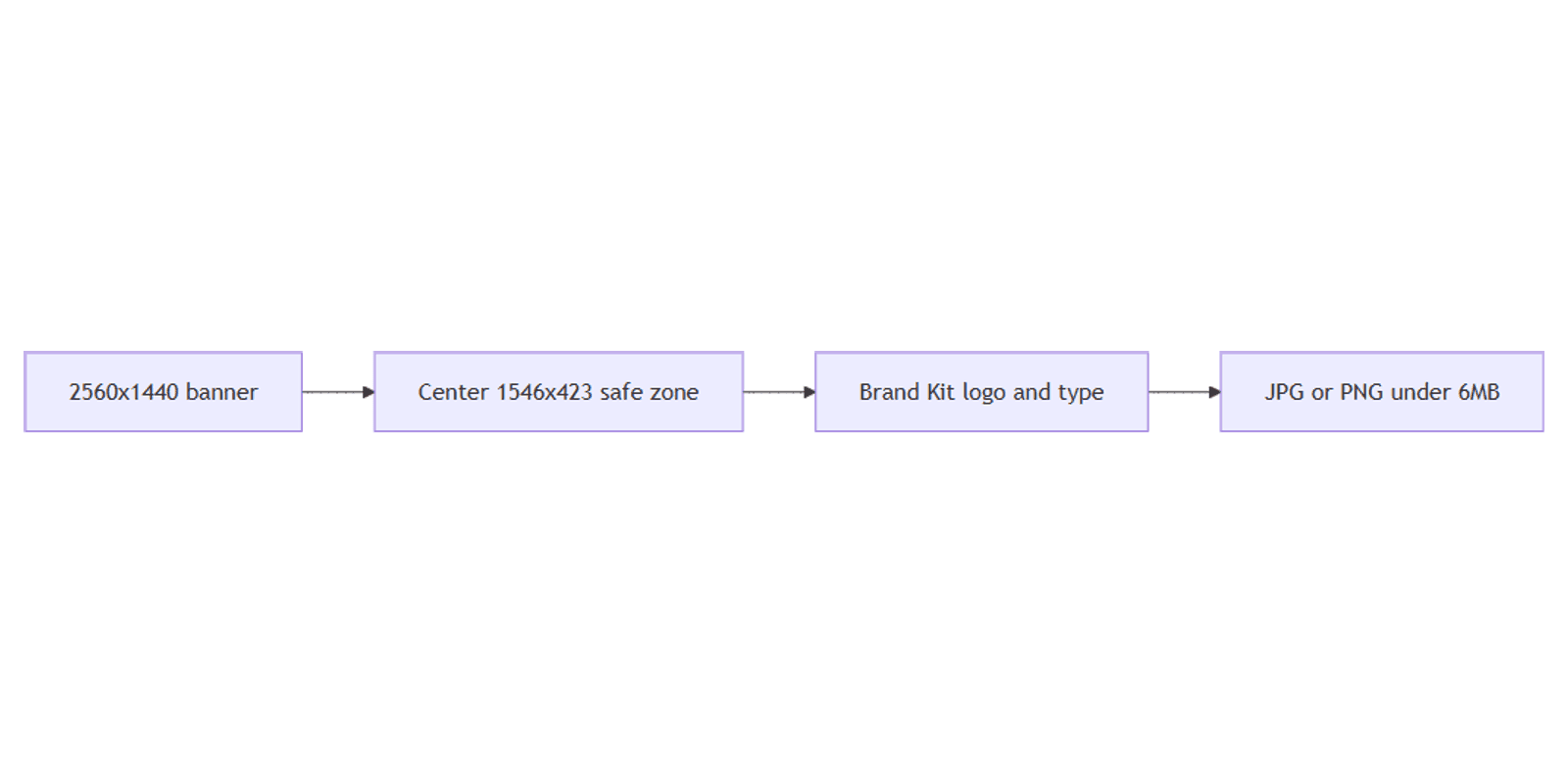
YouTube channel art (the channel banner) is the wide header on your channel page - not the same as a video thumbnail or a Shorts cover. In Canva, design at 2560 × 1440, keep critical content inside the center safe zone, and export a file under about 6 MB.
This guide covers size, safe zones, Brand Kit, and export. Official references: YouTube channel art help, Canva YouTube banner templates, Download file types.
YouTube channel art size and safe zone
| Spec | Value |
|---|---|
| Full canvas | 2560 × 1440 px |
| Safe zone (approx.) | ~1546 × 423 px centered |
| Max file size (practical) | About 6 MB |
| Export | JPG or PNG |
YouTube crops the banner differently on TV, desktop, tablet, and mobile. Only the center safe area (~1546 × 423) is reliably visible on all devices. Put logo, channel name, and any CTA inside that band. Use the outer canvas for atmosphere only - it may be cropped away.
Channel art ≠ video thumbnail ≠ Shorts.
| Asset | Size | Job |
|---|---|---|
| Channel art | 2560 × 1440 | Channel header branding |
| Video thumbnail | 1280 × 720 | Per-video click image - see YouTube thumbnails |
| Shorts cover | Vertical | Shorts shelf art - see YouTube Shorts |
To create the canvas:
- Open Canva.
- Click Create a design → search YouTube Banner / YouTube Channel Art.
- Confirm 2560 × 1440, or enter that size under Custom size.
- Mentally (or with guides) reserve the center ~1546 × 423 for text and logo.
Tip: add a temporary rectangle of 1546 × 423 centered on the canvas while you design, then delete it before export.
Step-by-step: build channel art
1. Set a full-bleed background
- Photo, gradient, or brand color across the full 2560 × 1440.
- Keep backgrounds simpler in the center band so type stays readable.
- Avoid placing faces or logos only in the far left/right wings - phones crop those first.
2. Place brand elements in the safe zone
- Add channel name or wordmark inside the center band.
- Optional tagline - keep it to a few words.
- Logo mark beside or above the name - still inside ~1546 × 423.
- Apply Brand Kit colors, fonts, and logos.
3. Typography tips
- One primary message - channel name beats a paragraph of links.
- High contrast against the banner photo.
- Large enough for TV and mobile - zoom out; if it fails at small size, enlarge type.
- Skip tiny social-handle stacks that vanish on phones (YouTube also shows links elsewhere).
4. Align and check crops
- Center the safe-zone group horizontally and vertically on the artboard.
- Leave a little padding inside the 1546×423 band - do not kiss the safe-zone edge.
- Preview: the outer margins can hold pattern or photo extension only.
Preview the banner on a device mockup with the FREE Frame Mockups Bundle if you want a quick desktop/TV sanity check before upload.
Export settings
- Share → Download.
- Prefer JPG for photo banners (easier to stay under ~6 MB) or PNG for flat graphics.
- If the file is too large, lower JPG quality slightly or simplify gradients.
- Upload in YouTube Studio → Customization → Branding → Banner image (labels can vary).
| Check | Target |
|---|---|
| Dimensions | 2560 × 1440 |
| Safe content | Inside ~1546 × 423 center |
| File size | Under about 6 MB |
Design checklist
- Canvas is 2560 × 1440
- Logo and text sit in the center safe zone (~1546 × 423)
- Nothing critical lives only in the left/right crop wings
- Brand colors/fonts from Brand Kit
- Export under ~6 MB
- You did not reuse a 1280×720 thumbnail as the banner
Common mistakes to avoid
- Designing only for desktop width - mobile and TV crop differently.
- Uploading a thumbnail - 1280×720 is for videos, not channel art.
- Tiny text and URL lists - unreadable on TV and phones.
- Oversized files - compress before upload if you near the size cap.
FAQ
What size is YouTube channel art in Canva?
2560 × 1440 pixels. Use Canva’s YouTube Banner template or Custom size.
What is the safe zone?
Roughly 1546 × 423 pixels in the center of the 2560×1440 canvas - keep all critical content there so it survives device cropping.
How is channel art different from thumbnails and Shorts?
Channel art is the banner. Per-video images use YouTube thumbnails (1280×720). Vertical covers use YouTube Shorts.
PNG or JPG?
Both work. JPG is often better for staying under ~6 MB with photo backgrounds; PNG suits flat, logo-heavy banners if the file stays small enough.
Conclusion
To create YouTube channel art in Canva, set 2560 × 1440, lock logo and text inside the ~1546 × 423 center safe zone, apply Brand Kit, and export under about 6 MB. Keep this asset separate from YouTube thumbnails and YouTube Shorts covers.
Canva Templates
Start Selling Canva Templates - Start Now!