How to Use Canva Brand Kit: Colors, Fonts, and Logos
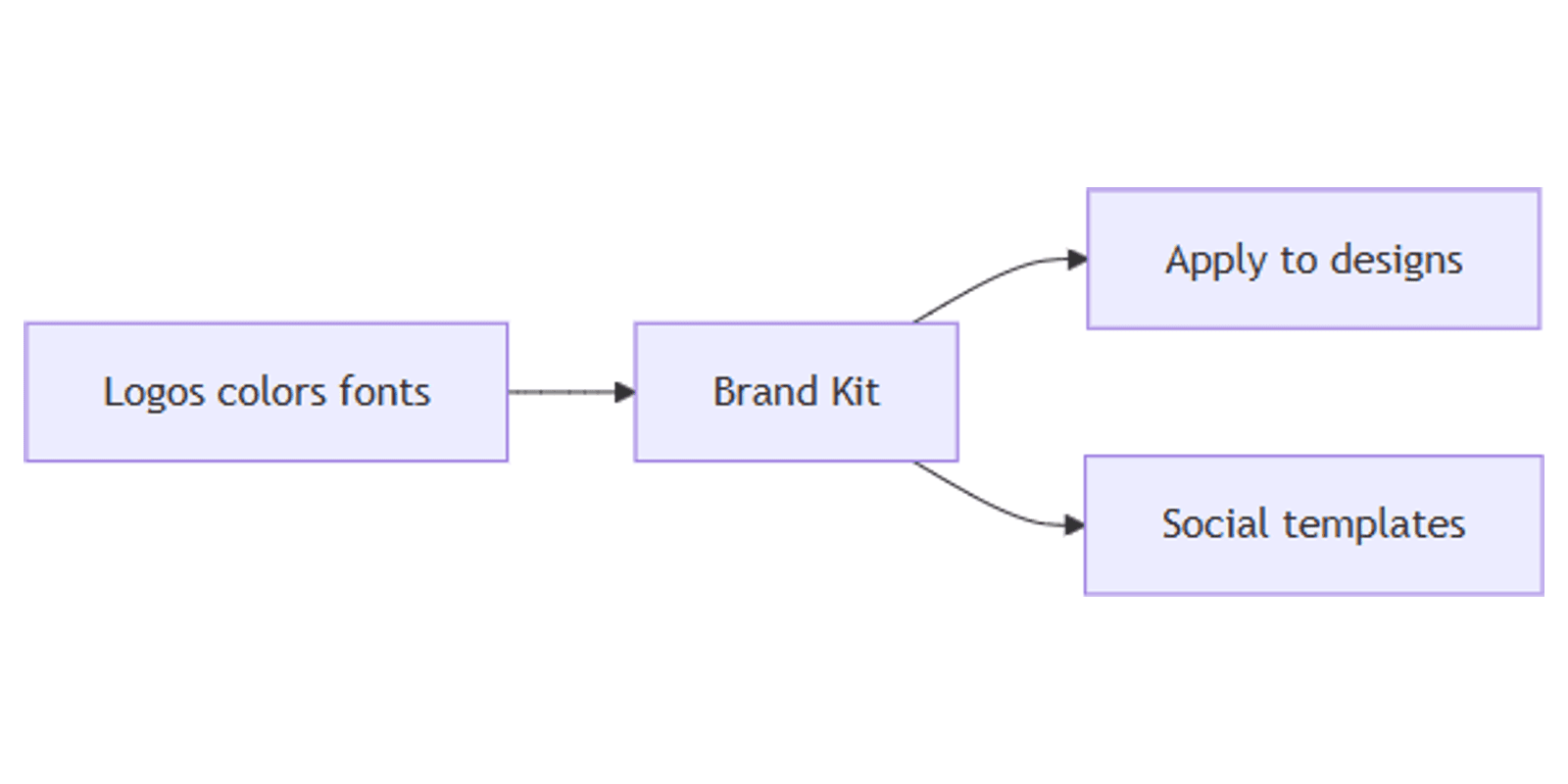
Canva Brand Kit stores your logos, colors, fonts, and related brand assets in one hub so every design stays consistent. Instead of re-picking hex codes for each Instagram or LinkedIn graphic, you apply the kit and ship faster.
This guide covers how to create a Canva Brand Kit, add logos/colors/fonts, use Brand Kit Builder, and apply the kit across social templates. Details reflect Canva Help guidance for paid plans in 2026.
What is Canva Brand Kit?
A Brand Kit is your visual identity library inside Canva - logos, fonts, colors, templates, photos, and more (Canva Help).
Availability (Canva pricing):
| Plan | Brand Kit |
|---|---|
| Free | 1 Brand Kit with up to 3 brand colors - no logo or custom font storage in the kit |
| Pro | Up to 5 full Brand Kits (logos, colors, fonts, and more) |
| Business / Enterprise | Many more kits (Business and Enterprise unlock larger kit limits) |
| Education / Nonprofits | Paid-plan Brand Kit features for eligible accounts |
Admins often create kits and controls; designers upload assets; members apply them while designing. This guide focuses on the full Brand Kit workflow (Pro and above).
| Asset | Why it matters |
|---|---|
| Logos | PNG for flexible layouts; SVG for sharp print scaling |
| Colors | Primary, secondary, neutrals with labeled hex codes |
| Fonts | Heading + body pairings with sizes/weights |
| Brand Voice | Tone notes for consistent copy |
| Photos / Graphics / Icons | Approved imagery and SVG icons |
| Charts | Brand colors applied to chart elements |
How to create a Brand Kit
- Open Canva and go to Brand on the homepage.
- Open the Brand Kit menu → Create a new Brand Kit or Create personal Brand Kit.
- Name the kit (e.g. company name or client name).
- Add assets manually, or speed up setup with Brand Kit Builder (below).
Teams that manage multiple clients usually keep one kit per brand.
Set up logos, colors, and fonts
Logos
- In the kit, open Logos → upload files.
- Prefer PNG with transparency for social layouts and SVG when you need scale for print.
- Upload variants (full color, white/reversed, icon-only) for light and dark backgrounds (Canva Help).
Colors
- Add primary, secondary, and neutral palettes.
- Enter hex codes and label roles ("Primary background", "Accent", "Text").
- Use color themes so backgrounds, elements, and text map to brand roles consistently.
- Check contrast so text stays readable on brand backgrounds.
Fonts
- Add approved heading and body fonts (upload custom files when licensed and allowed on your plan).
- Set pairings and define sizes/weights for common uses.
- Note: letter spacing and line spacing are not controlled from Brand Kit yet (Canva Help).
Brand Voice and extras
- Brand Voice - tone guidelines and sample snippets for AI-assisted and team copy.
- Photos / Videos / Graphics / Icons - approved media; use SVGs for print-ready icons.
- Charts - brand colors for Elements charts.
- Guidelines - add category do's/don'ts or a full Guidelines page from the Guidelines tab.
Most upload categories have limits. Colors, Fonts, Brand Voice, and Charts are not limited the same way; expand other categories by linking folders to the kit (Canva Help).
Brand Kit Builder (automatic setup)
Brand Kit Builder extracts logos, colours, and public fonts from a website URL or a PDF brand guidelines doc (PDF extraction can also pull voice and guideline-style content with AI).
Who can use it: Pro / Teams / Enterprise / Education / Non-profit plans; team owners, admins, and brand designers with Brand Kit edit access (Canva Help).
- Open Brand → empty or new Brand Kit (or the incomplete-kit banner).
- Choose website URL or upload PDF (PDF under 200 MB; clear formatting works best).
- Review extracted assets → edit, remove, or add missing items.
- Save and test on a real design.
Website extraction is usually fast; PDFs often take about a minute. If extraction fails, try another URL or a cleaner PDF.
Apply Brand Kit in the editor
- Open any design (blank or template).
- Open the Brand panel in the editor.
- Click brand colors to recolor selections, drag logos onto the canvas, and apply brand fonts.
- For reuse across sizes, start from your usual templates:
Workflow tip: lock the kit first, then duplicate one on-brand master design and resize for each channel instead of redesigning from scratch.
Practical workflows
Creator or small business
- One kit: logo variants, 4–6 colors, heading + body fonts.
- Apply to Instagram + LinkedIn templates the same week.
- Export PNG for feed; keep the Canva file for revisions.
Agency / multi-client
- Separate Brand Kit per client.
- Brand designers own uploads; members only apply assets.
- Link shared folders when a category hits upload limits.
Content calendar batch
- Build kit once.
- Design a week's posts in matching sizes.
- Track publish dates in Notion with a content planner.
Tips for consistent branding
- Label colors by role, not only "Blue 2" - teammates pick faster.
- Upload reversed logos before dark designs need them.
- Keep one canonical kit per brand; archive experiments separately.
- Review Builder output - extracted fonts may be public lookalikes, not licensed files.
- Safe margins still matter - brand assets do not fix cropped social safe zones.
FAQ
Is Canva Brand Kit free?
Partially. Free includes 1 Brand Kit limited to 3 brand colors. Logos, custom fonts, and full asset libraries need Pro or higher (Pro: up to 5 full kits). See Canva pricing and Canva's Brand Kit guide.
Can Brand Kit Builder read my website?
Yes - paste a public company URL, or upload a brand-guidelines PDF. Review and edit everything that is extracted (Builder help).
Can I use Brand Kit on Instagram and LinkedIn templates?
Yes. Open those designs and apply kit colors, fonts, and logos from the Brand panel.
Conclusion
Canva Brand Kit keeps logos, colors, and fonts one click away - set up the kit (manually or with Brand Kit Builder), then apply it across every social size you ship. Start with Instagram and LinkedIn, then reuse the same kit for covers, pins, and banners.
For frame-ready exports, see Sparxno Canva templates when you need mockup presentations.
Canva Templates
Start Selling Canva Templates - Start Now!