How to Create QR Codes in Canva for Links and Print
A QR code turns a poster, menu, flyer, or slide into a one-scan jump to a webpage, form, or product page. Canva can generate codes inside the editor so the code matches your layout and Brand Kit colors.
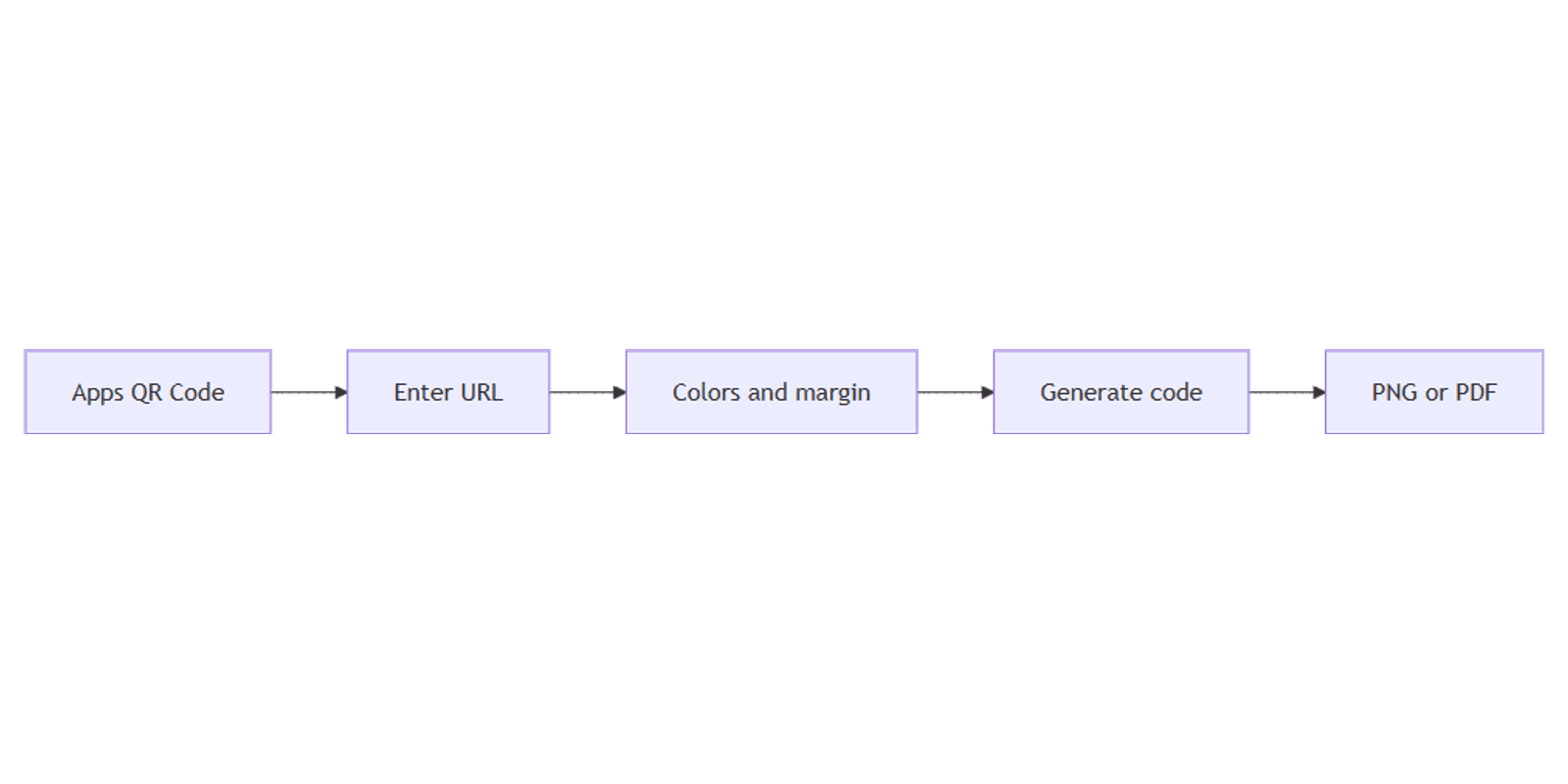
This guide follows Canva’s editor QR Code app flow that works generally across designs - URLs only, customize colors and margin, generate, then export for screen or print. Official steps: Create QR codes.
Some Canva surfaces also offer dynamic QR tools that may vary by region or app - this post focuses on the standard editor QR Code flow documented in Canva Help.
What Canva QR codes can link to
Canva’s QR codes support URLs only - they do not encode files, downloads, or non-URL payloads. Scanning opens that link; privacy and access depend on the destination page.
| Do | Do not |
|---|---|
Use a stable https:// page, form, or product URL | Point at a link that will expire soon |
| Prefer a short URL when possible | Expect the code to attach a PDF or file |
| Confirm the page is public if scanners are guests | Cover the code with other graphics |
How to create a QR code in Canva
- Open your design in the Canva editor.
- Open Apps in the side panel.
- Search for QR Code.
- Choose an app that generates the QR code you need.
- Enter the URL you want the scan to open (valid
http://orhttps://). - Optionally set Background color, Foreground color, and Margin.
- Click Generate code - the QR lands on your design so you can move and scale it.
If generation fails, check that the URL is valid and starts with http:// or https:// (Canva Help).
Size, contrast, and quiet zone
| Rule | Guidance |
|---|---|
| Minimum size | About 2 × 2 cm / 0.79 × 0.79 in for standard and colored codes |
| Contrast | Dark modules on a light background; avoid low-contrast and transparency |
| Quiet zone | Leave clear space around the code - ideally a margin about four times module width |
| Clean area | Do not overlay white/black shapes or text on top of the modules |
| Border fallback | If contrast is weak, place a solid rectangle behind the code |
Shorter URLs often produce simpler, more scannable patterns. For print, export sharp PNG or PDF - blurry exports and undersized codes are the usual scan failures.
Design placement ideas
Print collateral
- Poster or flyer with brand colors from Brand Kit.
- QR in a corner with a solid quiet zone - never flush against the trim edge.
- Export PDF Print for the shop; keep a high-res PNG for proofs.
Digital and social
- Add a QR on a Facebook post only when viewers can scan from another device (event screens, second-screen CTAs).
- For on-screen “scan this” graphics, keep the code large and high contrast.
- Pair landing-page art with blog banners so the destination matches the creative.
Transparent layouts
If the surrounding design needs a cutout or logo without a white box, see transparent PNG exports - keep the QR itself opaque and high contrast even if nearby assets are transparent.
Export checklist
- Share → Download.
- PNG for digital mockups and most web graphics; PDF for print.
- Test-scan with a phone before you print a large run.
- If the code looks soft, increase size and re-export at higher quality.
Checklist:
- URL opens correctly and is unlikely to change
- Code is at least ~2 × 2 cm on the printed piece
- High contrast; quiet zone clear
- No graphics sitting on the modules
- Phone scan works from the final export
Practical workflows
Event check-in poster
- Landing form URL in the QR app.
- Brand Kit colors; light quiet zone behind the code.
- Track the campaign line in a content planner.
Packaging / table tent
- Design at print size; place QR above ~2 × 2 cm.
- Export PDF; proof on paper under store lighting.
- Present comps with Sparxno frame mockups.
Multi-size campaign
- Master creative with QR locked in position.
- Magic Resize for Stories or feed - then recheck QR size after resize (tiny codes break).
- Bundle templates if you ship many layouts from the Notion templates bundle plus Canva assets.
Tips
- URL first, style second - a pretty low-contrast code that fails to scan is useless.
- Quiet zone is not optional - treat empty margin as part of the code.
- Re-test after color changes - brand pink on brand red often fails outdoors.
- Dynamic QR apps - if you need edit-after-print tracking, confirm the specific Canva app and region support; the core editor flow above is the reliable baseline.
FAQ
How do I make a QR code in Canva?
Open Apps, search QR Code, enter a URL, customize colors/margin if needed, then Generate code (Canva Help).
Can Canva QR codes link to files?
No - Canva documents URLs only. Host the file and encode the download or page URL instead.
How small can a Canva QR code be?
Canva recommends no smaller than about 2 × 2 cm / 0.79 in for standard and colored codes.
Why will my printed QR not scan?
Usually low contrast, missing quiet zone, blurry export, or the code printed too small. Use dark on light, leave margin, and export sharp PNG/PDF.
Conclusion
Canva QR codes are built in Apps → QR Code - paste a stable URL, keep strong contrast and a quiet zone, size at least ~2 × 2 cm for print, and export PNG or PDF. Match colors with Brand Kit, pair destinations with blog banners, and keep social layouts consistent via Facebook posts.
For cutouts around branded layouts, see transparent PNG. Official reference: Create QR codes.
Canva Templates
Start Selling Canva Templates - Start Now!