Notion Inbox: Manage Mentions, Comments, and Updates
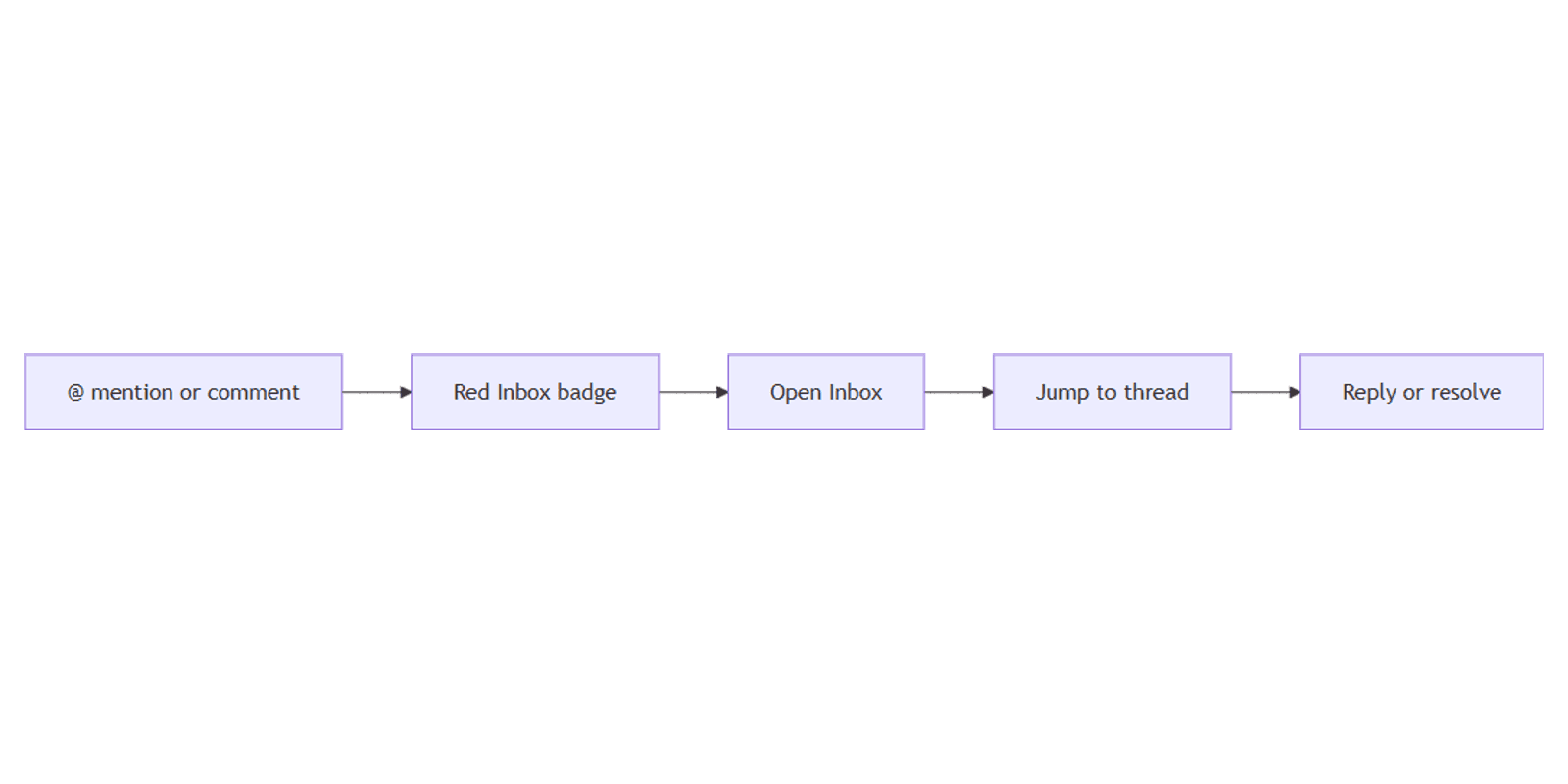
Notion Inbox is the hub for mentions, comment replies, reminders, and page updates - open it from the sidebar, clear the red badge, and jump straight to the thread that needs you.
This guide covers how Inbox works, when you get email or push vs the badge only, Reply and resolve from Inbox, and how to tune Settings → Notifications. Pair with Notion mentions and comments. Official details: Inbox and notifications and comments, mentions, and reminders.
What shows up in Inbox?
Inbox sits at the top of the sidebar. A red badge with a count appears when you have unread notifications. Typical triggers:
| Trigger | Example |
|---|---|
| @ mention | Someone tags you on a page or in a comment |
| Comment reply | A reply on a thread you started or follow |
| All comments | You set the page to notify on all comments |
| People property | You are added to a People field |
| Reminder | @remind or a date reminder fires |
| Page invite | Someone shares a page with you |
Updates are grouped by page and comment thread so related activity stays together (Notion Help).
How to use Inbox
- Click Inbox in the sidebar (or open it and optionally Lock inbox pane open).
- Scan unread items - the red badge shows how many wait for you.
- Click a notification to jump to the mention, comment, or edit on the page.
- From Inbox, click Reply on a comment thread, or resolve / re-open as needed.
- Filter by Unread and read, Unread only, Archived, or All workspace updates.
- Use bulk actions such as Mark all as read, Archive all, or Archive read.
Hover a notification → ••• to mark read/unread, archive, or change page notify level (All updates, All comments, Replies and @mentions).
Email and push vs Inbox badge
If Notion is already open on your computer or phone, you often get only the red Inbox badge - not a separate email or push for that @ mention. If Notion is not open, you may get email and/or push instead (depending on your settings).
Desktop apps can show a push shortly after a mention; mobile may wait a few minutes if you have not viewed it. Fine-tune channels under Settings → Notifications (mobile push, desktop push, email, and options like always send email).
You typically will not see a notification for activity on the page you are actively viewing at that moment.
Access and private pages
If you @ mention someone on a page they cannot access (for example a private page), they are not notified. Share the page first, then mention - or they never see the alert (mentions help).
Page and database notify levels
Per page: ••• at the top → Notify me → All comments or Replies and @mentions.
On database pages you can also choose:
| Level | What you hear about |
|---|---|
| All updates | Comments and property changes |
| Important updates | Comments plus status, assignee, due date style changes |
| Replies and @mentions | Narrower comment/mention traffic |
For People properties, open Edit property → Notifications and choose Users and groups, Users only, or None so assignment alerts match your team noise tolerance.
Mentions, comments, and automations
- @ people for Inbox callouts - see Notion mentions.
- Comments for threaded review - see Notion comments.
- People for assignees you can filter - not a substitute for @ when you need a ping.
- Database automations can change properties or notify workflows without relying on a manual @ every time.
Practical workflows
Review queue
- Reviewer gets @ in a comment → red badge on Inbox.
- Opens Inbox → jumps to the thread → Reply or resolve.
- Archives read items so Inbox stays a real todo list.
CRM follow-ups
- Assignee via People on the deal row.
- Important updates on the page for status and due date.
- Track contacts in the CRM Dashboard template.
Content approvals
- Draft page; @ the editor with a clear ask.
- Confirm they have access before mentioning.
- Log publish dates in a content planner.
Tips
- Treat Inbox like a task list - archive read items; lock the pane if you live in comments.
- Share before you @ - private mentions silently fail.
- Prefer People for ownership, @ for attention on specific text.
- Tune Notifications early - push + email + badge can stack if everything is on.
FAQ
Where is Notion Inbox?
At the top of the sidebar. Unread mentions and updates show a red badge with a count (Notion Help).
Can I reply to comments from Inbox?
Yes. Open the notification and use Reply, and you can resolve or re-open threads from Inbox (comments help).
Why did I only see a badge and no email?
If Notion was open on a device, email/push for that mention may be suppressed - you still get the Inbox badge. Adjust Settings → Notifications if you always want email.
Why was someone not notified when I @ them?
They likely lack access to the page (for example a private page). Share access, then mention again.
Conclusion
Notion Inbox keeps mentions, comments, and reminders in one place - open the sidebar badge, jump to the thread, Reply or resolve, and archive what is done. Share pages before @ mentions, set Notify me levels on critical docs, and configure Settings → Notifications for push and email.
For tagging teammates and pages, see Notion mentions. For assignees, see People properties. For automated status alerts, see database automations.
Notion Templates
Start Selling Notion Templates - Start Now!