How to Create Facebook Stories in Canva: 1080×1920 Safe Zones
Facebook Stories fill the phone screen in Meta’s Stories tray - same 1080 × 1920 canvas as Instagram Stories, with UI chrome that covers the top and bottom. Canva makes it easy to design full-bleed frames and keep hooks and CTAs inside the safe zone.
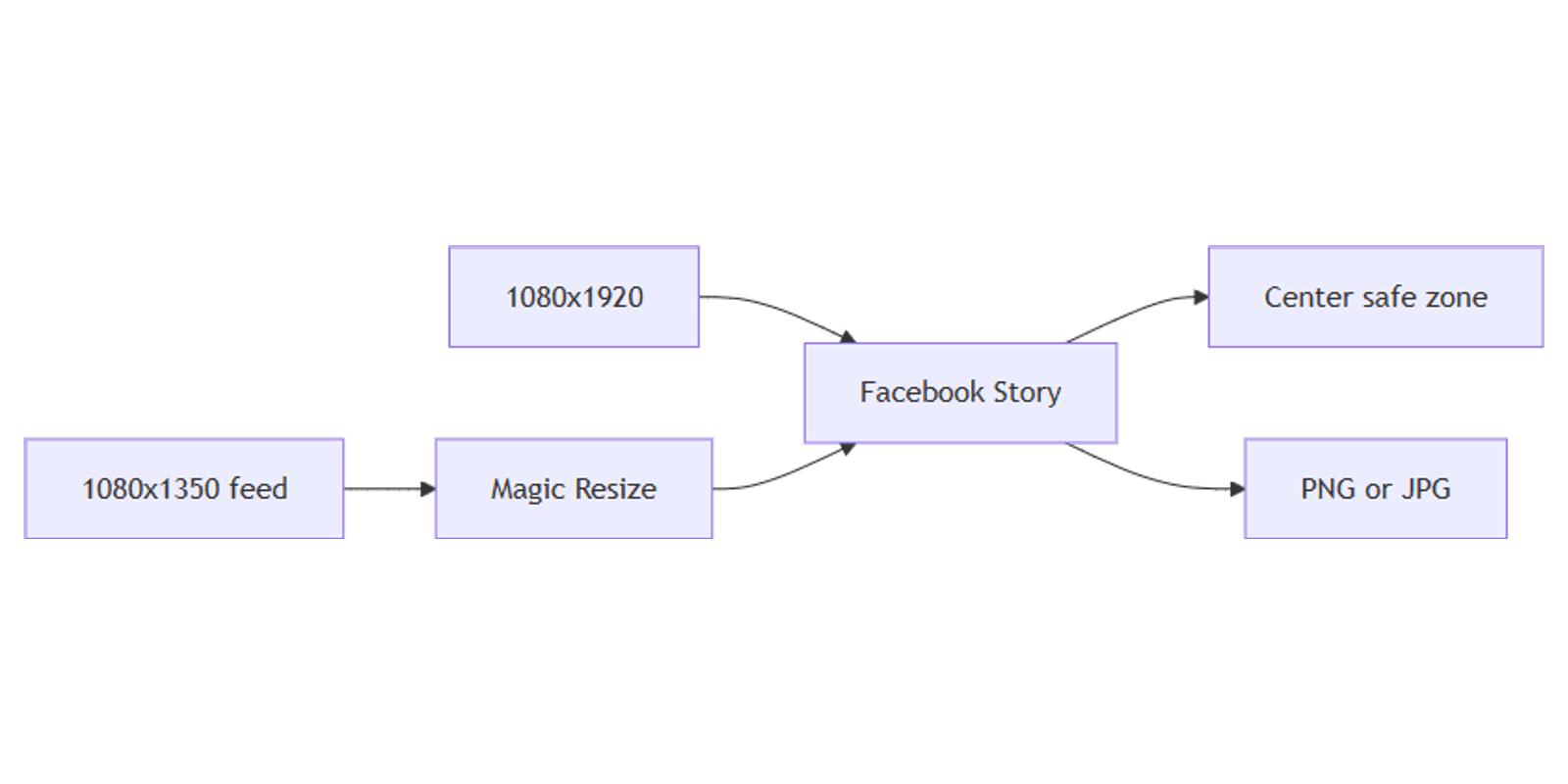
This guide covers Facebook Story size in Canva, ~250 px top/bottom safe zones for Meta Stories UI, Brand Kit reuse, and Magic Resize from a 1080 × 1350 Facebook feed post. Specs follow widely cited 2026 Meta Stories guidance - design full frame, protect the center band for text.
Facebook Story size in Canva
| Spec | Value |
|---|---|
| Canvas | 1080 × 1920 px |
| Aspect ratio | 9:16 |
| Image formats | PNG or JPG |
| Typical max image size | About 30 MB (stay smaller for faster upload) |
| Video | Short vertical clips; keep length practical per Story card |
To create the canvas:
- Open Canva.
- Click Create a design → search Facebook Story (or Instagram Story - same size).
- Or Custom size → 1080 × 1920 px.
| Use | Size | Guide |
|---|---|---|
| Facebook Story | 1080 × 1920 | This post |
| Facebook feed portrait | 1080 × 1350 | Facebook posts |
| Instagram Story | 1080 × 1920 | Instagram Stories |
| Reels / TikTok cover | 1080 × 1920 | TikTok and Reels covers |
Same pixel size as Instagram Stories does not mean identical chrome - always preview on a phone in the Facebook app before you rely on edge text.
Safe zones (Meta Stories UI)
Design the full 1080 × 1920 frame, but keep critical text, logos, and CTAs out of the bands Meta uses for profile, progress, reply, and stickers.
Widely cited 2026 guidance (aligned with Instagram Stories practice):
| Zone | Approx. height | What covers it |
|---|---|---|
| Top unsafe | ~250 px | Profile, name, progress bars, close |
| Safe middle | ~1080 × 1420 px | Headline, product, primary CTA |
| Bottom unsafe | ~250 px | Reply bar, reactions, gesture chrome |
Practical rules:
- Keep headlines and logos inside the middle ~1420 px vertical window.
- Place link stickers / CTAs in the middle third, not against the bottom edge.
- Full-bleed photos can use the edges; text cannot.
- Preview on a real phone - desktop previews often hide Meta’s chrome.
For Reels-style covers, bottom UI can run taller - see TikTok and Reels covers if you reuse the file as a cover.
Step-by-step: build a Facebook Story
1. Background
- Full-bleed photo or brand color from Brand Kit
- Soft gradient for text-first Stories
- Semi-transparent overlay so type stays readable
2. Hook in the safe zone
- One short line (about 3–8 words)
- Large type; high contrast
- Optional product cutout with Background Remover (Pro)
3. CTA without collision
- Clear next step (“Reply”, “See offer”, link sticker prompt) - centered vertically
- Leave bottom clear for Facebook’s reply UI
4. Multi-frame sequence
- Duplicate the page in Canva for each Story frame.
- Keep logo + safe margins consistent.
- Change only the hook or tip per frame.
- Download All pages as PNG/JPG, or export a short MP4 if you animated.
From Facebook feed to Story with Magic Resize
- Finish a Facebook feed post at 1080 × 1350.
- Use Magic Resize → Facebook Story / Instagram Story (1080 × 1920).
- Re-center text into the safe zone - 4:5 feed ≠ Stories chrome.
- Export and upload in the Facebook app; add stickers/links in-app.
Layout tips
- One idea per frame - Stories are skimmed in under a second.
- Fewer words than feed posts - vertical space is partially stolen by UI.
- Brand Kit first - colors/fonts/logos stay consistent across frames.
- Avoid edge type - top ~250 / bottom ~250 are hostile to text.
- Cross-post carefully - if you also post to Instagram Stories, recheck safe zones once on each app.
Export settings
- Share → Download.
- PNG for graphics/text; JPG for photo-heavy frames.
- For motion, export MP4 and keep length appropriate for a single Story card.
- Upload in order; add stickers/polls in Facebook after upload.
Checklist:
- Canvas is 1080 × 1920
- Key text inside the center safe band (~250 px clear top and bottom)
- Brand Kit applied
- Multi-frame pages consistent
- Phone preview in Facebook looks clear
Practical workflows
Local offer (3 frames)
- Hook → proof → CTA.
- Same background; swap headline only.
- Track copy in a content planner.
Feed promo → Story
- Master at 1080×1350 (Facebook posts).
- Magic Resize to 1080×1920; pull type inward.
- Preview mockups with Sparxno Canva frame mockups.
Tip carousel Stories
- Master template with Brand Kit.
- Duplicate 5 pages; one tip each.
- Batch with Magic Resize from a square tip card if needed.
FAQ
What size are Facebook Stories in Canva?
1080 × 1920 px (9:16). Search Facebook Story / Instagram Story, or enter a custom size.
What is the Facebook Story safe zone?
Keep critical content roughly in the middle 1080 × 1420 area - about 250 px clear of the top and bottom Meta Stories UI.
Are Facebook Stories the same size as Instagram Stories?
Yes for the canvas (1080 × 1920). Always recheck UI overlays on each app before publishing.
Can I resize a Facebook feed post into a Story?
Yes - use Magic Resize from 1080 × 1350 to 1080 × 1920, then fix safe-zone placement.
Conclusion
Canva Facebook Stories work at 1080 × 1920 - design full-bleed visuals, keep text inside the center safe zone (~250 px clear top and bottom), export PNG/JPG, and add stickers in-app. Reuse Brand Kit and Magic Resize to turn Facebook feed posts into Story frames.
For Instagram’s matching canvas, see Instagram Stories. For vertical covers, see TikTok and Reels covers.
Canva Templates
Start Selling Canva Templates - Start Now!