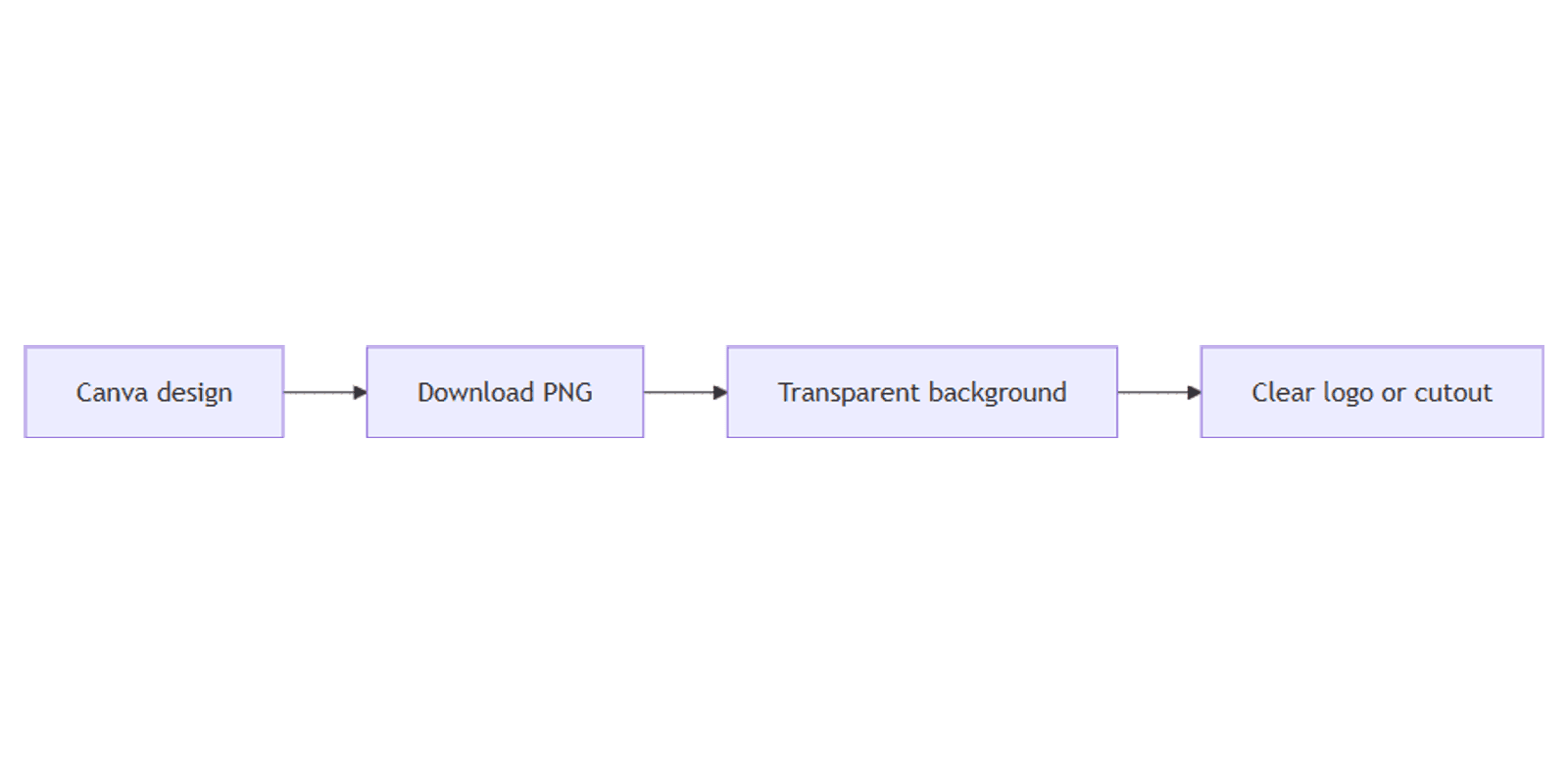
How to Download Transparent PNGs in Canva
Transparent PNGs in Canva let logos, icons, and cutouts sit on any background without a white box. Ideal for brand assets, mockups, and compositing into other designs or sites.
This guide covers who can download transparency, the Share → Download → PNG toggle, common failures, and pairing with Background Remover. Details follow Canva's transparent background help.
Who can download transparent backgrounds?
Downloading with a transparent background is available on:
- Canva Pro
- Canva Teams
- Canva Business
- Canva Education
- Canva for Nonprofits
It is not a Free-plan download feature (Canva Help).
| Requirement | Detail |
|---|---|
| Plan | Pro / Teams / Business / Education / Nonprofits |
| File type | PNG (not JPG) |
| Docs | Canva Docs cannot use transparent download |
How to download a transparent PNG
Desktop
- Set the canvas background to white, or delete any background image/color (select it → trash on the toolbar). Default blank designs already use a white background.
- On the editor menu bar, go to Share → Download.
- Under File type, choose PNG.
- If the design has multiple pages, pick All pages, This page, or Custom.
- Optional: expand Advanced settings for Size and Quality.
- Turn on the Transparent background toggle.
- Select Download.
Find the file in your browser’s download folder (or device gallery on mobile).
Mobile
The same idea applies: download as PNG and enable Transparent background on an eligible plan. Clear or white-out colored backgrounds first so the toggle can expose transparency (Canva Help).
Make the design’s background transparent
Canva treats a white (or deleted) page background as the area that becomes transparent on export:
- Start from scratch - default BG is white.
- Or select the background → delete / set to white before download.
- For photos sitting on the canvas, remove the photo’s background first with Background Remover, then export the whole design as a transparent PNG if needed.
JPG cannot be transparent - always choose PNG when you need see-through pixels.
Troubleshooting
My PNG still has a white or colored box
You likely left a non-white background color or a background image. Set BG to white or delete it, then download again with the toggle on (Canva Help).
I can’t turn on Transparent background
Usually one of:
- You are on Free (upgrade required)
- File type is not PNG
- You are in Canva Docs - transparent download is not supported there
Logo looks soft on dark sites
Export at higher quality/size when available, and keep brand marks on a transparent PNG rather than flattening to JPG.
Practical workflows
Logo pack
- Place logo on a white (or empty) canvas; no extra BG shapes.
- Share → Download → PNG → Transparent background.
- Store alongside Brand Kit assets.
Product cutout for ads
- Run Background Remover on the photo.
- Delete page background / keep white.
- Download transparent PNG; drop into YouTube thumbnails or social templates.
Mockup presentations
- Export UI or logo as transparent PNG.
- Place into device frames for client decks.
Works with Sparxno Canva frame mockups.
Tips
- PNG only - JPG and many video formats will not keep alpha transparency.
- Delete BG images - a full-bleed photo background will not “go transparent” just from the toggle.
- Pair BG Remover + transparent PNG for photo subjects on clear canvases.
- Not for Docs - move the design to a standard Canva design type first.
- Check edges after Background Remover before you export the final PNG.
FAQ
Is transparent PNG download free in Canva?
No. It requires Pro, Teams, Business, Education, or Nonprofits (Canva Help).
Can I download a transparent JPG?
No. Use PNG and enable Transparent background.
Why doesn’t Canva Docs support transparent download?
Canva documents transparent PNG export as unavailable for Docs - use a normal design canvas instead.
Conclusion
Download transparent PNGs on paid Canva plans via Share → Download → PNG → Transparent background, after setting the page BG to white or deleting it. Pair with Background Remover for photo cutouts, keep logos in Brand Kit, and composite into YouTube thumbnails or mockups.
For presenting finished creatives in device frames, see Sparxno Canva frame mockups.
Canva Templates
Start Selling Canva Templates - Start Now!