How to Use Canva Magic Edit: Change Photos with AI Prompts
Canva Magic Edit changes part of a photo with a short text prompt - add an object, replace a prop, or restyle a selected area without opening a separate photo editor. It is not Background Remover (one-click cutout) and not Magic Expand (extend the frame).
This guide covers how to open Magic Edit, select with brush or click, write better prompts, and how paid / AI allowance rules apply. Official help: Use Magic Edit and AI access in Canva.
What is Magic Edit?
Magic Edit is Canva’s generative photo tool. You select an area (or the whole image), describe what to add or replace, then Generate. Canva blends new pixels into the photo so product shots, thumbnails, and campaign creatives can change without a reshoot (Canva Help).
| Magic Edit | BG Remover | Magic Expand | |
|---|---|---|---|
| Job | Add / replace via prompt | Cut subject from background | Grow image beyond borders |
| Input | Selection + text prompt | Photo or video | Size / drag handles |
| Best for | Scene and object changes | Clean cutouts on brand color | Reframing and aspect fill |
How to use Magic Edit
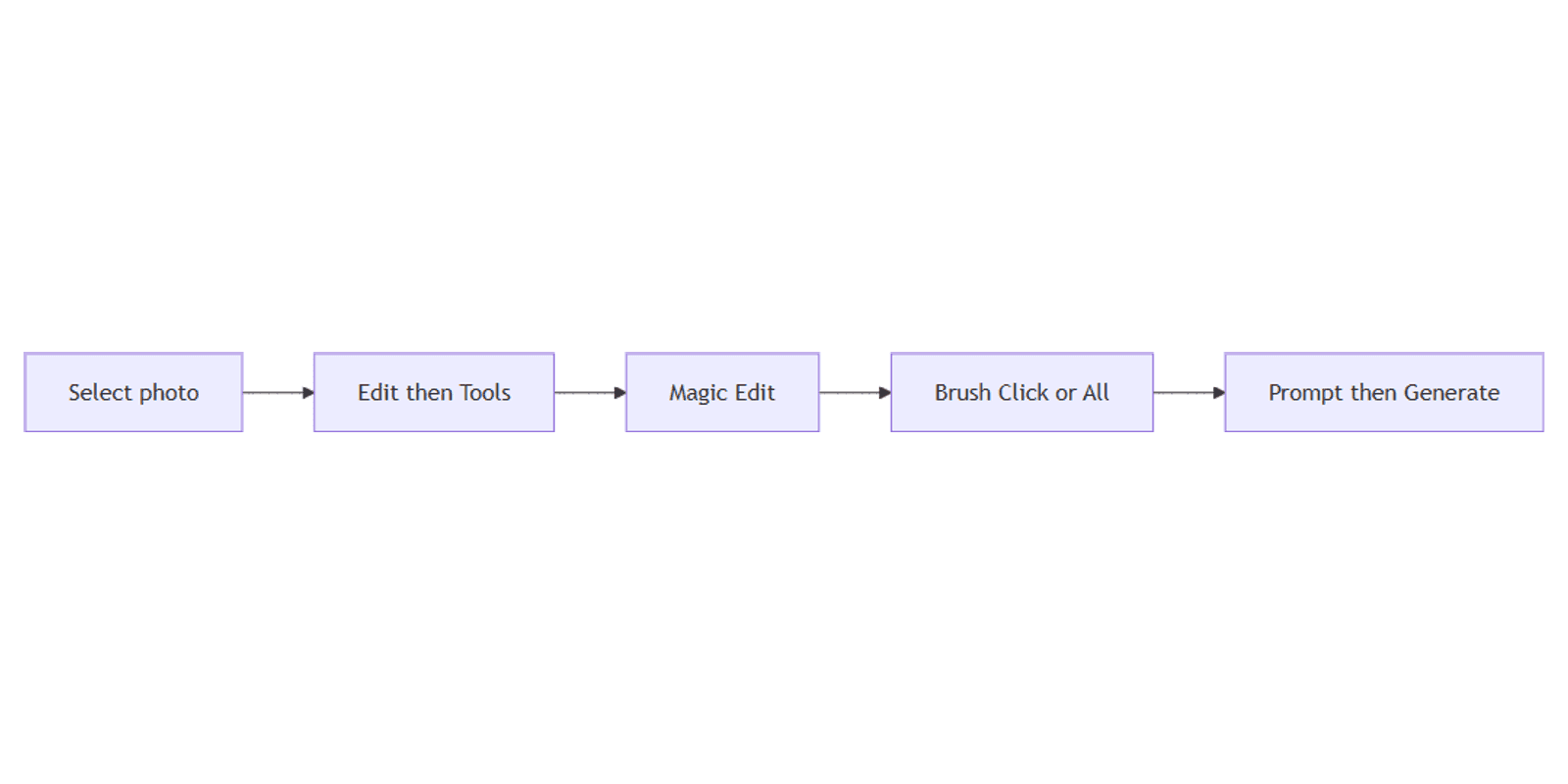
- Open a design in Canva and select the photo.
- From the editor toolbar, select Edit.
- Under Tools, select Magic Edit.
- Choose a selection method:
- All - apply Magic Edit to the entire image
- Brush - paint over the area to change (adjust brush size as needed)
- Click - select objects; drag to multi-select when needed
- Use Deselect if you need to clear selections and start over.
- Describe what to add or replace in the selected area, then select Generate.
- Wait for processing, pick a result, and confirm when done (Canva Help).
On brush workflows, Continue (or reset brushing) before the prompt step when Canva asks you to confirm the painted area.
Prompt tips that work better
From Canva’s Magic Edit guidance:
- Brush only the area that should change - e.g. where a hat should appear, not the whole person.
- Add one thing at a time - stack multiple balloons in separate passes, not one mega-prompt.
- Skip size words in the prompt - brush a larger area instead of writing “huge hat.”
- Color / material swaps work well with clear phrases like “change jacket to blue” or “make the jacket look like fur.”
- Avoid asking for flags, text, faces, or hands - they often blend poorly (Canva Help).
Keep prompts short and concrete. Unrealistic swaps (flowers → airplane) usually look worse than modest, scene-consistent changes.
Plans, paid features, and AI allowance
Magic Edit availability and how it counts against Canva AI limits depend on your plan and Canva’s current rules. Treat it as a paid / AI-allowance feature until you confirm otherwise in your account - check AI access in Canva and Settings → Billing → AI usage. Free vs Pro quotas and which tools share the monthly pool change over time; do not assume unlimited runs for campaign batches.
Practical workflows
Product prop swap
- Brush the object to replace on a product photo.
- Prompt a realistic replacement that matches lighting.
- Place the result on a Brand Kit background or layout.
YouTube thumbnail tweak
- Start from a strong face / product crop for a YouTube thumbnail.
- Magic Edit a background detail or prop - avoid regenerating faces when possible.
- Add bold text beside the subject; keep brand colors from Brand Kit.
Clean subject, then edit scene
- If you only need a cutout, use Background Remover instead.
- If you need both cutout and scene change, Magic Edit the opaque photo first, then remove BG.
- Use Magic Expand only when the frame is too tight - not for object swaps.
Tips
- Prefer Click or a tight brush over editing the whole image when one object is the target.
- Generate again if the first set misses - variation is normal.
- Do not use Magic Edit as BG Remover - use the dedicated tool for clean cutouts.
- Do not use Magic Edit as Magic Expand - Expand grows borders; Edit changes content.
- Proof for brand - AI props should still match Brand Kit colors.
FAQ
Is Magic Edit the same as Background Remover?
No. BG Remover isolates the subject. Magic Edit generates new content from a prompt inside a selected area.
Is Magic Edit the same as Magic Expand?
No. Magic Expand extends the photo’s borders. Magic Edit changes what is inside a selection via prompt.
Why do faces and hands look wrong?
Canva advises against generating faces, hands, flags, and text with Magic Edit - results often fail to blend. Edit props and backgrounds instead when possible.
Conclusion
Magic Edit is prompt-based generative photo editing in Canva - select the photo → Edit → Tools → Magic Edit, select the area, describe the change, then Generate. Confirm plan and AI limits on AI access. Keep it distinct from Background Remover and Magic Expand, and pair finished frames with Brand Kit and YouTube thumbnails.
For mockup presentations, see Sparxno Canva frame mockups.
Canva Templates
Start Selling Canva Templates - Start Now!