Notion Starred Pages: Pin Favorites to Your Sidebar
Notion Favorites (starred pages) pin the pages you open constantly to a dedicated section in the sidebar. Starring does not move the page - it adds a personal shortcut so you skip digging through teamspaces or waiting on Recents to catch up.
This guide covers how to star and unstar pages, how Favorites differ from search and Recents, and how Favorites fit next to a clean sidebar setup. Official details: Navigate with the sidebar.
What are starred Favorites?
Click the star at the top of a page to add it to Favorites. The Favorites section appears in your sidebar after you star your first page. Only you see your favorites - teammates keep their own lists (Notion Help).
| Action | Result |
|---|---|
| Star a page | Shortcut appears under Favorites |
| Unstar | Shortcut leaves Favorites; page stays in place |
| Drag in Favorites | Reorder your personal pin list |
Favorites are shortcuts, not a new location. Sharing, teamspaces, and Sites publishing are unchanged by starring.
How to star a page
Desktop
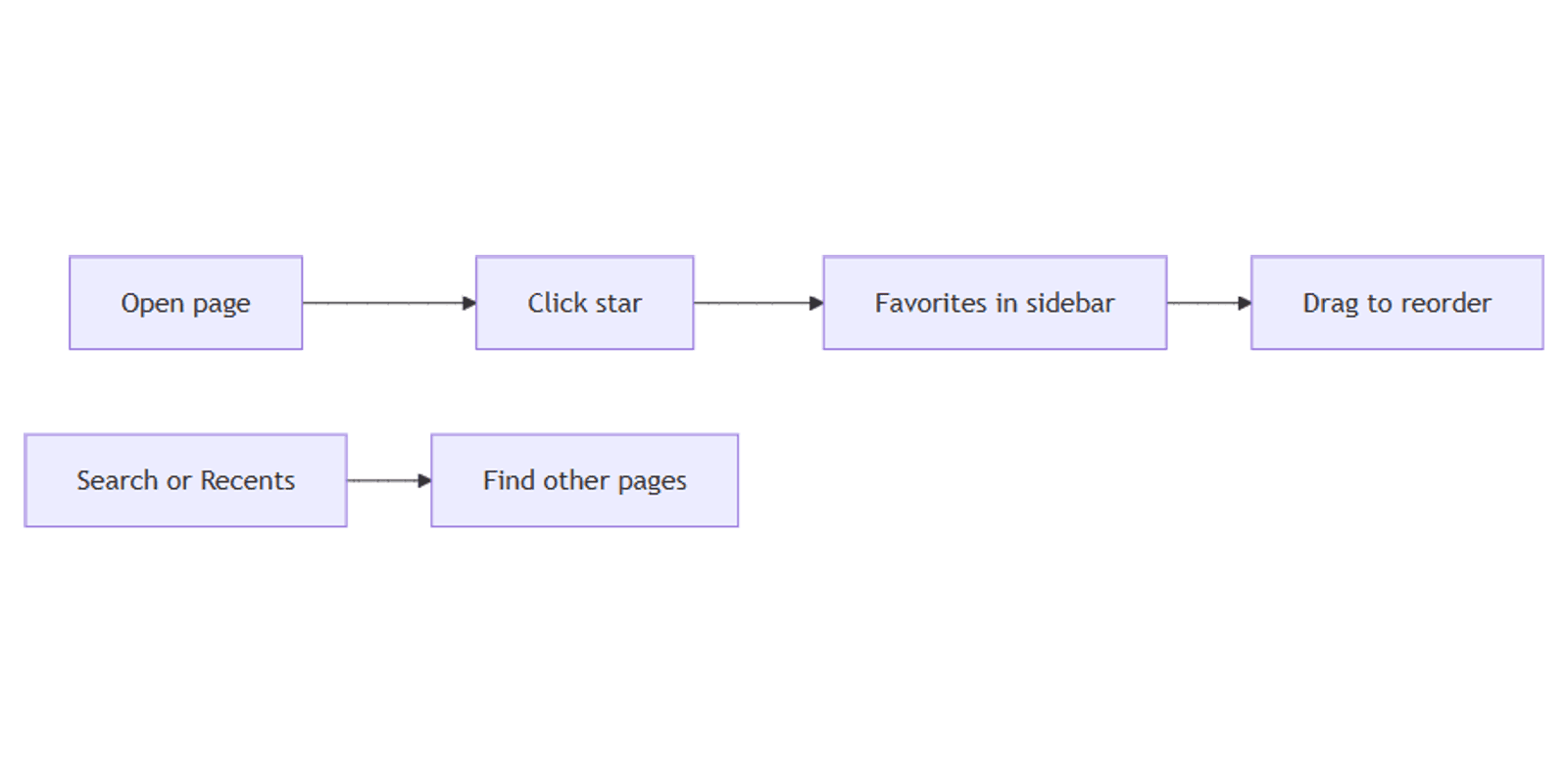
- Open the page you want to pin.
- Click the ⭐ star at the top of the page.
- Confirm it appears under Favorites in the sidebar.
- Drag favorites up or down to prioritize daily pages.
You can also hover a page in the sidebar → ••• → Add to Favorites (wording may vary slightly by client).
Mobile
- Open the page.
- Tap ••• at the top.
- Choose Add to Favorites.
How to remove a favorite
- Open the page and click the star again to unstar, or
- Hover the page under Favorites → ••• → Remove from Favorites.
Rotate favorites when projects end - a short list stays faster than a crowded pin dump. For structuring Private, Shared, and Teamspaces around those pins, see sidebar setup.
Favorites vs search vs Recents
| Tool | Best for |
|---|---|
| Favorites (star) | Pages you open every day - dashboards, My tasks, SOPs |
| Search | Finding pages by title or content when you do not remember where they live |
| Recents | Jumping back to what you touched earlier today |
Use Favorites for known destinations. Use search (Cmd/Ctrl + P or Cmd/Ctrl + K) when you need discovery. Recents are automatic and temporary - they are not a pin list.
Do not star everything. Prefer a handful of hubs; nest detail pages under those hubs so the sidebar stays scannable (sidebar guide).
Good pages to star
| Page type | Why pin it |
|---|---|
| Personal dashboard | Daily start page |
| Team wiki home | Stable entry to docs |
| Task database or My tasks full page | Quick triage |
| Active project brief | High-touch for a sprint |
| Published Site source page | Edit the live page without hunting the URL |
Starring a page you later publish as a Site does not publish it - publish still happens from Share → Publish. The star only speeds up opening the source page.
Works with the Notion Templates Bundle when your starter dashboards become the pages you star first.
FAQ
Does starring move the page?
No. The page stays in Private, Shared, or a Teamspace. Favorites is a personal shortcut list (Notion Help).
Can teammates see my Favorites?
No. Favorites are per user. Star the pages you need; others manage their own lists.
Favorites or search for rarely used pages?
Use search for rare pages. Reserve stars for high-frequency destinations so Favorites stays short.
Where do Favorites sit in the sidebar?
Under the Favorites section once you have starred at least one page. You can reorder items by dragging. Broader sidebar layout tips live in sidebar setup.
Conclusion
Star the pages you open constantly so they pin under Favorites in the sidebar - without moving them or changing permissions. Keep the list short, reorder by priority, and rely on search plus Recents for everything else.
For organizing Private, Shared, and Teamspaces around those pins, see sidebar setup. When a favorite is also a public page, manage publishing separately with Notion Sites.
Notion Templates
Start Selling Notion Templates - Start Now!