Notion HTML Blocks: Build Interactive Calculators and Quizzes on a Page
Notion HTML blocks let Notion Agents place interactive content - calculators, quizzes, org-style visuals, and similar widgets - on a Notion page so teammates can use and iterate without leaving the workspace.
This feature was announced in the Notion 3.6 release on July 1, 2026 (Notion Releases). There is no dedicated Help Center article yet. Search notion.com/help for updates, and confirm what you see in your own workspace - availability, slash commands, and Agent prompts can still be rolling out and labels may vary.
For broader Agent and AI context, see Notion AI.
What HTML blocks are (from the 3.6 release)
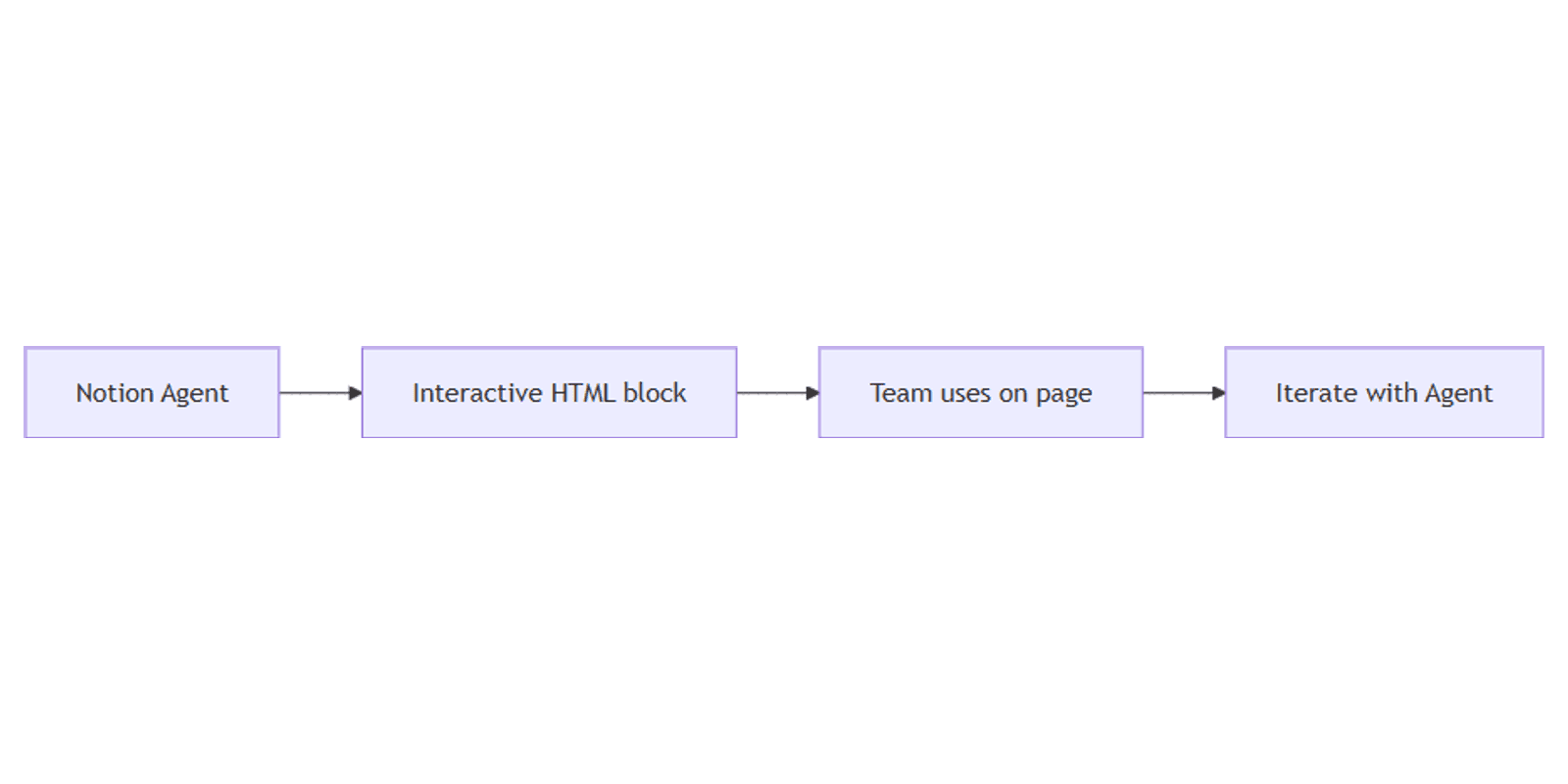
Per the July 1, 2026 release notes, Notion Agents can create interactive HTML blocks that live in Notion. Anyone on the team who can use the page can try the widget or ask the Agent to iterate.
Examples Notion called out:
| Example | Idea |
|---|---|
| ROI calculator | Inputs for industry or current tools; live savings estimate on the page |
| Quiz from a doc | Agent pulls key points from feature docs into scored questions |
| Org chart from people data | Visualize a people database as an org chart without another tool |
Treat these as product examples, not a fixed catalog - Agents can build other interactive patterns as the feature matures.
Accuracy hedges (read before you ship a workflow)
| Claim to avoid | Safer framing |
|---|---|
| “Always available for everyone” | Feature may still be rolling out; check your workspace |
Fixed UI like “always type /html” | Slash labels and Agent prompts can vary - follow what your app shows |
| “Writes back to any database / calls any API” | Treat blocks as sandboxed interactive content on the page unless Help later documents DB writes or external APIs |
| “Public share URL like a site” | Sharing follows the page (permissions of that page) - not a separate public hosting URL |
| “Same as Export → HTML” | Not the same as exporting a page as HTML or pasting a code snippet |
Until Notion publishes a dedicated help article, prefer demos in a private page, then share only after you verify behavior with your team.
HTML blocks vs Notion Sites vs embeds
| Approach | What you get | Typical share model |
|---|---|---|
| HTML block on a page | Interactive widget inside the doc | Same as the page - invite collaborators or share the page |
| Notion Sites | Published web presence for pages you choose to publish | Public (or site) URL separate from private workspace browsing |
| Embeds | Iframe-style content from external domains (Iframely and friends) | Still on the page; source lives outside Notion |
HTML blocks are not a replacement for Sites when you need a public marketing URL. They are also not the same as embedding YouTube or Loom - the Agent builds the interactive UI in Notion’s block, rather than framing a third-party page. For classic embeds and bookmarks, see embeds and Notion Bookmarks.
How to try interactive HTML blocks
Exact steps can change while the feature rolls out. A practical sequence that matches the release intent:
- Open a Notion page where you have edit access (start private if you are experimenting).
- Open Notion AI / Agent chat (or the current Agent entry point in your app).
- Ask for an interactive block - for example: “Build an ROI calculator for our pricing page” or “Turn this doc into a short quiz with a score at the end.”
- Review the block on the page; click through inputs as a teammate would.
- Ask the Agent to iterate (copy, fields, scoring, layout) rather than hand-editing opaque markup unless your UI exposes an edit path.
- Share the page with the people who should use the widget - permissions follow normal Notion sharing.
If you do not see HTML blocks yet, wait for rollout or search Help for the latest article. Do not assume a missing /html command means the feature was removed - labels vary.
Good first projects
| Project | Why it fits |
|---|---|
| Internal ROI or capacity calculator | Teammates tweak inputs during a sales or planning review |
| Onboarding quiz | Reinforce a process doc without a separate LMS |
| People / reporting visual | Org-style view sourced from workspace context the Agent can read |
| Scenario slider | “What if” numbers next to a proposal page |
Keep sensitive formulas and customer data on pages with tight permissions. Until Help documents persistence rules, assume values you type into a widget are for session / page use, not a guaranteed audit log or database of record.
Practical workflow with Agents
- Draft requirements on the page (inputs, outputs, scoring rules) in plain language.
- Ask the Agent to create the interactive HTML block from that brief.
- Spot-check edge cases (empty fields, large numbers, wrong units).
- Iterate with the Agent; then lock page structure if your team uses page lock elsewhere.
- Link the page from a team wiki or project hub so people find the live tool.
Pair with Notion AI for summaries of the surrounding doc, and with Notion Sites only when you intentionally publish a public version of related content - publishing a Site is a separate decision from dropping an HTML block on an internal page.
Works with the Social Media Multi-Platform Content Planner when you want a small interactive planner aid next to campaign briefs - keep expectations sandboxed until Help documents deeper integrations.
Tips
- Confirm in-workspace - release notes ship before every account sees the UI.
- Do not promise API side effects - stick to on-page interaction unless Notion Help says otherwise.
- Share the page, not a fantasy public widget URL - contrast with Sites.
- Separate from code blocks - syntax-highlighted snippets are documentation; HTML blocks are meant to be used live.
- Re-check Help - when a dedicated article lands, prefer it over this guide for limits and safety.
FAQ
Is there an official Help article for HTML blocks?
Not a dedicated one at the time of writing. The feature was announced in Notion 3.6 (July 1, 2026). Search notion.com/help and verify in your workspace.
Who creates HTML blocks?
Notion Agents create them, per the release notes. Exact prompts and menus can vary during rollout.
Can the whole team use the calculator or quiz?
Yes in the sense that the block lives on the page - anyone with access to that page can use or iterate (with edit rights for Agent changes). Sharing is page-based, not a separate public hosting product.
Do HTML blocks write to databases or call external APIs?
Do not assume that. Treat them as sandboxed interactive content unless a future Help article documents database writes or external calls.
How is this different from Notion Sites?
Sites publish pages to a site URL. HTML blocks are interactive content inside a Notion page and follow that page’s permissions.
Is this the same as exporting a page as HTML?
No. Export / download HTML and code snippets are different flows from Agent-built interactive blocks.
Conclusion
Notion HTML blocks (Notion 3.6) let Agents drop live calculators, quizzes, and similar widgets onto a page for the team to use and refine. Confirm availability in your workspace, hedge UI labels, and treat the blocks as on-page sandboxed interactivity until Help documents deeper capabilities. Share via the page; use Notion Sites when you need a public site URL, and embeds when the content should stay on a third-party host.
For Agent summaries and Autofill around the same docs, see Notion AI. For a broader template set, see the Notion Templates Bundle.
Notion Templates
Start Selling Notion Templates - Start Now!