Notion Bookmarks: Save Links with Rich Previews on a Page
Notion bookmarks turn a pasted URL into a distinct block that shows the page title, description, and URL - a rich link preview you can rearrange on any page without embedding the whole site.
This guide covers Paste as bookmark vs mention vs embed, how bookmarks differ from Web Clipper, and resize / View Original controls. Official help: Embeds, bookmarks & link mentions.
Bookmark vs mention vs embed
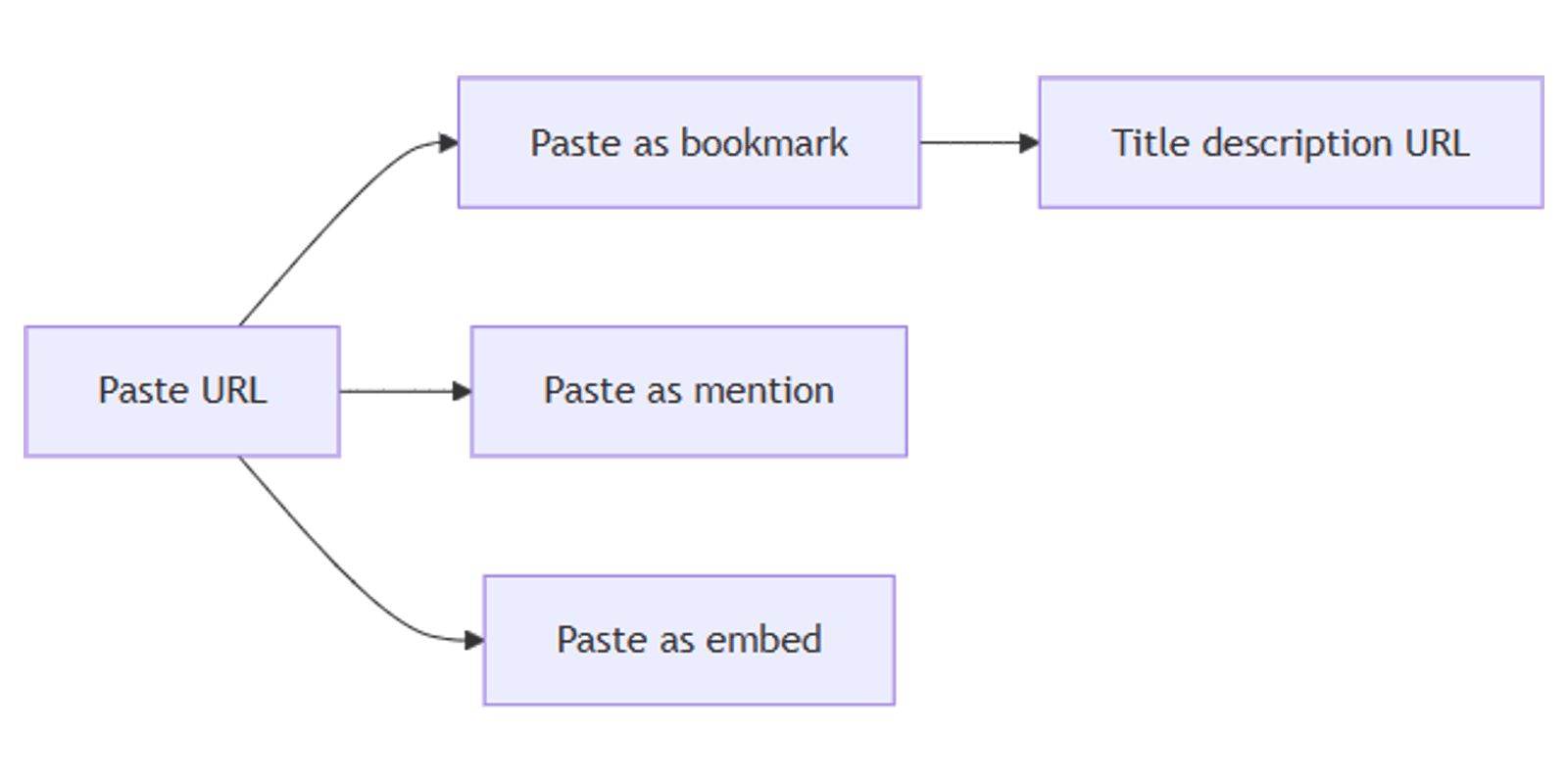
When you paste a URL, Notion offers different paste modes. Pick the one that matches how loud the link should be on the page.
| Paste option | What you get | Best for |
|---|---|---|
| Paste as bookmark | Block with title, description, and URL | Reading lists, resource sections, “links we discussed” |
| Paste as mention | Inline, subtle link that reads like text | Citing a URL inside a sentence |
| Paste / create embed | Interactive iframe-style content when the site allows it | Videos, maps, decks, tools you want to use in place |
Notion can embed content from 1,900+ domains via the Iframely service. Some sites block embedding elsewhere - if you see a failed load, use a bookmark (or open the original) instead (Notion Help).
For a deeper embed walkthrough, see Notion embeds.
How to add a bookmark
- Copy the URL from your browser.
- Paste it onto a Notion page.
- In the menu that appears, choose Paste as bookmark.
- Optionally drag the block with the
⋮⋮handle to reorder or place it in a column. - Hover the bookmark and open View Original (or Original) when you need the live site.
You can also insert related media with /embed and upload image, audio, video, or files when the content is yours to host in Notion - that is adjacent to bookmarks but uses Files & media style uploads rather than a remote preview card.
Bookmarks vs Web Clipper
These tools both start from the open web, but they save different things.
| Tool | Result in Notion | Content depth |
|---|---|---|
| Bookmark | Link preview block (title, description, URL) | Metadata / preview - not a full page capture |
| Web Clipper | New page or database row with clipped page content | Captures page body into Notion (quality varies by site) |
Use a bookmark when you only need a scannable pointer and preview. Use Web Clipper when you want the article (or a close approximation) stored inside Notion for offline reading, annotation, or database research workflows (Notion Web Clipper help).
A practical pattern: clip long pieces you will quote later; bookmark dashboards, homepages, and tools you only need to reopen quickly.
Resize, arrange, and open the source
Bookmark and embed blocks share many layout habits:
- Hover the block.
- Drag the side handles to resize when Notion offers them (especially useful for embeds; bookmark cards still rearrange cleanly with the handle).
- Use the
⋮⋮handle to drag into columns or another section. - Hover → Original / View Original (or
⋮⋮/•••→ View Original) to open the source in the browser (Notion Help).
If an embed fails because the site blocks framing, convert your workflow to a bookmark so the page still shows a clear title and URL.
When to prefer each link style
| Goal | Prefer |
|---|---|
| Resource list that still looks designed | Bookmark |
| Quiet citation mid-paragraph | Mention |
| Watch / interact without leaving Notion | Embed (if the domain allows) |
| Full article text in a database | Web Clipper |
| Local PDF, image, or audio file | Files & media or /embed upload |
Zoom link previews, Google Drive embeds, and other connected-app flows are documented in the same Help article - authenticate when Notion prompts Connect the first time you paste those URLs (Notion Help).
Build a simple links section
- Create a page section titled Resources (or a row in a links database if you prefer properties).
- Paste each URL → Paste as bookmark.
- Group bookmarks in columns (internal docs | customer tools | references).
- Add a short Text note above the group explaining why the links matter for the project.
- For articles you will annotate heavily, clip with Web Clipper into a database and keep only the canonical URL as a bookmark on the project brief.
Works with the Social Media Multi-Platform Content Planner when inspiration links sit as bookmarks beside the calendar instead of cluttering the page with full embeds.
Tips
- Bookmark first when embeds fail - failed iframes are usually site policy, not a broken Notion page.
- Mentions for prose, bookmarks for lists - avoid a wall of oversized cards inside a narrative doc.
- View Original to verify - previews can lag if the remote page title changed; open the source when accuracy matters.
- Clip vs bookmark deliberately - storage and cleanup cost are higher for clipped pages.
- Pair with Files & media - screenshots and PDFs belong in Files & media when the URL alone is not enough.
FAQ
How do I create a Notion bookmark?
Paste a URL and choose Paste as bookmark. The block shows title, description, and URL (Notion Help).
What is Paste as mention?
An inline, subtler link that sits in the text flow instead of a full preview card.
When should I embed instead?
When you need interactive iframe-style content and the site allows embedding. Notion supports 1,900+ domains via Iframely; some sites still block embeds.
How is a bookmark different from Web Clipper?
A bookmark is a link preview. Web Clipper captures page content into Notion as a page or database row.
Can I open the original website from a bookmark?
Yes - use View Original / Original from the hover menu or block controls.
Where do uploads fit?
Uploading your own image, audio, video, or file via /embed → Upload is separate from a remote bookmark preview - see Files & media and embeds.
Conclusion
Notion bookmarks give you rich URL previews - title, description, and link - without pulling the whole page into the workspace. Paste as bookmark for lists, mention for inline cites, and embed when interactive content is allowed; fall back to bookmarks when sites block iframes. Use Web Clipper when you need captured content, and Files & media or embeds when the asset is a file or a live third-party widget.
Official reference: Embeds, bookmarks & link mentions. For a broader template set, see the Notion Templates Bundle.
Notion Templates
Start Selling Notion Templates - Start Now!