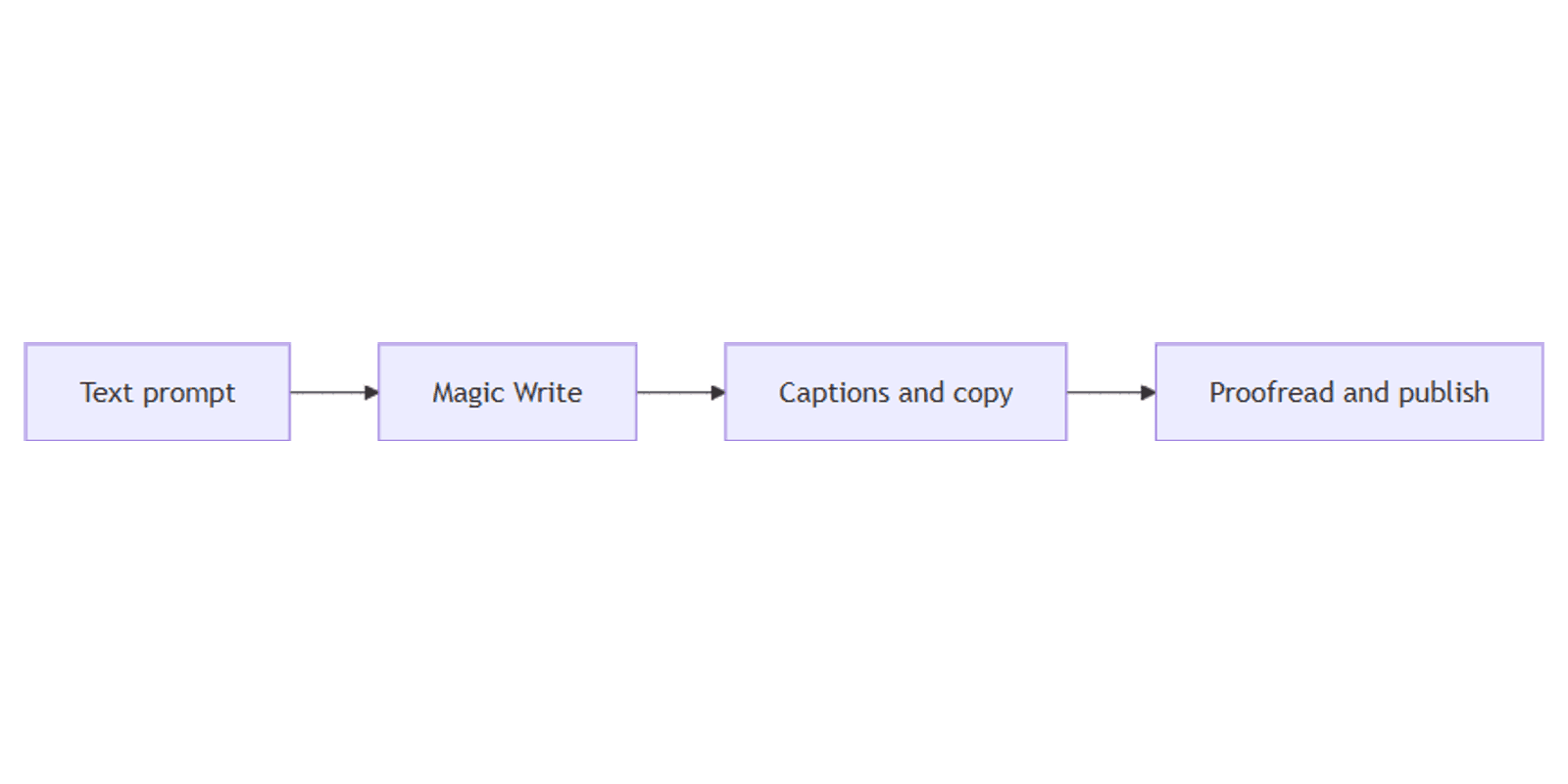
How to Use Canva Magic Write: AI Captions and Copy
Canva Magic Write drafts captions, headlines, and body copy from a prompt - or rewrites text already on your design. Ideal for social posts, presentations, and docs when you need a first draft fast, then proofread before publish.
This guide covers Quick actions / Magic Write, generate-from-prompt vs edit-existing-text, plan limits, and a caption workflow. Details follow Canva's Magic Write help.
What is Magic Write?
Magic Write is Canva’s AI writing tool. You can:
- Generate from a prompt - describe what you need, then Insert or Copy
- Generate from existing text - Shorten, Continue, Change voice, Fix spelling, Custom, and more
Open it from the Quick actions button (bottom-left) or type / for the Quick actions shortcut, then choose Magic Write (Canva Help).
| From prompt | From existing text | |
|---|---|---|
| Start | Blank idea → Generate | Select text → Magic Write |
| Best for | New captions, headlines | Polish what you already wrote |
| Output | Insert / Copy | Replace, Add below, or Copy |
Always proofread - AI drafts can miss brand voice, facts, and platform character limits.
Who can use Magic Write?
Magic Write is available on Free, Pro, Teams, and Nonprofits (and related eligible plans). Check your account if the tool is missing - plan and region availability can vary.
How AI limits work (Canva AI usage):
| Category | What it means for Magic Write |
|---|---|
| AI design tools | Canva lists Magic Write with tools included with your plan that do not consume the shared monthly AI allowance (fair-use still applies) |
| Shared monthly AI allowance | Applies to Standard / Premium / Ultra tools (image gen, Canva AI design, etc.). Free and paid plans get different monthly ranges that reset (Free: 1st of month UTC; paid: billing date) |
Treat Magic Write as fair-use on every plan. For allowance-based AI tools, check remaining capacity under Settings → Billing → AI usage.
Generate copy from a prompt
Desktop
- Open a design in Canva.
- Select the Quick actions button (bottom-left), or type
/. - Choose Magic Write.
- Enter what you want (or pick a suggested prompt).
- Click Generate.
- Optional: More like this or This but… to refine; Stop / Esc to cancel.
- Insert the text on the design, or Copy.
Homepage drafts
From the homepage search bar you can open Canva AI → Draft a doc to start a document with Magic Write without opening a design first (Canva Help).
Rewrite existing text
- Select the text on the canvas.
- Click Magic Write on the toolbar.
- Choose an action and wait for processing:
| Action | Use it to |
|---|---|
| Create Summary | Summarize multiple selected text groups |
| Continue writing | Extend the draft |
| Shorten | Tighten copy (formerly Summarize for length) |
| Rewrite | Fresh wording, same idea |
| Change voice | More fun, More formal, Sprinkle Fairy dust, or a saved tone |
| Fix spelling | Quick spelling cleanup |
| Custom prompt | e.g. “Turn this into a list” |
- Compare versions with the chevrons.
- Choose Replace, Add below, or Copy.
You can create a custom writing style for Change voice - see Canva’s Magic Write style docs linked from the help article.
Presentation notes
On a presentation: open Notes → Generate notes (from page content or a custom prompt), then improve with Continue / Shorten / Rewrite / tone options (Canva Help).
Practical caption workflow
- Lock colors/fonts in Brand Kit.
- Draft the visual for Instagram, Facebook, or Threads (or your target size).
- Quick actions → Magic Write → prompt the hook + CTA + hashtag style.
- Change voice toward your brand tone; Shorten for character limits.
- Human edit - facts, claims, and @handles.
- Schedule or track posts in a content planner.
Tip: generate once, then Copy & resize the design with Magic Resize so caption variants stay on-brand across sizes.
Tips
- Prompt with audience + length - “2-line Instagram caption for freelancers, witty, no emoji spam.”
- Shorten after Generate - first drafts run long for Stories and ads.
- Fix spelling is not a fact-check - still verify names, prices, and dates.
- Draft the brief first - shorter prompts waste less time when you already know the CTA.
- Brand Kit first - AI text on off-brand colors still looks unfinished.
FAQ
Is Canva Magic Write free?
Yes on Free for eligible accounts. Canva currently lists Magic Write as an AI design tool that does not draw from the shared monthly AI allowance (fair use still applies). Other Canva AI features use a monthly allowance that resets - see AI usage.
Does Magic Write use my monthly AI allowance?
Per Canva’s AI usage help, Magic Write sits with AI design tools that are included with your plan and do not consume the shared Standard/Premium/Ultra allowance. Allowance-based tools are tracked under Settings → Billing → AI usage.
Does Magic Write replace proofreading?
No. Always edit for accuracy, brand voice, and platform rules before publishing.
Conclusion
Magic Write speeds first drafts - open Quick actions or /, generate from a prompt or rewrite selected text with Shorten / Continue / Change voice / Fix spelling / Custom, then proofread. Pair with Brand Kit and your guides for Instagram, Facebook, and Threads.
For multi-size campaigns after the copy is ready, see Magic Resize.
Canva Templates
Start Selling Canva Templates - Start Now!