Canva Content Planner: Schedule Social Posts from Your Designs
Canva Content Planner lets you schedule finished designs to connected social accounts so you batch creative work and publish on a calendar - without leaving Canva for every single post.
This guide covers opening Content Planner, scheduling from the editor, Instagram Business requirements and limits, what you cannot schedule, multi-design gotchas, and team views. Official help: Content Planner and Scheduling posts on Instagram. Plan availability and platform lists can change - confirm in Help and your billing page.
For designing the creatives themselves, see Instagram posts, Facebook posts, Pinterest pins, LinkedIn posts, and Twitter/X posts. Multi-page Instagram carousels are a separate workflow - see Instagram carousels in Canva.
Who gets Content Planner scheduling
Scheduling through Content Planner is a paid capability. Canva Help currently lists Pro, Business, Education, and Nonprofits (and related paid seats such as Teams / brand designers, depending on the article). Free accounts can usually design and download, but may not get the full scheduling calendar. Exact entitlements change - check Content Planner help and your billing page.
| Plan type (typical) | Design | Schedule via Content Planner |
|---|---|---|
| Free | Yes | Often limited or unavailable |
| Pro / Business / Teams | Yes | Usually yes |
| Education / Nonprofits | Yes | Usually yes (Education may need admin enable) |
If Share does not offer Schedule or Content Planner for your account, upgrade or connect the right workspace - do not assume a teammate's Pro seat covers every personal Free design.
How to open Content Planner
You can schedule from the Content Planner home view or from a design's Share menu.
From More → Content Planner
- Open Canva on desktop or web.
- Go to Home.
- Open More (or the side navigation).
- Click Content Planner.
- Pick a date and time, then choose or create a design to schedule.
From the editor Share menu
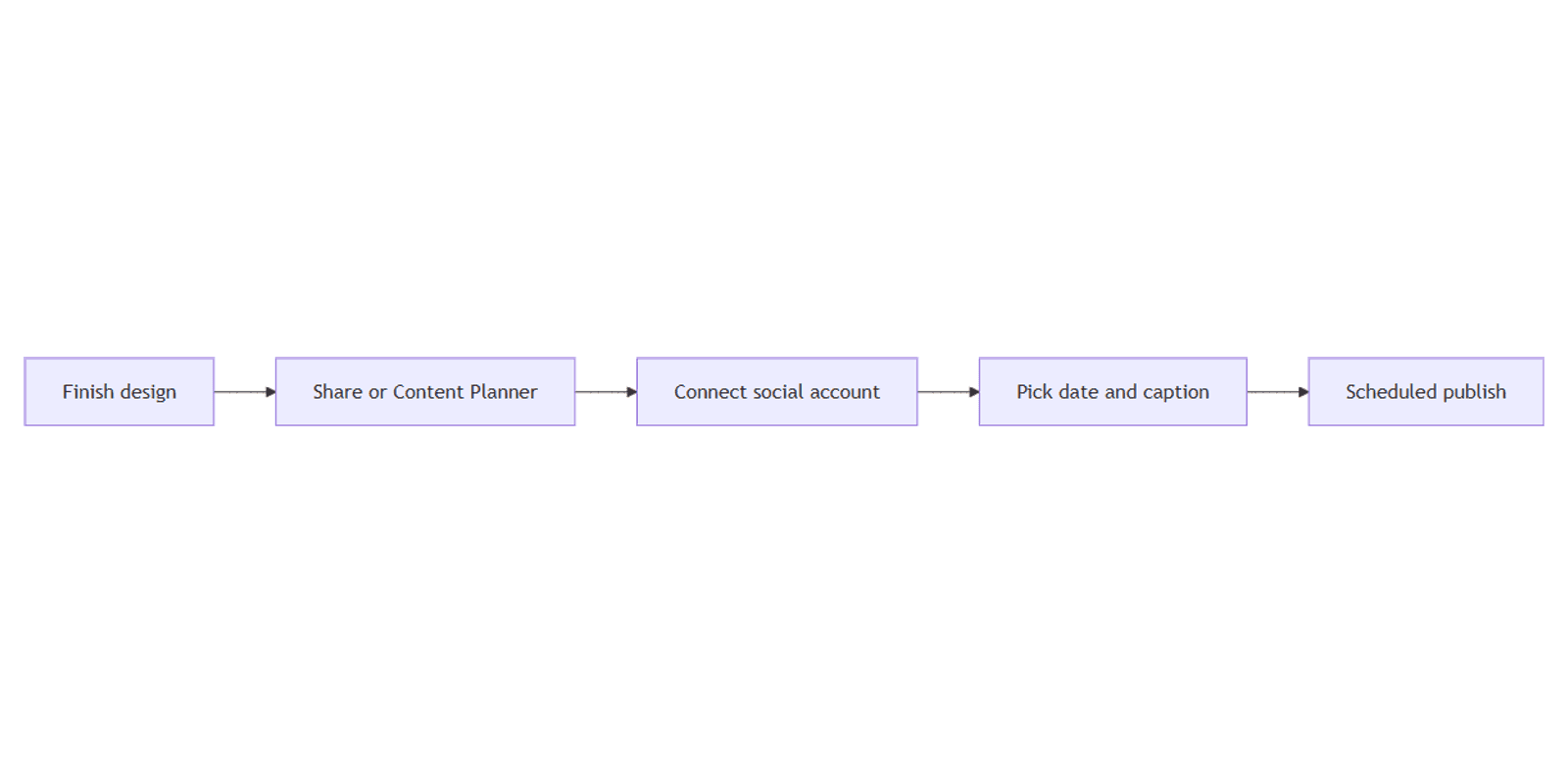
- Finish your design in the editor.
- Click Share.
- Choose Schedule or the Content Planner / publish option shown for your account.
- Select the connected social account, caption, date, and time.
- Confirm the schedule.
Always scan the current Share menu - Canva renames and regroups publish options over time.
Platforms you can commonly schedule to
Content Planner often supports scheduling to several major networks when accounts are connected. Lists change; treat this as a starting checklist and verify in Share for your workspace:
| Platform | Typical requirement |
|---|---|
| Facebook Pages | Page connected to Canva |
| Instagram Business | Business account linked to a Facebook Page |
| Twitter / X | Account connected |
| Profile or Page connected as offered | |
| Account connected | |
| Slack | Workspace connected when available |
| Tumblr | Account connected when available |
If a network is missing from Share, reconnect the account or check Canva Help for that platform. Design-size guides for each channel:
Scheduling Instagram posts (Business only)
Instagram scheduling has stricter rules than most other networks. Per Canva's Instagram scheduling help:
| Rule | Detail |
|---|---|
| Account type | Instagram Business only |
| Facebook link | Business account must be linked to a Facebook Page |
| Creator accounts | Not supported for Canva scheduling |
| Where to schedule | Prefer desktop browser for Instagram scheduling |
| Rolling limit | Up to about 25 posts in a rolling 24-hour window |
| Hashtags in caption | Roughly 20 hashtags max in a scheduled caption |
What Content Planner cannot schedule on Instagram
Content Planner does not schedule Instagram Stories, Reels, or Galleries/carousels. For those formats, design in Canva, download, and publish in the Instagram app (or Meta tools that support them). See:
- Instagram Stories
- Instagram Reels video
- Instagram carousels - multi-page posts (manual upload)
Single-image feed posts are the Instagram use case for Content Planner. Carousels need the download-and-upload path in the Instagram app.
Multi-design documents and Content Planner
If your file has multiple pages (a multi-design document), publishing or scheduling to Content Planner may fail or behave oddly. Canva's guidance is typically:
- Open the multi-page design.
- Copy the page you want to schedule into its own single-design document.
- Schedule that single-page design from Share or Content Planner.
Keep multi-page files for carousels, decks, and print sets - then schedule one-page social files separately. For carousel design (not scheduling), use Instagram carousels in Canva.
Mobile vs desktop
| Task | Mobile app | Desktop / browser |
|---|---|---|
| View Content Planner | Often available | Full calendar view |
| Schedule most platforms | Check Share for your build | Full options |
| Schedule Instagram | Limited - prefer desktop | Recommended path |
Use mobile to check the calendar and tweak captions when offered, but schedule Instagram from a desktop browser when possible so you hit the supported flow.
Team Content Planner views
On team workspaces:
- Each team member usually has their own Content Planner view for personal schedules.
- Accounts that are team-viewable can show scheduled posts across members who share that connection - so a shared Facebook Page may appear on more than one person's calendar.
Agree who owns each connected Page or profile so two people do not double-book the same slot. Apply Brand Kit before scheduling so every teammate's creative matches.
Design → schedule checklist
- Create the post at the right size (e.g. 1080 × 1350 for Instagram portrait).
- Apply Brand Kit colors, fonts, and logos.
- Use a single-page design for Content Planner (copy out of multi-page files).
- Connect the social account (Instagram Business + Facebook Page for IG).
- Open Content Planner or Share → Schedule.
- Add caption and hashtags (respect the ~20 hashtag limit for IG schedules).
- Pick date/time and confirm.
Preview how a feed post looks on a phone with Canva frame mockups before you lock the calendar slot. For campaign dates outside Canva, the Social Media Multi-Platform Content Planner pairs well with Content Planner's publish queue.
Content Planner vs download-and-post
| Approach | Best for |
|---|---|
| Content Planner schedule | Single-image (or supported) posts on connected networks |
| Download + Instagram app | Carousels, Stories, Reels, Creator accounts, unsupported formats |
| Download + other apps | Platforms Canva does not list in Share |
Do not force every format through Content Planner. Match the tool to the format.
FAQ
Do I need Canva Pro to use Content Planner?
Scheduling is typically on paid plans (Pro, Business, Education, Nonprofits, and related Teams seats). Confirm on your billing page and in Content Planner help - Free vs paid features change.
Can I schedule Instagram carousels from Content Planner?
No. Canva does not schedule Instagram Galleries/carousels (or Stories or Reels) through Content Planner. Design multi-page carousels in Canva, download all pages, and upload as a carousel in the Instagram app - see Instagram carousels.
Why is my Instagram account not available for scheduling?
You need an Instagram Business account linked to a Facebook Page. Creator accounts are not supported for Canva scheduling. Reconnect Facebook/Instagram and try again from a desktop browser. See Scheduling posts on Instagram.
Why did scheduling fail on a multi-page design?
Publishing multi-design documents to Content Planner often does not work. Copy the page into a single-design document, then schedule that file.
How many Instagram posts can I schedule?
Canva documents a rolling limit around 25 posts in 24 hours, and about 20 hashtags in a scheduled caption. Treat these as soft caps - Instagram and Canva may adjust them.
Does every teammate see the same Content Planner?
Each member has their own view. Team-viewable connected accounts can surface across members who share access. Coordinate ownership of Pages and profiles.
Conclusion
To schedule social posts from Canva, open Content Planner (or Share → Schedule), connect the right accounts, and use single-page designs for the formats Content Planner supports. For Instagram, use a Business account linked to a Facebook Page, schedule from desktop, and remember Stories, Reels, and carousels are not scheduled here.
Next, design channel-ready creatives with Instagram posts, Facebook posts, Pinterest pins, LinkedIn posts, and Twitter/X posts. For multi-page feed posts you publish manually, see Instagram carousels. Keep brand consistency with Brand Kit.
Canva Templates
Start Selling Canva Templates - Start Now!