How to Create X (Twitter) Posts in Canva: Size, Layout, and Export
A clear X (Twitter) post image earns more stops in a fast timeline. Canva makes it easy to design 1200×675 landscape creatives, square graphics, and profile/header assets that stay sharp when compressed.
This guide covers Canva X / Twitter post sizes for 2026, layout tips, Brand Kit reuse, and export. Specs below follow widely cited 2026 media guidance for X image posts (16:9 landscape is the safest in-feed default).
X (Twitter) post size in Canva
Use different canvases for feed posts vs profile chrome:
| Format | Size | Aspect ratio | Best for |
|---|---|---|---|
| Single post image (recommended) | 1200 × 675 px | 16:9 | Default in-feed photo |
| High-res landscape | 1600 × 900 px | 16:9 | Extra clarity; same ratio |
| Square post | 1080 × 1080 px | 1:1 | Quote cards, product shots |
| Link / card-style landscape | 1200 × 628 px | ~1.91:1 | Wide link-style previews |
| Profile photo | 400 × 400 px | 1:1 | Avatar |
| Header / banner | 1500 × 500 px | 3:1 | Profile header |
Practical rule: design feed graphics at 1200 × 675 (or 1600 × 900) so the timeline preview shows your full composition. Very tall portraits often crop awkwardly in the feed - prefer 16:9 or 1:1 for text-heavy posts.
Keep important text and logos inside a safe margin (~40–50 px). Aim for JPG/PNG under 5 MB for reliable mobile uploads (GIFs may allow larger caps on web).
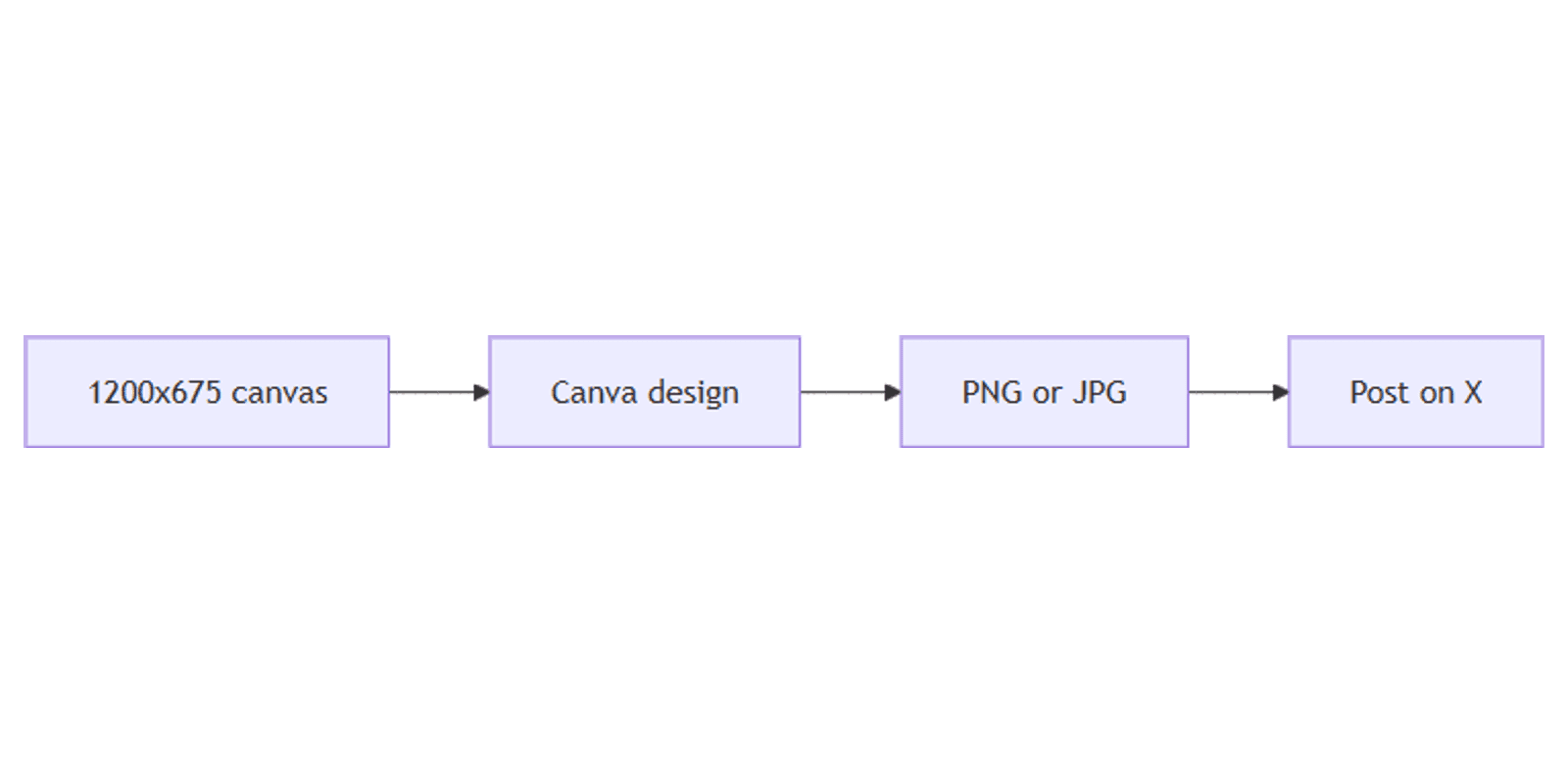
To create the canvas:
- Open Canva.
- Click Create a design → search Twitter Post or X Post, or use Custom size.
- Enter 1200 × 675 px for a standard feed image.
Related Sparxno size guides:
| Use | Size | Guide |
|---|---|---|
| Instagram portrait | 1080 × 1350 | Instagram posts |
| LinkedIn square | 1080 × 1080 | LinkedIn posts |
| LinkedIn / OG link card | 1200 × 627 | LinkedIn, blog banners |
| TikTok / Reels cover | 1080 × 1920 | TikTok and Reels |
Step-by-step: build an X post
1. Set the background
- Solid or soft gradient for text posts
- Full-bleed photo with a dark overlay for readability
- Split layout (visual + text) using equal-width sections
2. Add headline and supporting line
- One bold claim (about 6–10 words)
- Optional subline for context or CTA
- High contrast; avoid hairline fonts
Apply Brand Kit colors and fonts so X matches Instagram and LinkedIn.
3. Add logo or handle cue
- Small logo in a corner inside the safe margin
- Optional "@handle" if the graphic might be screenshotted off-platform
4. Multi-image posts
X allows up to four images per post. Design each tile at 1200 × 675 (or consistent 1:1) so the collage does not crop key text. Export four PNGs and attach them in order.
Layout tips for the X timeline
- Lead with the hook - the left/center of 16:9 is what people see first while scrolling.
- Less text than LinkedIn - X rewards scannable one-liners on the image.
- Test dark mode - light text on mid-gray photos fails; check contrast.
- Avoid edge-hugging type - compression and UI chrome can clip borders.
- GIF sparingly - keep under platform size limits; static PNG/JPG is more predictable.
Export settings
- Click Share → Download.
- File type: PNG (sharp graphics/text) or JPG (photos, smaller files).
- For transparent overlays you plan to place elsewhere, PNG; for final feed posts, flat PNG/JPG is fine.
- Upload to X and preview on mobile before publishing.
Checklist:
- Canvas is 1200 × 675 (or intentional square 1080 × 1080)
- Text sits inside safe margins
- Brand colors/fonts from Brand Kit
- File under ~5 MB
- Mobile preview looks clear
Practical workflows
Quote / tip card series
- Master 1200 × 675 template with Brand Kit.
- Duplicate pages in Canva for each tip.
- Schedule posts; track copy in a Notion content planner.
Launch announcement
- Landscape creative for the main post.
- Matching 1500 × 500 header if the profile is campaign-themed.
- Link preview image at 1200 × 628 / 1200 × 630 if you are driving to a blog (blog banners).
Cross-post from LinkedIn
- Do not stretch a 1080 × 1080 LinkedIn square into 16:9.
- Duplicate the design → resize to 1200 × 675 and reflow text.
- Keep one Brand Kit so both platforms stay on-brand.
FAQ
What is the best X Twitter post size in Canva?
1200 × 675 px (16:9) is the safest default for single-image posts in 2026 guides. Square 1080 × 1080 also works for graphic cards.
What size is the X header image?
1500 × 500 px (3:1) for the profile banner.
Can I reuse Instagram designs on X?
Yes after resizing - Instagram portrait (4:5) is taller than X's preferred 16:9. Rebuild or crop with key text recentered.
Conclusion
Canva X (Twitter) posts work best at 1200 × 675 - set a custom canvas, keep text inside safe margins, export PNG/JPG under 5 MB, and reuse your Brand Kit. Pair with LinkedIn and Instagram templates for a full social set.
For mockup presentations of finished posts, see Sparxno Canva frame mockups.
Canva Templates
Start Selling Canva Templates - Start Now!