Notion AI Meeting Notes: Transcribe, Summarize, and Speaker Labels
Notion AI Meeting Notes transcribes your conversation, labels speakers when it can, and drafts a summary with action items - so you can stay present in the call and still leave with sharable notes in the same workspace as your docs and tasks.
This guide covers who can use the feature, desktop vs browser vs mobile capture, /meet workflow, speaker labels, summary instructions, audio upload, and Calendar / Meetings sidebar setup. Official help: Take AI meeting notes in Notion and Preserve perfect meeting memory with AI Meeting Notes. Plan names and UI labels can change - confirm in notion.com/help and your workspace settings.
AI Meeting Notes is currently in beta and subject to Notion’s beta terms (Notion Help).
Who can use AI Meeting Notes
| Requirement | Detail |
|---|---|
| Plan | Business or Enterprise (also eligible mobile subscriptions where Notion AI is included) |
| Desktop app | Best experience - version 4.7.0 or higher |
| Mac | macOS 13 or later |
| Windows | Latest Windows version |
Hedge: Notion’s plan names and which AI features ship with which tier can change. Always check current AI Meeting Notes help and Settings → Notion AI in your workspace.
Desktop, browser, and mobile capture
| Surface | What audio is captured | Best for |
|---|---|---|
| Desktop app | Mic and system audio (video calls with headphones still work) | Virtual meetings |
| Browser | Mic only - system audio is not captured; conferencing via headphones is often missed | In-person talk near the laptop mic |
| Mobile app | Phone mic only - cannot capture other participants on a phone video call through headphones | In-person meetings, or when another device plays audio out loud |
On desktop, Notion needs access to system audio and screen recording permissions so it can transcribe other participants when you use headphones (Notion Help).
How to start and stop transcription
- Open Notion on the desktop app (preferred).
- On any page, type
/meetto insert an AI Meeting Notes block. In the browser you may be prompted to open or download the desktop app. - Optionally write agenda items under Notes first - Notion AI uses those notes when it builds the summary.
- When the meeting starts, select Start transcribing. By doing so you confirm that everyone has given consent to be recorded and transcribed.
- When finished, select Stop. The AI summary starts generating automatically.
- You need at least about one minute of recorded audio (roughly 300 transcribed characters) for a summary to generate.
- To continue later, use the slider icon on the block → Resume transcription.
You can also start from Upcoming events on Home when that tile is available.
Speaker labels and citations
On the desktop app, Notion can label speakers in the transcript when it detects a speaker change. Labels work best for virtual one-on-one meetings where Notion captures your mic and system audio. If the note is linked to a calendar event, Notion can name the other participant from that event (Notion Help).
Speaker labeling is limited when you:
- Share one microphone among multiple people in the room
- Run a group meeting with many speakers
- Use the browser or mobile app
Summaries include citations back to the transcript - hover a citation for the snippet, or click to jump to that line. Speaker labeling is documented as available in English only at the time of writing; confirm languages in the current help article.
Summary instructions and Retry
Use the Instructions dropdown at the bottom of the meeting notes block to change how the summary is structured:
| Option | Use |
|---|---|
| Auto | Default structure |
| Built-in meeting types | Sales, standup, team meeting, and similar presets (labels can vary) |
| Custom | Your own structure via + Add custom instructions |
Instruction changes apply to new recordings or when you resume transcription. To rebuild an existing summary with new instructions, click Retry summary.
You can set any instruction set as default from the Instructions menu (••• → Set as default). Custom instructions are private by default; shared instruction pages need + Add to my instructions before they appear in your dropdown (Notion Help).
Upload audio from another recorder
If the meeting was recorded elsewhere, open a Meeting Notes block → settings icon → Upload audio, then choose a file.
| Supported | Not supported |
|---|---|
| AAC, M4A, MP3, WAV | MOV, MP4, Loom (not currently supported for upload) |
Notion transcribes and summarizes the upload like a live recording (Notion Help).
Settings: Notion AI → AI Meeting Notes
Workspace and personal options live under Settings → Notion AI (and related AI Meeting Notes controls):
| Setting | What it does |
|---|---|
| AI Meeting Notes / workspace availability | Owners can enable or turn off the feature for the workspace |
| Meeting detection notifications | Desktop can nudge you when a conferencing process uses the mic - toggle under Notifications if needed |
| Auto-share with internal calendar participants | Share notes from Notion calendar entry points with workspace members on the event |
| Default meetings database | New meeting notes pages land in the database you pick |
| Auto play consent message on start | Plays an audio consent message when transcription starts (owners can enforce for the workspace) |
Always get consent before recording. Notion offers text copy, a speaker button for a voice consent message, and auto-play options - unmute speakers and disconnect headphones if the room needs to hear the message (Notion Help).
Notion Calendar and Meetings in the sidebar
Connect Notion Calendar so you can start notes from events and link notes to meetings. Setup paths include Meetings in the sidebar → Connect your calendar, the Meeting Notes block settings → Connect Calendar, or Notion Calendar profile settings for the workspace and default meetings database.
Meetings in the Notion sidebar (upcoming meetings + a consolidated AI Meeting Notes list) is still rolling out for some users. You need Calendar connected, and the Notion workspace email should match the Calendar email. Hide the tab later via Settings → Notion AI → Hide meetings tab if you prefer (Notion Help).
After the summary, turn action items into tasks on Home / My tasks, discuss follow-ups with comments, and watch related updates in Inbox notifications. For broader page Q&A and Autofill, see Notion AI.
Practical workflow
- Connect Calendar and set a default meetings database.
- Add
/meet(or attach notes from the event) before the call; paste agenda under Notes. - Obtain consent → Start transcribing on desktop.
- Stop when done; review citations and Retry summary if you change Instructions.
- Share the page or rely on auto-share for internal participants; assign follow-ups.
Works with the CRM Dashboard when sales calls need a consistent home for notes next to deals.
FAQ
Is AI Meeting Notes still in beta?
Yes. Notion documents it as in beta and subject to beta terms (Notion Help).
Which plans include it?
Business or Enterprise, plus eligible mobile subscriptions where Notion AI is included. Confirm current eligibility in Help - plan packaging can change.
Why is the desktop app recommended?
Desktop captures mic and system audio for video calls. Browser is mic-only; mobile is phone mic only and works best in person.
Do I need consent?
Yes. Starting transcription confirms consent; use Notion’s consent tools and follow applicable recording laws.
Can I upload a Loom or MP4?
No for upload today - use AAC, M4A, MP3, or WAV. MOV, MP4, and Loom are not supported for upload (Notion Help).
Where do speaker labels work best?
Desktop, especially 1:1 virtual meetings. Group, shared-mic, browser, and mobile setups are limited.
Conclusion
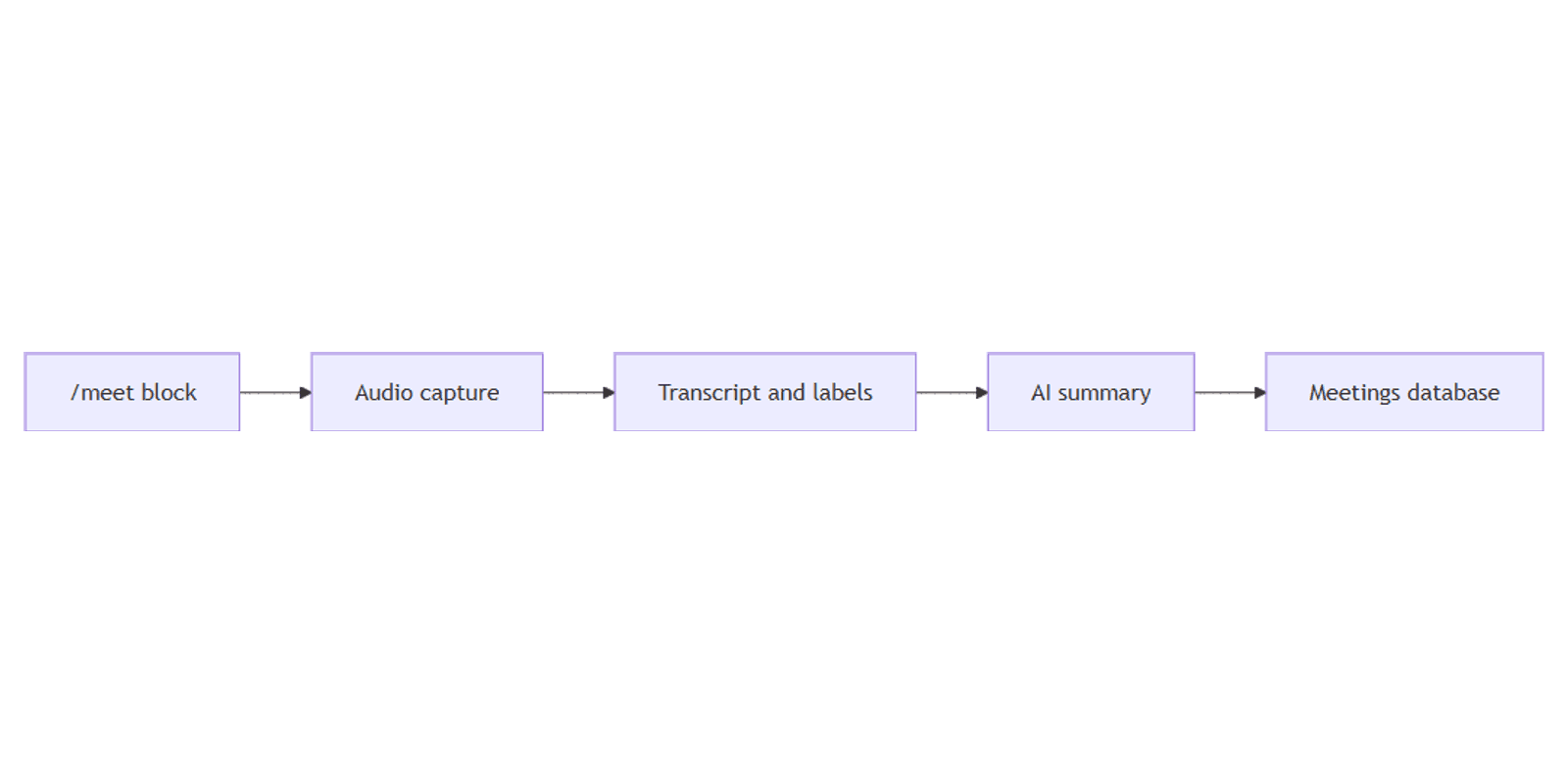
Notion AI Meeting Notes turns /meet into a transcript, speaker-aware summary (when labels apply), and sharable page inside your workspace. Prefer the desktop app (4.7.0+), get consent, give the summary at least a minute of audio, and tune Instructions or Retry summary as needed. Connect Notion Calendar, set a default meetings database, and use Meetings in the sidebar when it appears for your account.
Pair follow-ups with Home / My tasks, comments, Inbox, and broader Notion AI tools. For a wider template set, see the Notion Templates Bundle.
Notion Templates
Start Selling Notion Templates - Start Now!