How to Create Sticker Sheets in Canva: Print and Cut
Canva sticker sheets pack multiple stickers onto one print-and-cut layout: even spacing, bleed where ink meets the cut, and a PDF Print file for the sticker shop or home cutter. Think of the sheet like a grid of mini business cards - shared brand, many units - with tighter cut tolerances.
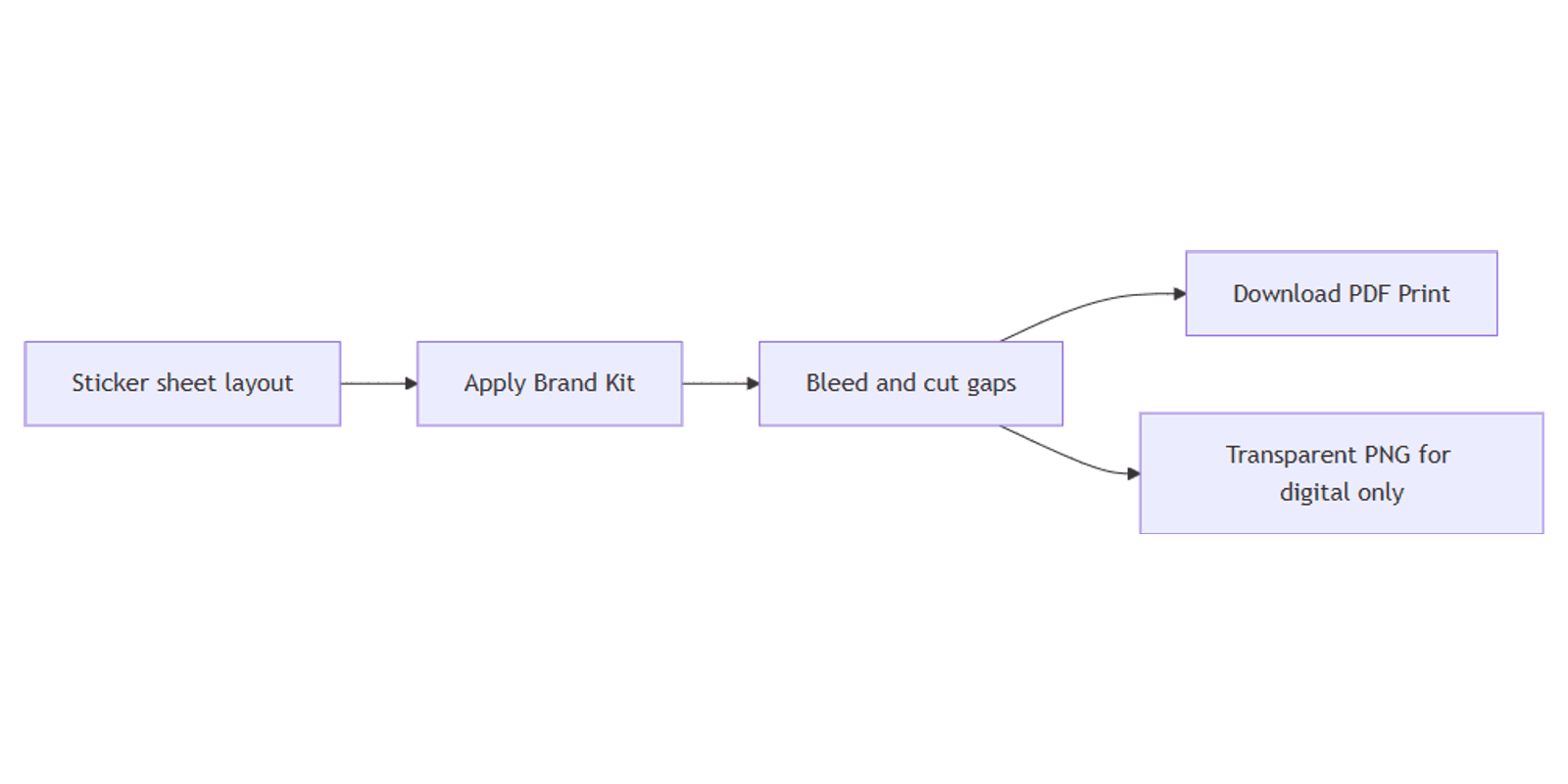
This guide covers sticker sheet layouts, bleed and cut-line habits, PDF Print, and when transparent PNG matters for digital stickers vs print sheets. Official help: Margins, bleed, and crop marks, Download file types, and Transparent backgrounds.
Sticker sheet templates in Canva
- Open Canva.
- Click Create a design and search Sticker sheet, Stickers, or set Custom size to your printer’s sheet (often Letter or A4).
- Place repeated sticker art in a grid with consistent gaps for the cutter.
- Apply Brand Kit colors, fonts, and logos on every unit.
- Optional: add a small QR code sticker that links to your shop or menu.
Confirm kiss-cut vs die-cut, sheet size, and whether the vendor wants crop marks before you finalize spacing.
Layout for print and cut
| Zone | Put here | Avoid here |
|---|---|---|
| Sticker art | Logos, icons, short phrases | Hairline detail that vanishes at cut size |
| Gap / gutter | Clear space between stickers for the blade | Touching edges that fuse when cut |
| Bleed (per sticker) | Background color past the cut path | Critical text on the outer fringe |
| Safe area | Names, QR, fine logos | Anything that must not be sliced |
Practical tips:
- Duplicate one approved sticker, then distribute - do not redraw each cell by hand.
- Keep a quiet margin between units so kiss-cuts do not nick the neighbor.
- Match cutter templates when your shop supplies a Canva-ready grid.
- For pocket-size singles, reuse habits from business cards (bleed + safe margin) at sticker scale.
Bleed, cut lines, and safe margins
- Turn on Show print bleed for the sheet.
- Extend each sticker’s background slightly past where the cutter will track (vendor-dependent).
- Keep type and QR codes inside a safe inset on every sticker.
- If the shop asks for cut lines or a separate dieline layer, follow their file spec - Canva’s on-canvas bleed guides are a starting point, not a universal cutter path (Canva Help).
Many Canva trim products use about 0.125 in / 3.175 mm sheet bleed. Individual sticker cut offsets vary by vendor - always ask.
Transparent stickers vs print sheets
| Deliverable | Format | Note |
|---|---|---|
| Print sticker sheet | PDF Print (+ crop marks/bleed as required) | Opaque or clear stock is a printer choice; the PDF still needs print resolution |
| Digital / Discord-style sticker | PNG with transparency | Use transparent PNG (Pro-eligible plans) |
| Cutout asset for other layouts | Transparent PNG | Not a substitute for the shop PDF |
Clear vinyl does not mean “export transparent PDF.” For paper/vinyl sheets, send PDF Print. Use transparent PNG when the sticker must float on a digital background without a white box (Canva Help).
Apply Brand Kit
- Open Brand or Brand Kit.
- Apply colors and the correct logo variant across the grid.
- Check contrast at small sticker size - thin scripts fail.
- Keep one master sheet; duplicate for colorways.
Preview packs with Canva frame mockups when selling a sticker set.
Download PDF Print
- Click Share → Download.
- Choose PDF Print (aimed at 300 dpi).
- Tick Crop marks and bleed when the printer needs them.
- Download and zoom every sticker for clipped art or uneven gaps.
- Send the vendor’s preferred dieline or cut file alongside the art if they require it.
| Format | Best for |
|---|---|
| PDF Print | Sticker shops, home cutters that accept PDF, Canva Print when offered |
| PNG transparent | Digital stickers and composites - see transparent PNG |
| PDF Standard | Screen proofs only |
Product drop dates for sticker launches fit the Social Media Multi-Platform Content Planner.
FAQ
What size should a Canva sticker sheet be?
Match your printer’s sheet - often Letter or A4 - and the cutter template they provide. Custom size is fine when the shop specifies exact dimensions.
Do sticker sheets need bleed?
Yes for edge-to-edge art. Show print bleed on the sheet, inset critical content, and confirm per-sticker cut offsets with the vendor (margins and bleed).
How do I make transparent stickers in Canva?
For digital stickers, download PNG with Transparent background on an eligible plan - see transparent PNG. For print clear vinyl, still supply PDF Print and let the shop handle substrate.
Can I add a QR sticker on the sheet?
Yes - generate a QR code, keep it high contrast and large enough to scan at sticker size, and place it inside the safe area.
Conclusion
To create sticker sheets in Canva, build a grid layout with cut-friendly gaps, apply Brand Kit, respect bleed and safe areas, and download PDF Print for the shop. Use transparent PNG for digital stickers, reuse small-format habits from business cards, and add QR codes when a sticker should open a link.
Canva Templates
Start Selling Canva Templates - Start Now!