How to Create LinkedIn Banners in Canva: Profile and Company Covers
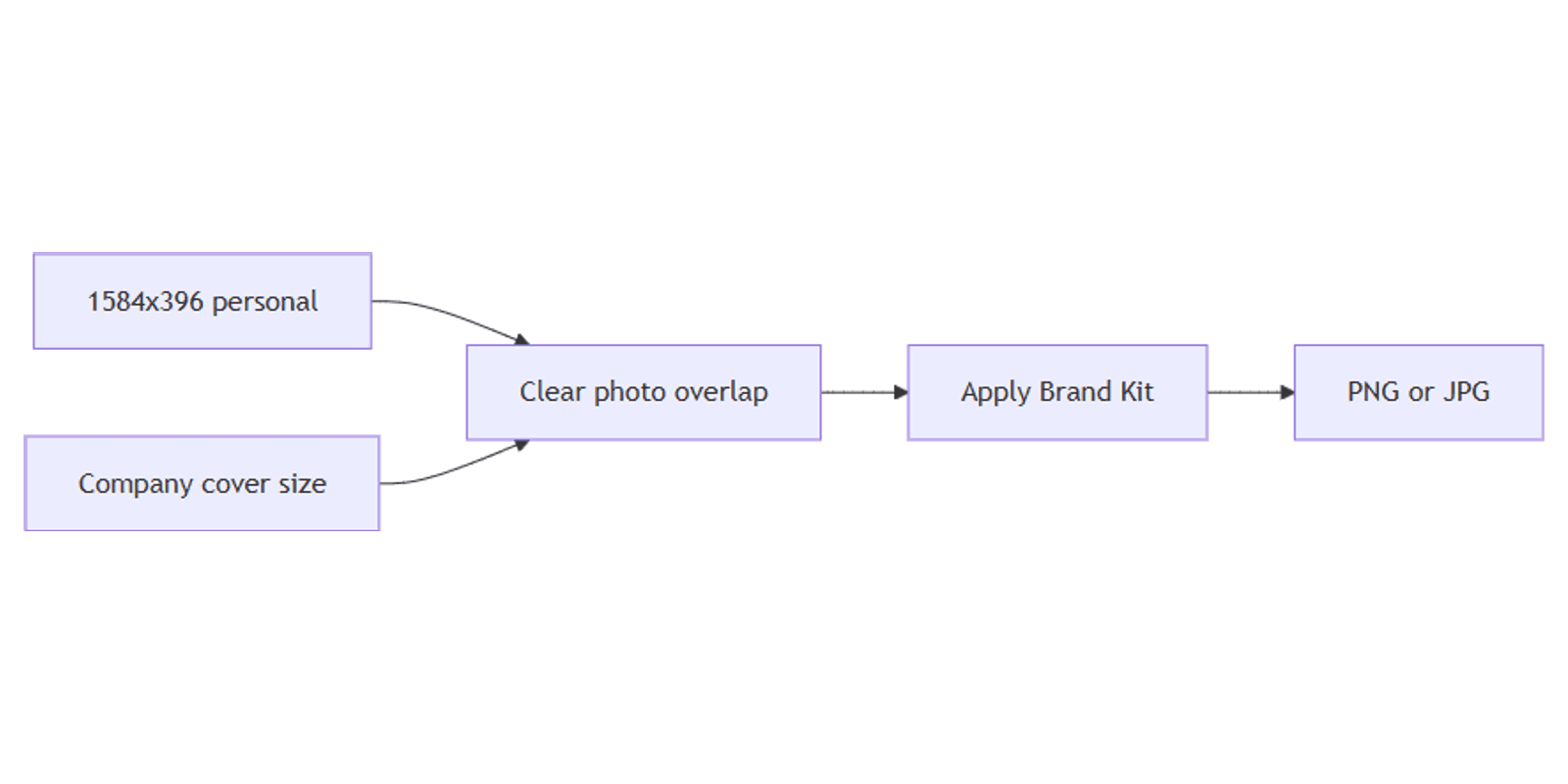
LinkedIn banners (profile backgrounds and company covers) brand the top of a page - they are not the same as square feed posts. In Canva, create a wide cover, apply Brand Kit, and export PNG or JPG.
This guide covers commonly cited 2026 sizes for personal and company covers, safe layout tips, and how banners differ from LinkedIn posts. Always double-check LinkedIn’s current upload tips in-product - platforms tweak crop and limits over time. Canva templates: LinkedIn banner templates. Download help: Download file types.
LinkedIn banner sizes in Canva (2026)
| Banner type | Commonly cited size | Aspect |
|---|---|---|
| Personal profile background | 1584 × 396 px | Wide ~4:1 |
| Company page cover | Often 1128 × 191 (classic) or larger widescreen uploads such as 1536 × 768 | Varies by LinkedIn UI |
Personal (1584 × 396): the usual Canva / designer default for individual profile backgrounds. Keep text and logos away from the area overlapped by the profile photo (lower left on desktop) and from extreme edges that mobile crops.
Company covers: LinkedIn has used a very wide 1128 × 191 cover for years; some 2026 workflows and templates also ship taller or larger masters (for example 1536 × 768). Treat those as starting points - open your Company Page admin → Edit page / cover upload and confirm the preview crop before you finalize.
| Asset | Size | Job |
|---|---|---|
| Profile / company banner | Wide cover (above) | Page branding |
| Feed post | 1080×1080 or 1080×1350 | Posts in the feed - see LinkedIn posts |
| Blog / OG banner | 1600×800 / 1200×630 | Articles and shares - see blog banners |
To create the canvas:
- Open Canva.
- Create a design → search LinkedIn Banner, or Custom size.
- Personal: enter 1584 × 396.
- Company: enter the size LinkedIn’s preview shows for your page (start from 1128 × 191 or your template’s larger master, then verify in LinkedIn).
Step-by-step: build a LinkedIn banner
1. Set the background
- Brand color, soft gradient, or a professional photo.
- Avoid busy patterns behind the profile photo overlap zone on personal profiles.
- Extend background to the edges; keep messages in the clearer center-right or center band.
2. Add headline content
- Short value line (“Product design for B2B SaaS”) - not a full bio.
- Optional secondary line (role, location, CTA).
- Logo or wordmark sized for the thin personal banner height.
- Pull colors and fonts from Brand Kit.
3. Respect profile photo and UI chrome
| Zone | Guidance |
|---|---|
| Lower left (personal) | Leave space - profile photo sits here on desktop |
| Far edges | Decorative only; mobile may crop |
| Center / center-right | Best place for tagline and logo |
Zoom out - banners are short; thin script fonts fail quickly.
4. Company vs personal differences
- Personal: one human brand; quieter photography; clear niche line.
- Company: product or team imagery; stronger logo lockup; avoid dating the banner with “Q1 2026” unless you plan frequent updates.
Export settings
- Share → Download.
- PNG for flat graphics; JPG for photos.
- Keep files lean for fast profile loads.
- Upload on LinkedIn: profile → edit background / Company Page → edit cover.
| Format | Best for |
|---|---|
| PNG | Logos, solid brand blocks |
| JPG | Photo backgrounds |
Size reference
| Use | Size |
|---|---|
| LinkedIn personal banner | 1584 × 396 px |
| LinkedIn company cover | Confirm in LinkedIn (often 1128 × 191 or larger template) |
| LinkedIn feed post | See LinkedIn posts |
| Blog header | See blog banners |
Design checklist
- Personal canvas is 1584 × 396 (or LinkedIn’s current personal tip)
- Company size verified in LinkedIn’s cover preview
- Text clear of the profile-photo overlap
- Brand Kit colors/fonts applied
- Exported PNG or JPG
- Not using a square feed post as the banner
Common mistakes to avoid
- Uploading a 1080×1080 post as a banner - wrong aspect; LinkedIn will crop oddly.
- Text under the profile photo - hidden on desktop.
- Tiny type - banners are short; use fewer, larger words.
- Ignoring LinkedIn’s live preview - sizes and crops can change; check before publishing.
FAQ
What size is a LinkedIn profile banner in Canva?
1584 × 396 pixels is the commonly used personal background size. Confirm in LinkedIn if the product shows an updated recommendation when you upload.
What size is a LinkedIn company cover?
Many guides still cite 1128 × 191; some templates use larger widescreen masters. Use LinkedIn’s company cover preview as the source of truth for your page in 2026.
Is a LinkedIn banner the same as a LinkedIn post?
No. Banners are wide page headers. Feed creatives use different sizes - see LinkedIn posts.
Can I adapt a blog banner?
You can reuse colors and photos, but resize carefully - blog headers are taller (see blog banners). Rebuild the layout for the thin LinkedIn frame.
Conclusion
To create LinkedIn banners in Canva, design a wide cover - commonly 1584 × 396 for personal profiles and a company cover size confirmed in LinkedIn - keep text clear of the profile photo, apply Brand Kit, and export PNG or JPG. Keep banners distinct from LinkedIn posts; for article headers and OG images, see blog banners.
Canva Templates
Start Selling Canva Templates - Start Now!