How to Create Book and Ebook Covers in Canva
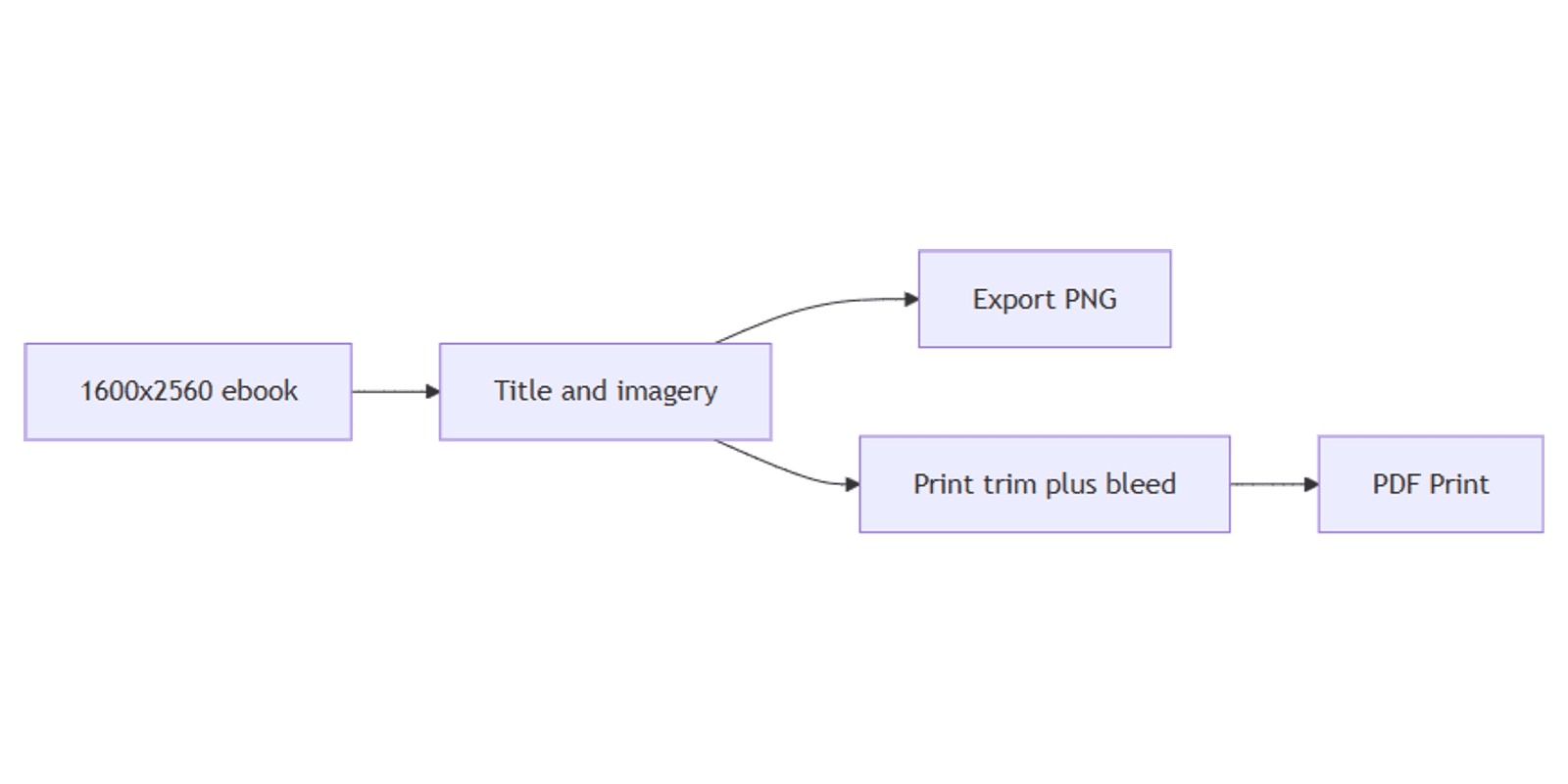
Book and ebook covers sell the title before anyone reads a sample. In Canva, you can design a tall ebook front cover for stores and a print cover with bleed for paperbacks - then export the right file type for each channel.
This guide covers common ebook dimensions, print trim notes, bleed, PDF Print vs PNG, and Brand Kit. Official Canva help: Margins, bleed, and crop marks, Download file types, Canva Print. Templates: book cover templates.
Ebook vs print cover sizes
Digital and print covers are not the same job. Ebook stores want a tall front-cover image. Print needs trim size, spine width, and bleed - those numbers come from your printer or KDP calculator, not from a single universal Canva preset.
| Use | Common size | Notes |
|---|---|---|
| Ebook front cover | 1600 × 2560 px | Popular tall ratio (~1.6); check your store’s current min/max |
| Print interior trim (example) | 6 × 9 in | Very common trade size - confirm with printer/KDP |
| Print full wrap | Trim + spine + bleed | Front, spine, and back on one PDF |
Important: print trim varies by format (5×8, 6×9, A5, etc.), paper type, and page count (spine). Always confirm finished size, bleed (often 0.125 in / 3 mm), and spine width with your printer or Amazon KDP before locking the layout.
To create an ebook cover canvas:
- Open Canva.
- Click Create a design → Custom size.
- Enter 1600 × 2560 pixels (or your store’s required pixels).
- Or search Ebook Cover / Book Cover and verify dimensions.
For print, set size in inches to match trim, enable Show print bleed, and leave room for the spine if you are designing a wrap - same discipline as print flyers and posters.
Step-by-step: build an ebook cover
1. Set the background
- Solid color, gradient, or full-bleed photo/illustration.
- Keep the center vertical third strong - store thumbnails crop aggressively on mobile.
- Avoid fine detail that vanishes at phone size.
2. Add title and author
- Text → Add a heading for the book title.
- Keep the title short enough to read at thumbnail size.
- Place author name below or above in a secondary weight.
- Optional series line or subtitle in smaller type - do not crowd the title.
Apply Brand Kit if the book belongs to a series or imprint with fixed fonts and colors.
3. Hierarchy that works at thumbnail size
| Element | Placement tip |
|---|---|
| Title | Largest type; high contrast |
| Subtitle | Optional; smaller; never compete with title |
| Author | Clear but secondary |
| Imagery | Supports mood; does not hide type |
Zoom to 25% in Canva - if the title is still readable, the cover works in bookstore grids.
4. Optional series branding
- Logo or imprint mark in a corner (inside safe margins).
- Consistent spine-style color bar across a series.
- Duplicate the master and swap title art per volume.
Print covers: bleed, trim, and spine
When you move from ebook PNG to paperback:
- Get exact trim, spine width, and bleed from the printer/KDP template.
- In Canva, create a custom size in inches that matches the full wrap (back + spine + front), or design front-only if your printer supplies a template you composite elsewhere.
- Turn on File → View settings → Show print bleed (wording can vary).
- Keep text and barcodes inside the safe margin - never in the bleed.
- Extend background colors/images to the bleed edge so nothing white shows after trim.
Treat this like other print work in Canva: see flyers and posters for bleed and PDF Print habits.
Export: PDF Print vs PNG
| Destination | Format | Why |
|---|---|---|
| Ebook stores / digital | PNG or JPG | Front-cover image upload |
| Print shops / KDP wrap | PDF Print | High quality, bleed, crop marks when needed |
| Promo web graphics | PNG | Site banners, ads, email |
Ebook workflow:
- Share → Download → PNG (or JPG if size-capped).
- Upload to Kindle, Apple Books, Kobo, or your distributor per their specs.
Print workflow:
- Share → Download → PDF Print.
- Enable crop marks and bleed when your printer asks for them (Canva Help).
- Flatten/embed fonts as required by the printer.
Do not send a soft RGB PNG as a substitute for a print PDF when the shop expects print-ready PDF.
Size reference
| Use | Size |
|---|---|
| Ebook cover (common) | 1600 × 2560 px |
| Print trim (example) | 6 × 9 in (+ spine + bleed) |
| Poster promo | See posters |
| Flyer promo | See flyers |
Design checklist
- Ebook canvas matches store guidance (often 1600 × 2560)
- Title readable at ~25% zoom
- Print trim, spine, and bleed confirmed with printer/KDP
- Text inside safe margins; backgrounds extend into bleed
- Digital export PNG/JPG; print export PDF Print
- Series colors/fonts locked via Brand Kit
Common mistakes to avoid
- Using ebook pixels for print - print needs inches, bleed, and spine math.
- Tiny title - store grids punish thin or script fonts.
- Critical type in bleed - it will be cut off.
- Skipping printer specs - 6×9 is common, not universal.
FAQ
What size is an ebook cover in Canva?
A widely used starting point is 1600 × 2560 pixels. Always verify minimum and maximum dimensions with your ebook store or aggregator.
What about 6 × 9 print books?
6 × 9 in is a common trim, but spine width and bleed depend on page count and paper. Confirm with your printer or KDP template before final export.
Should I export PNG or PDF Print?
Use PNG (or JPG) for ebook front covers. Use PDF Print (with bleed/crop marks as required) for physical covers.
Can I reuse a cover design for posters and flyers?
Yes - adapt art with care. Promo sheets follow different sizes; see posters and flyers.
Conclusion
To create book and ebook covers in Canva, design a tall ebook front cover (commonly 1600 × 2560), confirm print trim/spine/bleed with your printer or KDP, apply Brand Kit, and export PNG for stores or PDF Print for paperbacks. For print bleed practice, see flyers and posters.
Canva Templates
Start Selling Canva Templates - Start Now!