How to Create a Resume in Canva: Layout, Export, and ATS Tips
A strong Canva resume (or CV) is readable in seconds: one page when possible, clear hierarchy, and a PDF where text stays selectable. Templates speed layout; restraint beats heavy graphics when you apply through automated systems.
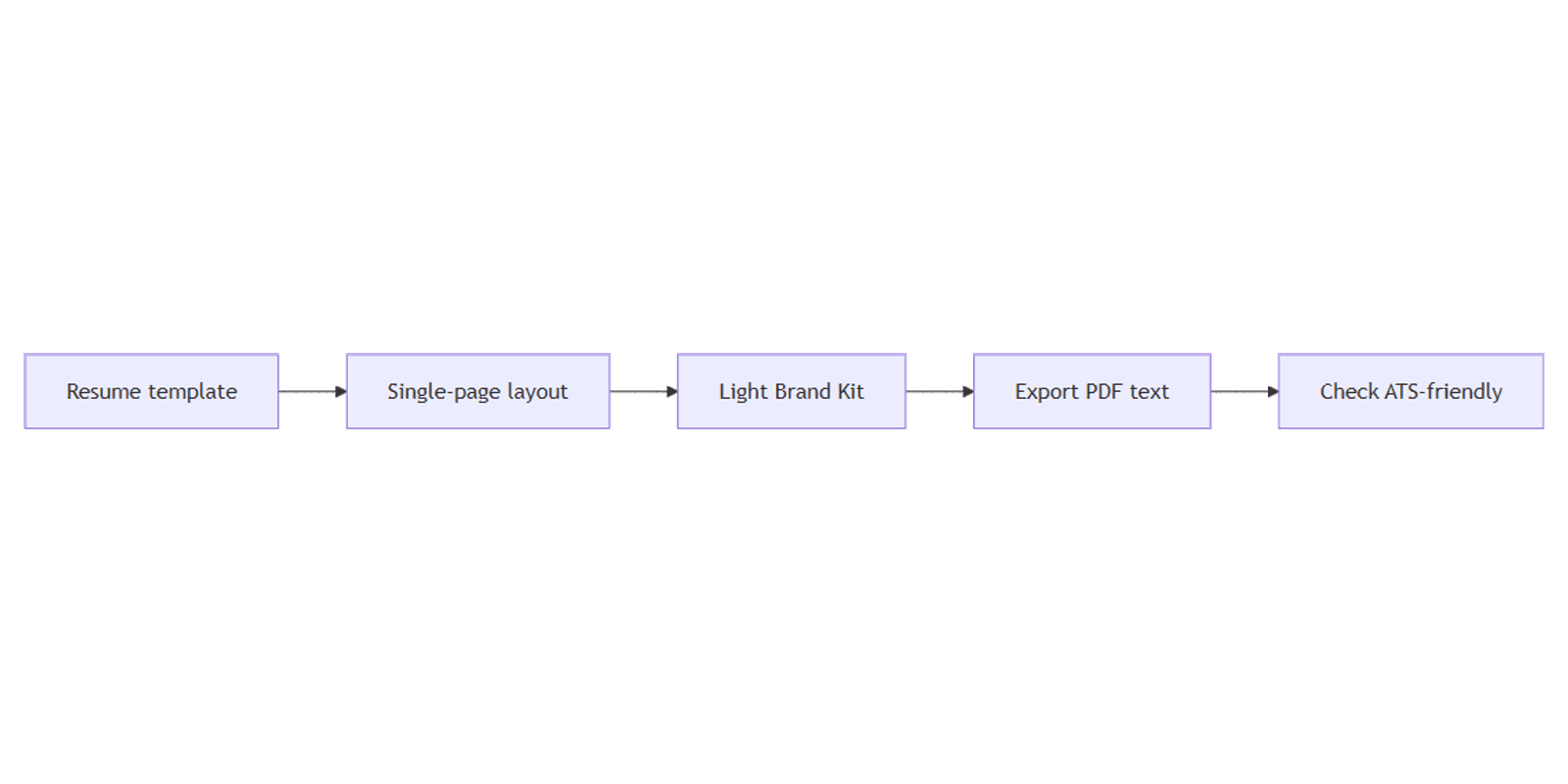
This guide covers resume templates, single-page layout, PDF export, light Brand Kit use, and ATS-friendly choices. For longer narrative docs see Canva Docs; for profile imagery see LinkedIn banner. Official help: Download file types.
Resume and CV templates in Canva
- Open Canva.
- Click Create a design and search Resume or CV.
- Pick a template close to your industry - clean corporate, simple modern, or minimal.
- Replace name, contact, experience, education, and skills with your content.
- Delete unused sections instead of leaving placeholder text.
| Goal | Template tip |
|---|---|
| ATS / online apply | Simple columns, high contrast, few icons |
| Creative portfolio | More visual OK if you also keep a plain text version |
| Single page | Prefer templates built for one page; cut ruthlessly |
US resumes are often one page early-career; CVs in some regions run longer - match local norms, but still prefer clarity over decoration.
Layout rules that hire managers scan
- Put name and contact at the top - email, phone, location, LinkedIn.
- Lead with experience or a short summary, then roles in reverse chronological order.
- Use consistent date formats and job titles.
- Keep margins comfortable - cramped edges look accidental in PDF viewers.
- Prefer standard section headings: Experience, Education, Skills.
Avoid multi-column text that zigzags oddly when copied, and avoid putting critical facts only inside icons or images.
Brand Kit - use sparingly
Brand Kit helps with one accent color and a clean font pair. On resumes:
- One accent for name or section rules is enough.
- Skip busy logos and patterned backgrounds for job applications.
- Check contrast: gray-on-gray fails in print and on ATS screenshots.
Save louder brand work for portfolios, docs leave-behinds, or a LinkedIn banner that matches your personal brand without cluttering the PDF resume.
Export PDF with selectable text
- Click Share → Download.
- Choose PDF Standard (or PDF Print if you need a paper copy for an interview).
- Download and open the file in a PDF reader.
- Try selecting and copying a line of body text - it should select as text, not as a flat image.
| Format | Use |
|---|---|
| PDF Standard | Most online applications and email |
| PDF Print | High-quality paper copies |
| PNG | Preview mockups only - not for ATS uploads |
Do not flatten the whole resume into a single image export if recruiters need to parse text.
ATS caveat: avoid heavy graphics
Applicant Tracking Systems (ATS) often extract text from PDFs. Heavy graphics, text-in-images, unusual fonts, and complex tables can scramble parsing.
| Safer for ATS | Riskier |
|---|---|
| Simple layout, real text boxes | Headlines baked into photos |
| Standard fonts | Decorative script for body copy |
| Clear section labels | Skills as unlabeled icon rows only |
| Single-column or gentle two-column | Overlapping shapes that clip text |
If a role requires an ATS-safe file, keep a plain Canva layout (or a complementary text version) and reserve visual resumes for human readers and portfolio sites.
Preview presentation mockups with Canva frame mockups when you show clients a designed CV next to a cleaner ATS variant.
FAQ
Should a Canva resume be one page?
Prefer one page unless your field expects a longer CV. Cut older roles and trim bullets before you add a second page.
Is Canva OK for ATS?
Canva works when text stays real and the layout stays simple. Avoid heavy graphics and image-only text. Always test by selecting text in the exported PDF.
PDF Standard or PDF Print?
PDF Standard for most uploads and email. PDF Print when you need interview printouts. See download types.
Can I match my LinkedIn look?
Yes - keep resume colors restrained, then align your public profile art with a LinkedIn banner and longer writing in Canva Docs if needed.
Conclusion
To create a resume in Canva, start from a Resume/CV template, keep a single page when you can, export PDF with selectable text, and use Brand Kit lightly. Treat ATS as a constraint: skip heavy graphics and verify the PDF still copies as text.
Next, pair the file with a consistent LinkedIn banner and longer supporting material in Canva Docs when the application asks for more than one page.
Canva Templates
Start Selling Canva Templates - Start Now!