How to Create Product Mockups in Canva: Frames and Scenes
Canva product mockups place your artwork onto realistic scenes - apparel, devices, packaging, print, and more - so listings and pitch decks look finished without a photoshoot. Ideal for print-on-demand previews, app screenshots, and client comps.
This guide covers mockups and frames in Elements, dropping designs into placement areas, Brand Kit polish, and PNG export. Official details: Create mockups using images or designs and Use frames.
Mockups vs frames
| Tool | What it is | Best for |
|---|---|---|
| Mockups (Elements / Mockups app) | Product scenes with smart placement surfaces | T-shirts, mugs, devices, posters in context |
| Frames | Shape placeholders you fill with images or designs | Custom crops, multi-slot layouts, DIY scenes |
Many mockup templates behave like specialized frames - drag your design onto the product surface until it snaps. Standalone frames let you build your own layout when a ready-made mockup is not enough.
How to add a mockup from Elements
- Open Canva and create or open a design.
- Go to Elements.
- Search Mockups, or browse mockup categories (print, packaging, apparel, tech, and more).
- Click a mockup to add it to the canvas.
- Drag your logo, pattern, or design onto the mockup surface until it fills.
- Adjust with Fill, Fit, or crop controls when offered.
- Apply Brand Kit colors and fonts on any surrounding text.
Mockups from the photo editor (custom surfaces)
For custom photos of blank products:
- Add your photo to the design.
- Select the image → Edit.
- Under Apps, open Mockups → Create a mockup template (when available).
- Confirm the detected surface, then drag your design onto it (Canva Help).
Canva notes that busy photos and some premium library photos work poorly for custom mockup templates - prefer clear, flat surfaces and your own product shots when possible.
Using frames for DIY mockup scenes
- Elements → search Frames (or a shape frame).
- Place frames where product art should sit (phone screen, poster area, label).
- Drag uploads or Brand Kit logos into each frame.
- Use Smart Crop / reposition to fine-tune.
- Layer backgrounds and shadows for a scene; keep the product art inside frames so swaps stay easy.
Frames are also useful when you present several size variants side by side before a presentation review.
Export a clean PNG
- Click Share → Download.
- Choose PNG.
- For logos and cutouts that sit on other backgrounds, enable Transparent background when your plan allows - see transparent PNG.
- Download and drop the file into listings, decks, or storefronts.
Use Brand Kit logos with transparency so mockups do not show a white box around the mark.
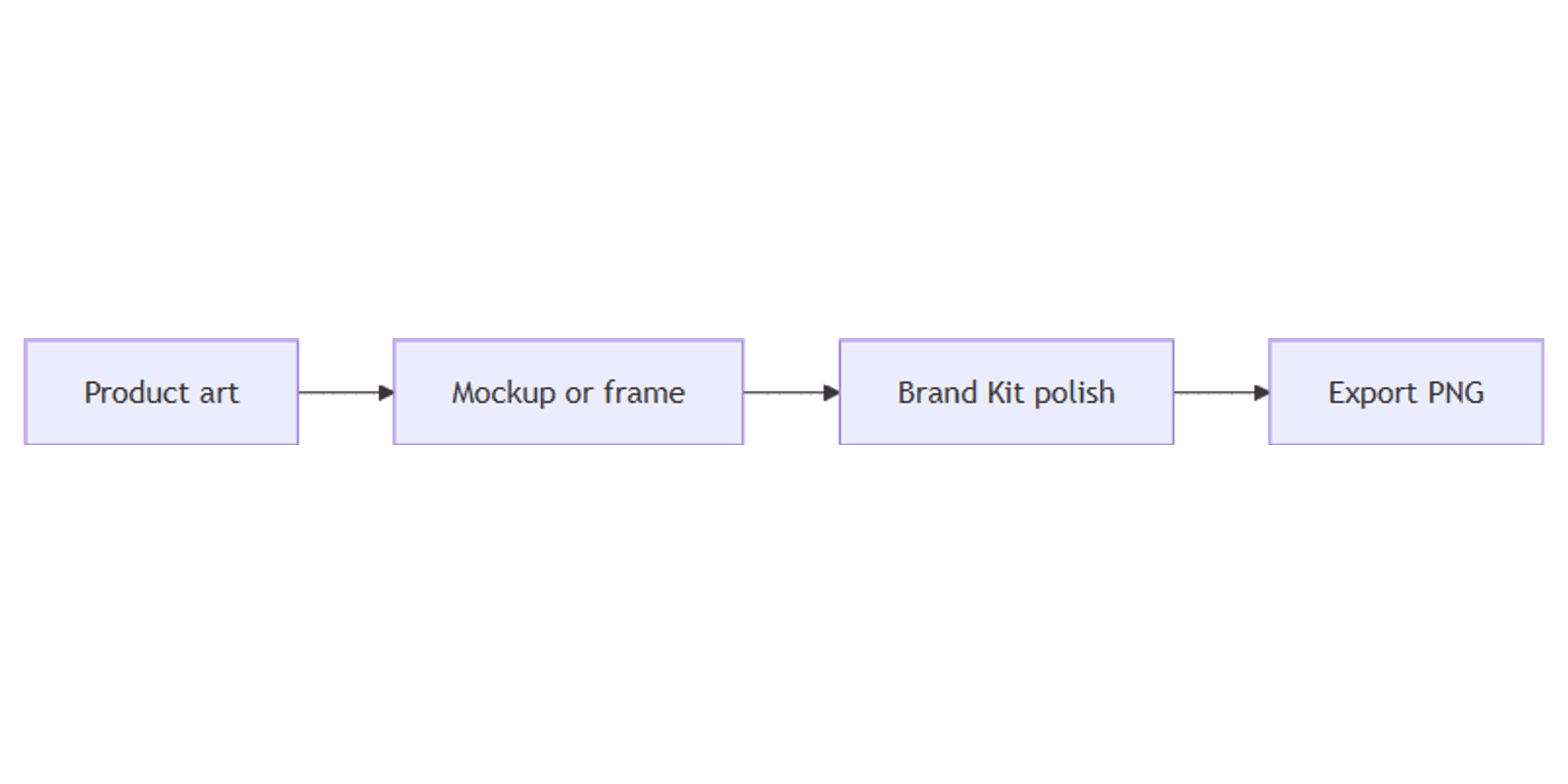
Practical product mockup workflow
- Finalize the flat design (label, tee print, UI screen).
- Lock brand colors/fonts in Brand Kit.
- Place the art into an Elements mockup or frame scene.
- Export PNG (transparent when needed via transparent PNG).
- Drop comps into presentations for client approval.
- Optional: package polished scenes with Canva frame mockups when you need a reusable mockup set.
Tips
- Flat, well-lit product photos mock better than cluttered lifestyle shots for custom templates.
- Design at the print/safe size first - then mock up, not the reverse.
- Keep a transparent master of logos for every scene.
- One product per focus frame when selling - avoid competing hero objects.
- Export high resolution for storefront zoom.
FAQ
Where do I find mockups in Canva?
Elements → Mockups, or the Mockups app when editing a photo (Canva Help).
Are frames the same as mockups?
Not exactly. Frames are general placeholders; mockups are product scenes (often with smart surfaces). You can combine both.
Can I export with a transparent background?
PNG transparent download is a Pro-family feature when available - see transparent PNG.
Do I need Brand Kit?
Not required to drop art into a mockup, but Brand Kit keeps colors and logos consistent across every scene (Brand Kit).
Conclusion
Build product mockups from Elements mockups or DIY frames, drop in Brand Kit assets, and export PNG (transparent when needed). Pair with transparent PNG, Brand Kit, Canva frame mockups, and presentations for client-ready comps.
Canva Templates
Start Selling Canva Templates - Start Now!